Connecting to Gestan Cloud
For Windows, Remote Desktop (RDP) connection details are outlined on the Gestan Cloud Vademecum page.
This page explains how to connect via Remote Desktop when using other operating systems.
Connecting via an RDP client is faster than connecting to Gestan through your preferred web browser.
📍 If you experience issues, check that your antivirus or firewall is not blocking the HTTPS port used by Gestan (8933).
Connection Methods
Via an RDP client for Mac
First, you need to install the RDP client on your Mac. You can find it on the App Store; it is named “Windows App” (formerly Microsoft Remote Desktop).

On this screen, click the Get button.

On this screen, select Add PC.

Configure the settings as shown below, specifying: * PC Name: The server name provided by the Gestan Cloud service, followed by the port number. For example, if you are on server 3, enter cloud3.gestan.fr followed by 8933 (placing a colon between them). * Credential: select Add credentials

On the Add credential screen, enter:
- User Name: GESCLOUD, followed by a backslash (on Mac: Alt + Shift + “/”), then your server user code (three letters, a hyphen, three letters) provided by the Gestan Cloud service
- Password: your password
📍Depending on the server, you may need to specify the GESCLOUD domain before the username. In this case, it would look like GESCLOUD\UDL-YCS
General Tab

Configure as shown above.
Display Tab

Configure as shown above.
Devices and Audio Tab

Configure as shown above.
Folders Tab

You can set up as many shortcuts as you wish. This is very useful for accessing your Mac's directories directly from the server.
There are other RDP clients for Mac, for example:
- and also 2X Client. </pane>
<pane id=“tab3-bar”>
On an Android tablet
On an Android tablet:
- Download an RDP client such as 2xClient or PocketCloud.
- Use the Cloud connection settings provided by Gestan Cloud support (host: cloud[x].gestan.fr, account and password, domain: gescloud, port: 3983).
On a phone
Install the “Remote Desktop” RDP client on your phone; you can find it on the Play Store.
To configure it, proceed as follows, entering:
- PC name: server domain name (e.g., cloud6.gestan.fr:3983)
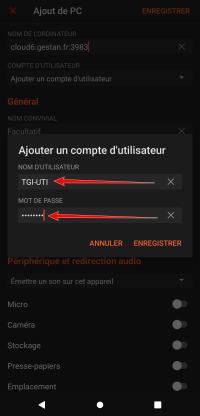
- User account: your login code (e.g., TGI-UTI). Depending on the server, you may need to specify the GESCLOUD domain before the username. In this case, it would be GESCLOUD\TGI-UTI.
- Password: your login password
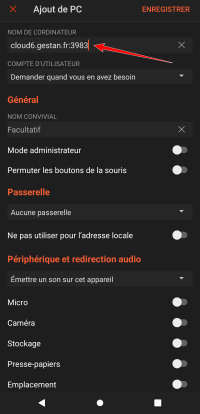
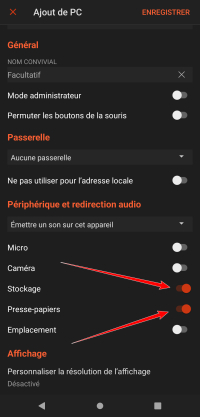
The RDP client allows you to access your files on your mobile device. To do this, remember to use the storage options as shown below.
After clicking “Add PC,” you can enter the PC name, user account, and password by selecting the option to add a user.
Enable storage and clipboard sharing for a better user experience.
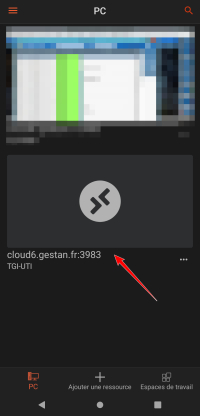
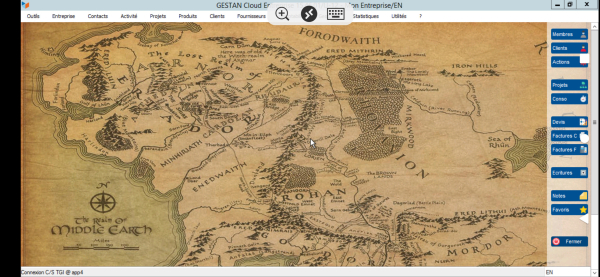
You can then launch your Gestan Cloud by clicking the icon on your computer
ℹ️ Other “Cloud” articles