Ceci est une ancienne révision du document !
SUIVCOM: Order Tracking * *
 A1 update in progress.
Overview
SUIVCOM enables order tracking via stages that can be configured by the user.
Typically, this is a screen for monitoring workshop production through order tracking.
Initial configuration
Stage labels
Access: Tools → Administration → Customisable labels
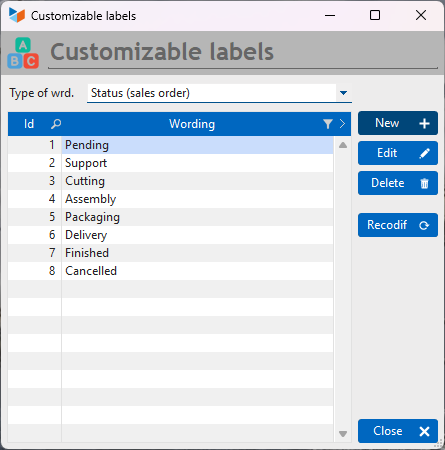
Select Status (Customer order) from the label type dropdown and enter your stages.
Extension settings
Access: Tools → Application settings → Extension settings → Order tracking
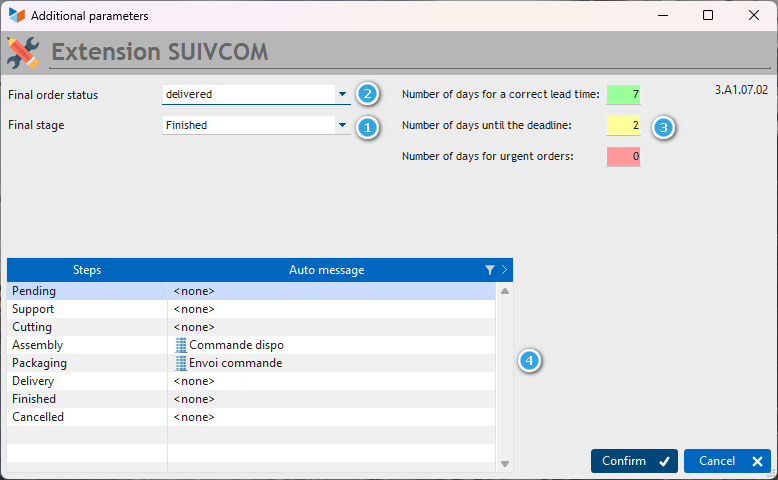
The final stage 1 refers to the stage at which your order should no longer appear in the tracking list.
The final order status 2 indicates the status your order will take on once the final stage is reached.
If the Delivery Date on the order is specified, you can set a number of days 3 representing the time between the current date and the Delivery Date.
It will then be visible on your order list via a colour indicator:
- correct = green
- caution = yellow
- urgent = red
Suivcom allows you to set up standard messages to be sent for each of your stages 4.
How it works
Suivcom works very simply: when a production stage is complete, click on the next arrow and your order will move to the next stage. Conversely, the previous arrow allows you to return to the previous stage if necessary.
The envelope icon opens a window to send an email with the standard message configured for the current stage.
You can filter orders based on the user assigned to the order, the current stage of the order, or the machine linked to the order.
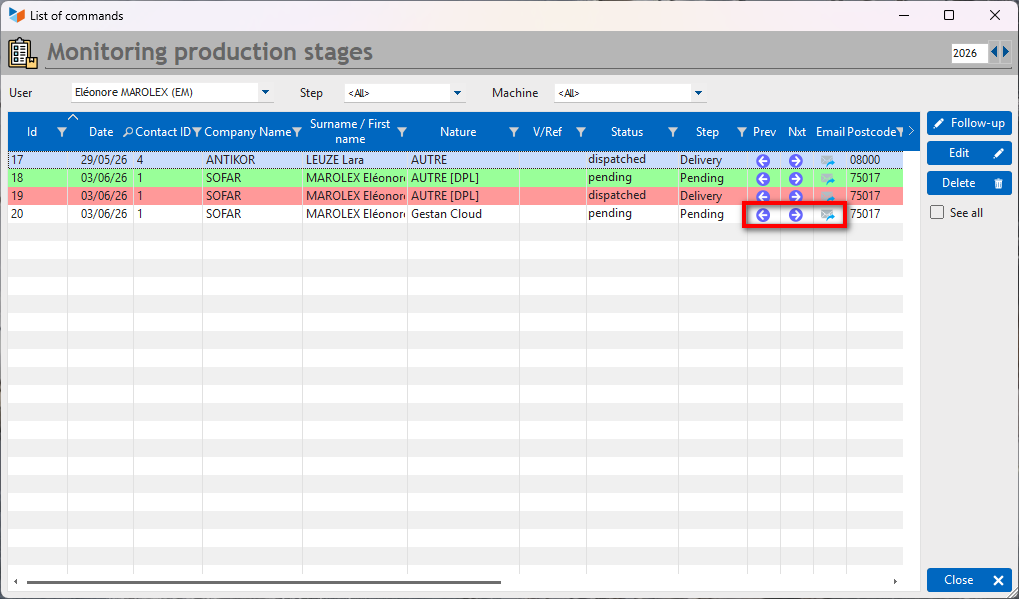
The View All button displays all orders, including those that have been completed.
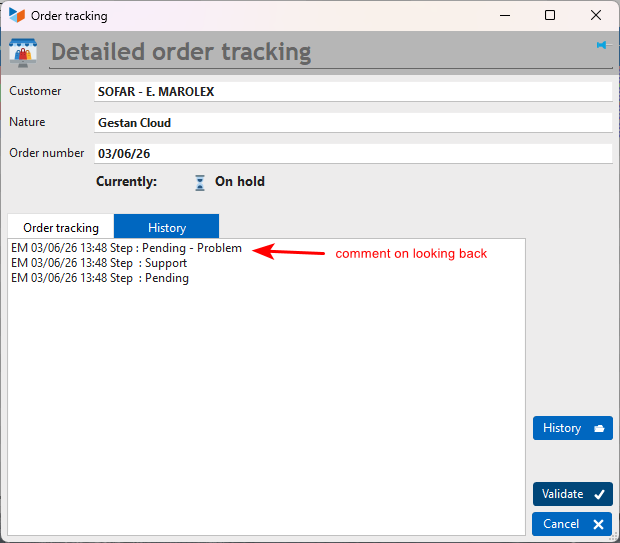
Every stage change is recorded in the order history; you can view this history by clicking the Tracking button.
 When a user wishes to go back a step, they will be asked to comment on their return, which will be recorded in the order history just like stage changes.
Usage & Tips
It is important here to clearly distinguish between the order’s status and its stages. If the extension is configured incorrectly, going through all the stages will not change the status, and you will then need to modify it in the cdesuividetail.
If you wish to send a specific email for each stage, do not forget to create your Typical messages.
If your order line appears without colour despite having set the number of days’ delay, then you have probably not entered the delivery date (Customer orders).
Versions
| Version | Date | Description |
|---|---|---|
| A1.07.02 | 03/06/26 | Migration to A1 format |
| 15.40.00 | 22/02/23 | Added data to the table, added a context menu to the table, various improvements |
| 15.39.00 | 22/11/07 | First version |
 Other ‘Extensions’ articles
CAISSETACT Caisse tactile (Utilisation)
CARNEDBOR : Carnet de bord véhicule
CERFA : Génération de CERFAs
CHRONSTAT : Séries statistiques liées au temps
COMMISSIONSCO : Commissions commerciales
CYBERBANQUE : Intégration fichiers bancaires
DEV : Développements (informatiques)
DRM : Déclaration Récapitulative Mensuelle
ETATSPE_ICS : États spécifiques
ETIQSPE_ICS : Étiquettes spécifiques
ETIQUEXPED : Etiquettes d'expédition
FACTURETTE : Génération de facturettes
Fiche d'intervention spécifique 01
INTEROR : ordres de réparation (OR)
INTERWEB : Gestion web des interventions
OBJVENTE : Objectifs de vente
PREPBON : Bons de préparation
PROPALE : génération de propositions commerciales *
PROSPECTS : Gestion des prospects
PROSTEP : Étapes de prospection
RELAUTO : Relance automatique de facture en masse
SAVTICKET: Tickets de SAV
SCAN : Scanner un code barre
SIGNATURE : signature électronique des devis
SMS: Envoyer des SMS avec Gestan
SUIVCOM : Suivi des commandes
URSSAF: Avance de crédit d'impôts
WISHLIST : Liste de courses
WOOCOMMERCE Commerce en ligne