General settings: Miscellaneous
 A1 proofreading not yet effective for this page. In the meantime, you can ask any questions on the forum.
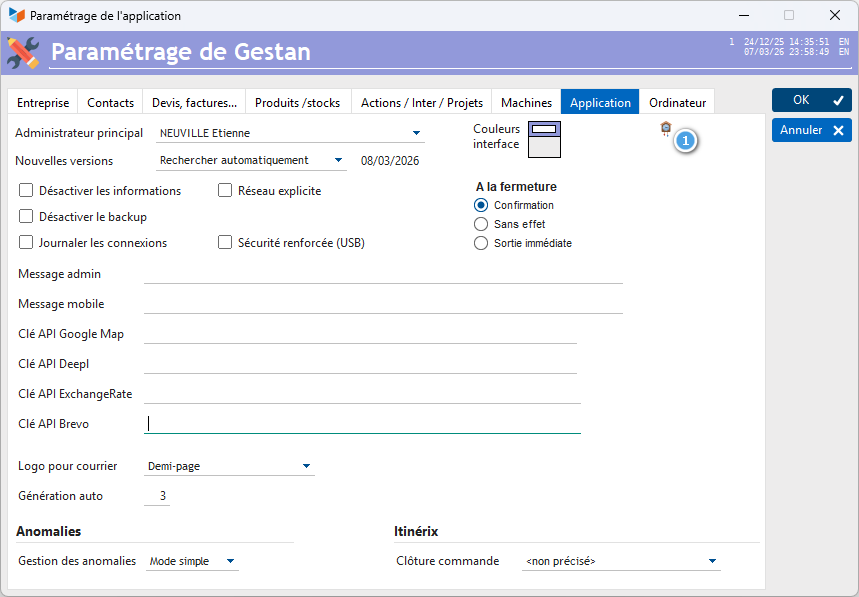
The New versions drop-down list allows you to regularly search for new versions. If a new version is detected, you will be offered to install it. Right next to the list, Gestan displays the date it was last checked.
The hello button 1 allows you to add one or more alarms. At the appointed time, your computer will make a cuckoo sound. Irresistible ! (for the record, it was added because of Jérôme. Indeed, in hypoglycemia from 12:30 p.m., he signals to the whole team that it is time to think about lunch, in a very reliable and very imperative way. But when he's not at the office, we sometimes forget our break time!)
Disable information: allows you not to display information concerning Gestan, such as the availability of a new version.
Disable backup: allows you to deactivate Gestan's monthly backup function. You can safely deactivate it if you also back up Gestan's working directories.
Log Connections: By checking this box, Gestan's operations log will record who connects to Gestan.
Explicit network: allows you to systematically refuse the connection of any machine not referenced in the database. If the box is not checked, an unknown machine connecting to the base will have its MAC address added to the network machines file. If this box is checked, if the machine has never been referenced, the connection will be prohibited. This makes it possible to restrict the use of Gestan to a certain number of identified physical machines.
Display the logo on plain backgrounds allows you to display the company logo on the Gestan home screen, if it simply consists of a color. This option allows you to improve response times in TSE or Cloud, when connections are of poor quality: in fact, instead of loading a huge wallpaper image, very pretty but very heavy, it just displays the logo of the company, just so that the background is less austere!
Enhanced security allows you to force writes to files on each write. Be careful, this option slows down operation. Use only on the recommendation of technical support.
You can choose the behavior of Gestan When closing the program via the Escape key:
- or Confirmation, in this case the Escape key opens a pop-up asking to confirm the closure request
- or Without effect, in this case the Escape key has no effect
- or Immediate, in this case the Escape key closes Gestan immediately.
Admin message allows you to display a label on the Gestan home screen, for example “Shopkeeper's departure drink today 6 p.m. Murat room!”. You can also display a pop-up admin message when opening Gestan. In this case, you must enter a message respecting the following coding: #INFOADMIN|level|delay>Message, in which level is an integer from 1 to 4 (from less to more important), and delay an integer from 0 to 999, the number of seconds the popup is displayed before being able to do OK. For example :
#INFOADMIN|1|7>So, everything is working?!
Google map API key: the geolocation maps displayed by Gestan use Google services. In June 2016, Google recommended using this key. Then Google imposed it. And in 2018, this free service became paid… Enter your personal API key here to use Google Map services.
The Logo for mail combo allows you to specify the logo to use for the mail that you generate with Gestan.
Application colors: you can color the Gestan screens as you want. Right-clicking on this area allows you to choose a few standard color models, if you don't feel like an artist  .
.
HTTP Proxy / Port: allows you to specify the IP and port you use, in the case of using a proxy for web access. This is a security measure that we recommend (we use it for the Gestan Cloud service).
Note: To generate an API key for the Google Map service
You must generate this key in the Google Developer Console (https://console.developers.google.com).
The operations to be carried out are as follows (at the date of writing of this page):
- Use a Google account to sign in to the developer console.
- Create a project if necessary.
- Go to the project's “API Manager”.
- In the “Google Maps API” section, click on the “Google Maps JavaScript API” link.
- Click “Enable” to enable the Google Maps Javascript API.
- In the “Credentials” section, expand the “Create identifiers” button.
- Select “API Key”.
- select “Server key”. It is recommended to specify the address that will use the key for tracking requests and to avoid any spoofing (while we're on the subject, if your website uses Google maps, select “Browser key”. It is recommended to specify the domain that will use the key for tracking requests and to prevent spoofing.)
- Validate the creation of the key, then copy the key created by Google, and report it in Gestan (general settings)
 Other articles “General settings”