Table des matières
General settings: Products/Stocks
 A1 proofreading not yet effective for this page. In the meantime, you can ask any questions on the forum.
In this general settings tab are grouped:
- product management settings
- inventory management settings
Product management
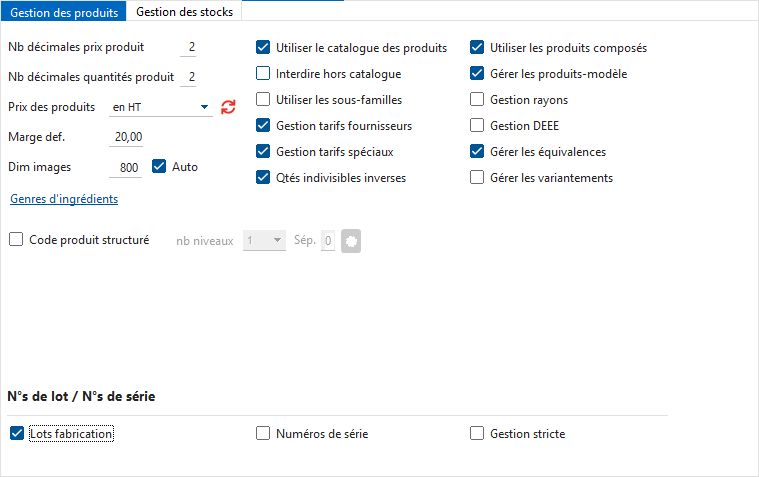
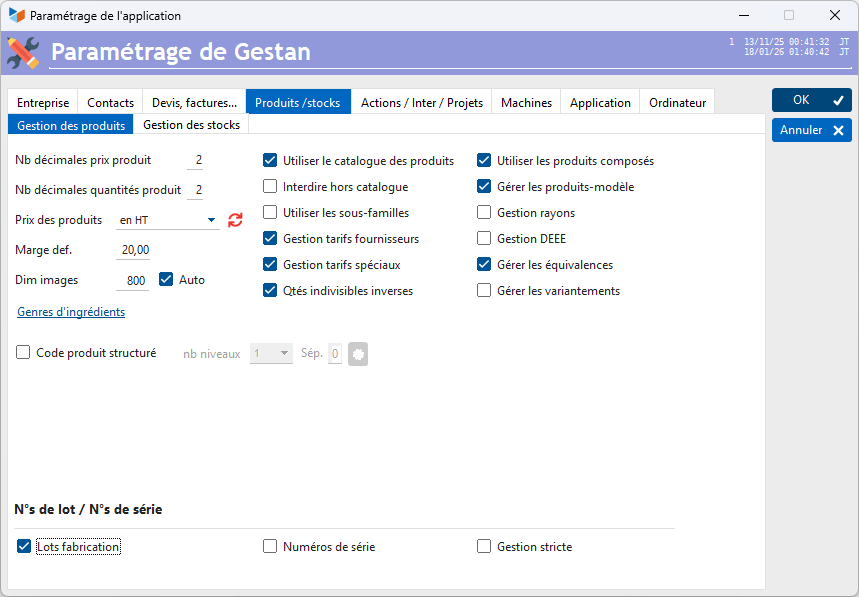
The No. of decimal places product price field allows you to specify the number of decimal places in which the price of the products must be processed, while the field NB Decimal places product quantity allows you to choose the number of decimal places with which the quantities of product must be expressed.
The product prices combo allows you to specify an option for managing price rounding. Indeed, if you enter a price excluding tax, the price including tax will be calculated with decimal places that you will not see, and vice versa. This allows for consistent entry of product prices, and makes it easier to detect a rounding error - see the help of the product sheet for more information. details)
In interventions and projects, products are considered ingredients. The Type of ingredients button allows you to assign a type to them.
The Default Margin is used to calculate the selling price from the purchase price, in product creation. It is also used in the case of updating supplier prices (purchase margin: if a product is purchased for 10 and the margin objective is 20, the sales price will be 12).
Dim images allows you to specify a maximum size for the images in your product catalog: no need to put a 5 GB image to represent a 13 bolt! If the Auto box is checked, the resizing will be automatic, otherwise a dialog box will allow you to make a choice on a case-by-case basis.
Check the Use product catalog box if you have a product catalog with prices. When you make a quote or an invoice, you can choose from your catalog to populate the invoice lines. If you do not use one (for example a liberal profession which only sells intellectual services on a contract basis or on a fixed price basis), you can uncheck it: you will then only have to choose between product families.
If the Prohibit non-catalogue box is not checked, it will not be prohibited to save non-catalog products in any room.
Check the Use subfamilies box if you have a very large product catalog. In this case, it will certainly be useful for you to be able to classify the products into families and subfamilies.
The Management of special rates box allows you to define specific rates, applying to a group of customers. For example, you can say that for this group, you apply a discount of 12% on this product family from so much to so from a purchase amount of so much.
The Department management box allows you to specify a department for each product. Currently, this is just for information.
The Nomenclature management box allows you to activate help with structured coding of product codes. Your product nomenclature can for example - let's imagine that you sell bottles - use three letters to determine a region, a letter to determine a color followed by another letter to characterize the sparkling or still side, followed by two vintage numbers, this which would give a product code like CHAMP-BP-2012 to designate a 2012 champagne.
The Supplier price management box allows you to declare several prices for the same product, depending on the product's suppliers.
The WEEE Management box concerns Waste Electrical and Electronic Equipment (WEEE), this tax, a little technocratic marvel invented by French civil servants to make life easier for people who work, in order to manage sums of the order of a few euros on invoices representing thousands. To make things easier, it is also called “ecotax”, “eco-contribution” or “eco-participation”, a little green-washing never hurts (be careful, not eco-nonsense). In polished language, it is, once again, about copulating with hymenoptera. This seems to be the equivalent of the Swiss TAR.
A composite product is a product made up of several (simple) products from the catalog. For example, a rearview mirror (composite product) could be made up of a shell (simple product), a glass (simple product), and three special screws (simple product). If you are invoicing a composite product, you will only have one line on your invoice, “Rearview mirror”.
The model product is a grouping of simple products, invoiced separately. For example, if you invoiced the “Rearview Mirror” below as a model product, you would have three lines on the invoice: “shell”, “glass”, “special screw” (and no “Rearview Mirror” line).
Manage manufacturing batches will allow, for a product, to link it to a manufacturing batch with characteristics such as the manufacturing date, the DDM, the DLC, the number of units, the terminals of the number of series, etc.
Manage equivalences allows you to save products as equivalences of other products. In the event of unavailability in stock, or for any other reason, product A may be replaced by product B.
Inventory management
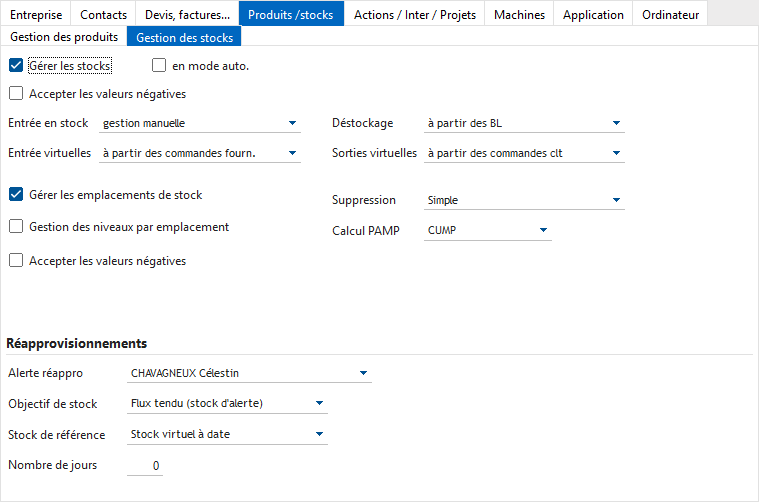
You can Manage stocks, in automatic mode, that is to say that destocking and stock entries will be carried out with a single click on the Stock IN or Stock OUT buttons, with all the values by default: stock entry or exit movements will be generated for the total quantities of all product lines with managed stocks, with a standard label for these movements.
In contrast, if this box in automatic mode is not checked, an intermediate screen will allow more detailed management of stock movements corresponding to the part concerned (depending on the options chosen for “Destocking” and “Entry into stock”). “). If you want to manage backorders, it is best not to check this option.
The PAMP calculation combo specifies the method for calculating the weighted average purchase price (PAMP). PAMP is used for calculating inventory valuation, generally for accounting reasons. The available methods are described on this page.
Via the Stock deletion type combo, it is possible to specify the entries made in the stock movement file, in the event of deletion:
- for simple deletion, the stock movement will simply be deleted
- in reversal, the reverse movement will be generated, without deletion of the initial movement. For example, if you want to delete an inbound stock movement of 3 bottles, it is actually a reversal outbound stock movement of 3 bottles that will be created.
- it is possible to opt for a reversal option with a delete button available for Gestan administrators
- finally, it is possible to opt for an option making the two buttons (deletion and reversal) available to all users.
The Entry into stock drop-down list allows you to specify from which parts you want to manage entry into stock: supplier orders, supplier invoices, or receipt notes. This is often from receipt slips. If this option is chosen, a “Stock IN” button will be displayed on the list of receipts, allowing the entry into stock to be recorded, manually or automatically. You can also choose the 100% manual option: in this case, you will have to record stock movements “by hand”.
Conversely, the Clearance drop-down list allows you to specify from which parts you want to manage clearance: orders, invoices, or BL. For example, if you choose “invoice”, this means that you consider that the destocking must be done at the same time as the processing of the invoice. In this case, the list of invoices will display a “Stock Out” button. You can also choose the 100% manual option.
The other two combos Virtual Inputs and Virtual Outputs are used to describe from which sources the virtual stock (also called potential stock) must be calculated. For example, if you have a stock of 100 bottles, but one of your customers ordered 20 from you, while you issued a supplier order for 40 bottles, your actual stock is 100, but your potential stock is 120 (real stock + virtual inputs - virtual outputs.)
The Manage stock locations box allows, if checked, to enter a stock location for each incoming or outgoing stock movement (not available if inventory management in simple mode).
The Management of levels by location check box allows, if checked, to manage stocks not globally, but not by location (for example, you will know that you have three red binders in stock in the AA cabinet , two in cabinet BB, and 4 in cabinet CC, plus knowing you have nine in total).
It is possible to specify the user who will receive restocking alerts.
Settings for replenishment
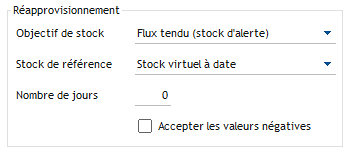
Gestan can automatically generate a price request and/or a supplier order, taking into account a stock objective and a reference quantity.
The Stock objective drop-down list allows you to choose between:
- Just-in-time flow: the objective is to have in stock a quantity between the maximum stock and the alternating stock
- Super-tense flow: the objective is to have in stock a quantity between the maximum stock and the safety stock
- Max stock: the objective is to have the maximum stock
Most commonly, the stock objective is the alert stock: this is just-in-time management, where you want the physical stock stored in your company to be as low as possible, without the risk of breakage is too high.
The Reference stock drop-down list allows you to choose between:
- Virtual stock to date
- Total virtual stock
- Actual stock
The reference stock is most often the virtual stock to date (in this case, it will be necessary to specify a number of days for this calculation): that is to say that the replenishment quantities will be calculated to reach the stock objective, taking into account virtual entries and exits, i.e. supplier orders which have been issued and whose delivery is planned before the specified date, and customer orders which you have not yet honoured, that you must honor by the specified date.
 Other articles “General settings”