Products
Products are those that you sell or buy. These can be goods or services.
They are grouped into families and possibly subfamilies.
There are three types of products:
- simple products
- products composed of simple products, called works in the building sector. For example, you can declare a product “Door”, which would be composed of 1 door unit, 3 hinges, 1 lock, and 3 hours of labor for installation. On the quote or invoice, only one line will be displayed, “Door”.
- the model products. These are products that are sold together. For example, you can declare a product model “Basic kit”, with hammer, three screwdrivers and a wrench. When billing, there will be three lines on the invoice.
List of products
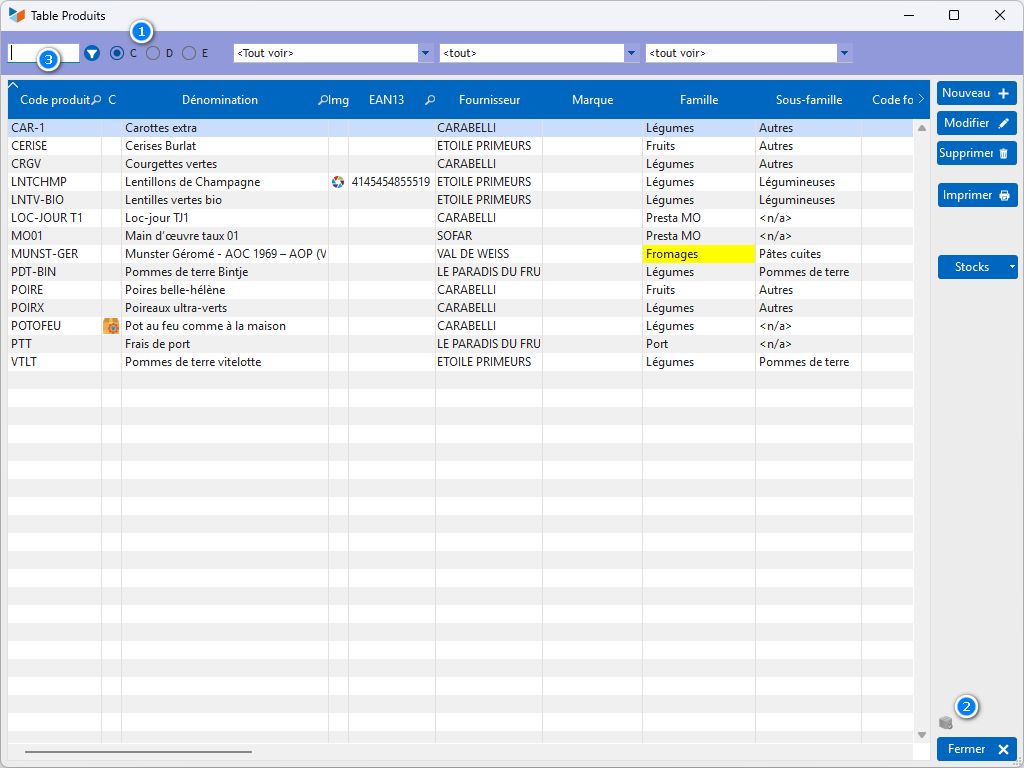
The 1 selector allows you to search by Cproduct code, Dname, or EAN13 code.
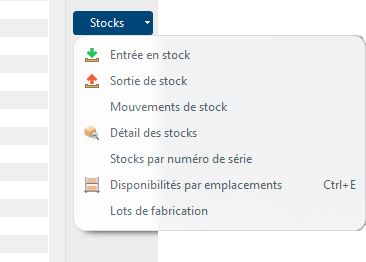
The Stocks button displays the stock management menus, if you manage them.
The 2 pictogram allows you to display, or not, the products in stock if you manage them.
 If you select a family or sub-family, these will be supplied by default for the creation of a new product. Same for suppliers
Search filter context menu
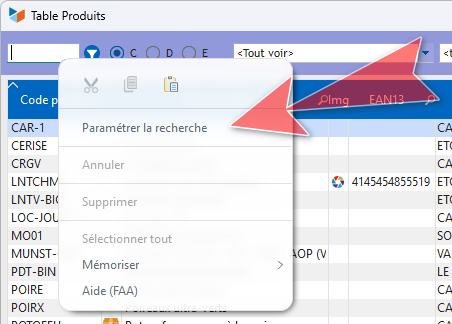
The Configure search option is available in the context menu of the filter area. It allows you to modify the display behavior in the event of a particularly large file.
Table context menu
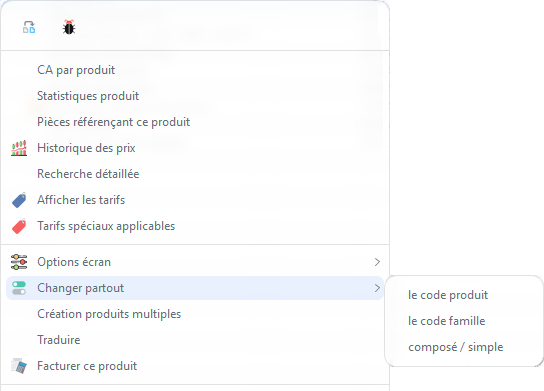
Multiple product creation allows you to create products by duplicating the selected product. Then all that remains is to modify it. This function is useful when you want to register products with different variants (e.g. electrical power, color, etc.)
Change everywhere allows you to modify the product code, its family/subfamily connection, and its type (compound/simple), and possibly report this change to the parts. For example, you had a product code CHAMP-BB that you invoiced to several customers and want to change this code to BLBL18, for example. This option allows you to modify the product code in the product file, and also to modify CHAMP-BB to BLBL18 in the invoices issued. If you decide not to make this modification in the parts, the CHAMP-BB product code will become “orphaned” (but the invoice will retain the information of the original product, in particular its supplier and its purchase price)
Invoice the product allows you to directly generate an invoice with this product, with the possibility of modifying the quantity and adding other products.
Product sheet
General Tab
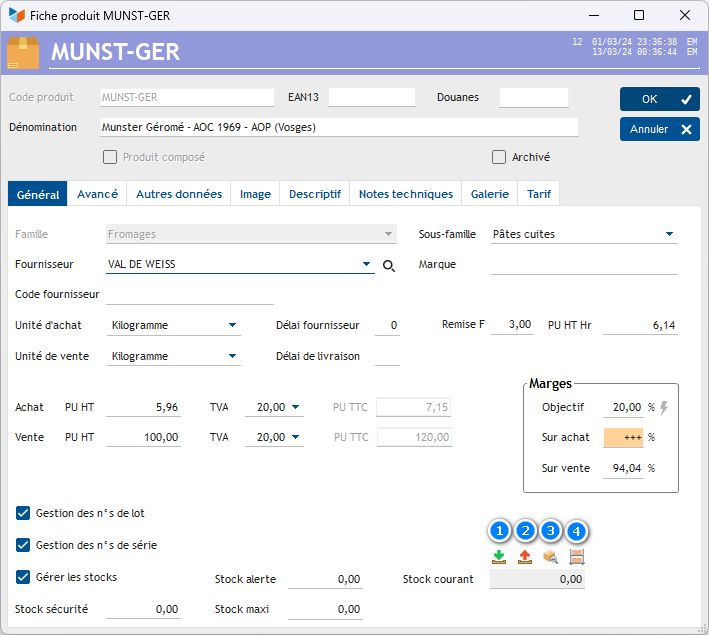
A product always has a product code, which is your personal coding. When modified, the product code or the connection to the product family can only be modified by the program accessible via the context menu of the product table.
You can indicate an EAN13 code, essential for working with barcodes. The context menu of the EAN13 code has an Automatic option allowing this code to be automatically supplied with a random EAN13, if it is not entered. You can optionally disconnect the EAN13 consistency check via the same context menu, so that you can optionally enter another code in this area.
The customs code will be essential if you are importing/exporting. In the European Union, it is theoretically 8 digits (“combined nomenclature”, or NC8 code), except in France, which uses a 9th digit and calls it “general product nomenclature” (NGP).
The products are linked to supplier companies: it is your company, when you produce them yourself, or your supplier's company, when you buy them elsewhere.
The supplier code is the code of this same product from your supplier, it may be identical to the product code, or different. When you register a sales order, your product code will be displayed, but when you issue a supplier order, it is the supplier code that will be printed.
The purchase unit may be different from the sale unit: for example, you can buy bottles in boxes of 6, and resell them individually. In this case, define a correspondence coefficient between the units to be able to correctly manage the stock (the stock is managed in sales units).
If you enter a purchase price, indicate the discounted price, if you have a discount from the supplier (you can indicate the purchase price excluding discount in the PU HT hr field, and the supplier discount rate in zone Discount F).
When creating a product, the VAT rates are supplied with the default rate. If the VAT rate is not the default rate, the area is colored to let you know.
The VAT rate for sales is the one that will be entered by default when you establish a quote, an invoice or any other customer document, unless the customer's VAT regime imposes another rate. The same goes for the purchase VAT rate, for supplier parts.
When purchase price and sale price are specified, Gestan calculates your margin rate:
- on purchase (margin rate, margin share in the purchase price) = (Sales price excluding tax - Purchase price excluding tax) / Purchase price excluding tax x 100.
- on sale (brand rate, margin share in the sale price) = (Sales price excluding tax - Purchase price excluding tax) / Sales price excluding tax x 100.
You can specify a margin Objective (in creation, it is indicated by the default product margin rate - see general parameters). The selling price is then recalculated to meet your objective.
Inventory management
If you manage stocks, the Manage stocks box allows you to declare that, for the product, stocks are managed. In this case, it is possible to specify:
- the alert stock: level below which the procedure planned for replenishment must be launched.
- the safety stock: level below which you should never go, unless there is a problem during the replenishment procedure
- the maxi stock: your maximum storage capacity.
The current stock is the stock theoretically physically present in your stock. The 1 button allows you to enter a stock entry, 2 an output, 3 to display stock information, and 4 to check the availability of locations, if you manage stock locations.
If you manage stock levels by location, the values of alert stock, safety stock, maximum stock are grayed out: these values must be entered on the management screen levels by locations.
WEEE tax management
In France, the tax on WEEE, also called “ecotax”, “eco-contribution” or “eco-participation”, following the usual practices of green-washing, complicates the elements of the bill.
An EEE is Electrical and Electronic Equipment, powered by batteries or mains, household or professional. And WEEE (or WEEE) is Waste Electrical and Electronic Equipment. The regulations require their collection and recycling to be put in place, which is always very hypothetical, while the tax which is supposed to finance it is very real. Its equivalent in Switzerland is TAR.
On the customer side, WEEE is part of the sales price, contributes to VAT, but does not participate in discounts (if you make a discount on the price, the WEEE tax is not discounted). The WEEE tax is considered a purchase of a service, therefore subject to VAT.
For the calculation, this will give:
(sales price excluding VAT * VAT rate) + (ecotax * VAT rate) = price to be paid by the buyer
And in case of discount:
((sale price excluding VAT discount) * VAT rate) + (ecotax * VAT rate) = discounted price to be paid by the buyer
On the supplier side, it is not part of the price.
This tax, inserting an additional level of complexity for a ridiculously weak goal, to recover a few fractions of euros, induces costs at all levels: IT, training, accounting, verification, which are obviously not assumed by the generators of these costs, in this case the legislator, who thus, through this complex process, degrades economic performance. This is the typical example of examples not to follow.
Advanced Tab
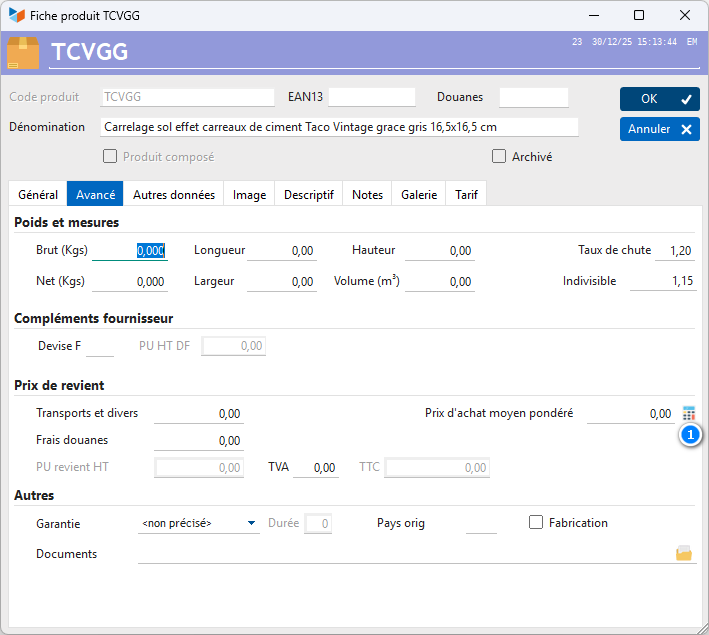
The weighted average purchase price is enterable. You can also calculate it using the 1 button: in this case, Gestan calculates the PAMP from all supplier invoices containing this product.
It is possible to force the entry of additional information using a product Configurator. For example, if you use the “EAN13 / Serial number” configurator for the SANOVAX product, each time you select this product for a quote, an invoice, etc., an intermediate screen will allow you to enter (possibly using the hand shower). ) an EAN13 or a serial number, depending on the configurator settings (More information on product configurators).
The country of origin code is necessary for customs operations. Indicate it if you do import-export.
We can develop any type of configurator on request.
Other data tab
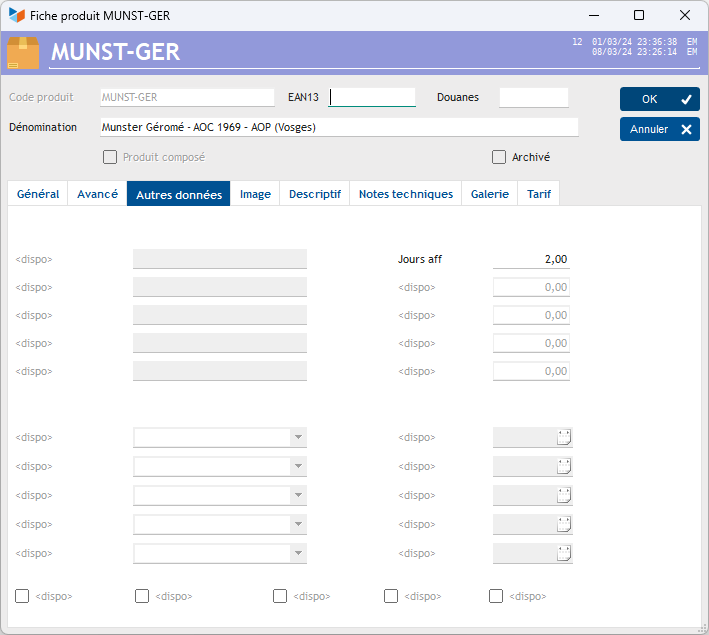
This tab is displayed when entering additional fields product.
Image Tab
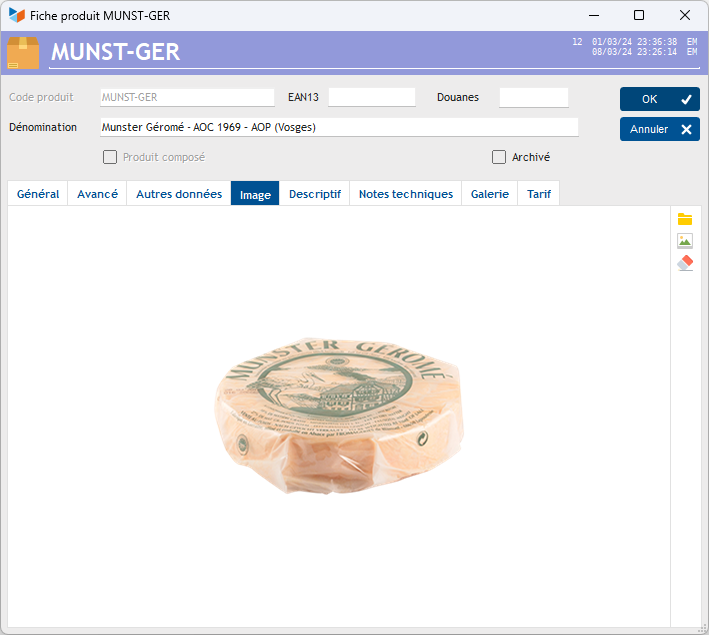
This tab allows you to store an image of the product.
Product images can be printed on quotes, invoices, etc.
Description Tab
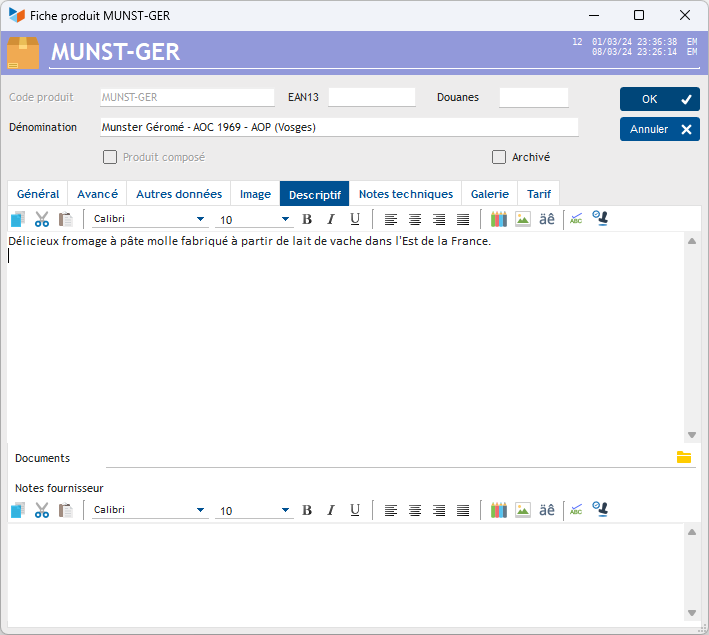
The Description area will complete the product description when you produce a customer part.
The Document field allows you to attach a document to the product, such as a PDF file, or a directory in which you will store a set of produced documents, or even a URL (see context menu of this field)
The Supplier notes area will complete the product description when you produce a supplier part.
Technical Notes Tab
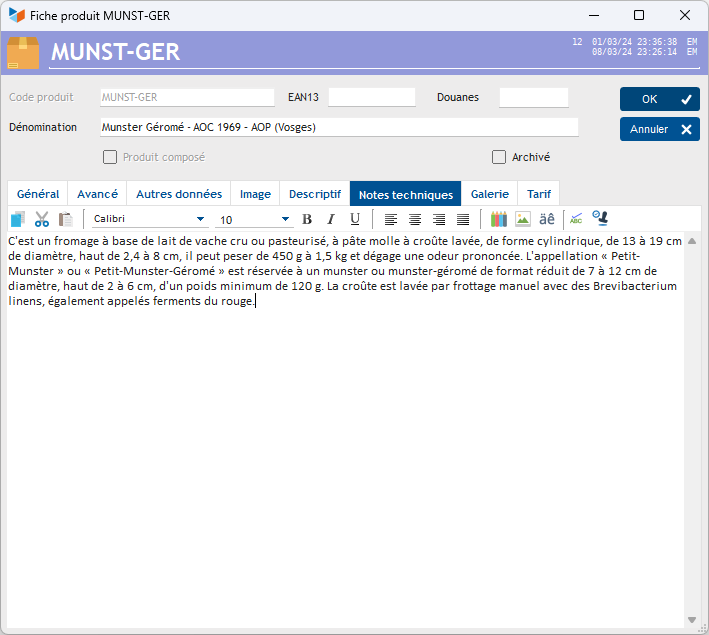
This tab allows you to store technical notes about the product, for your own use.
Gallery Tab
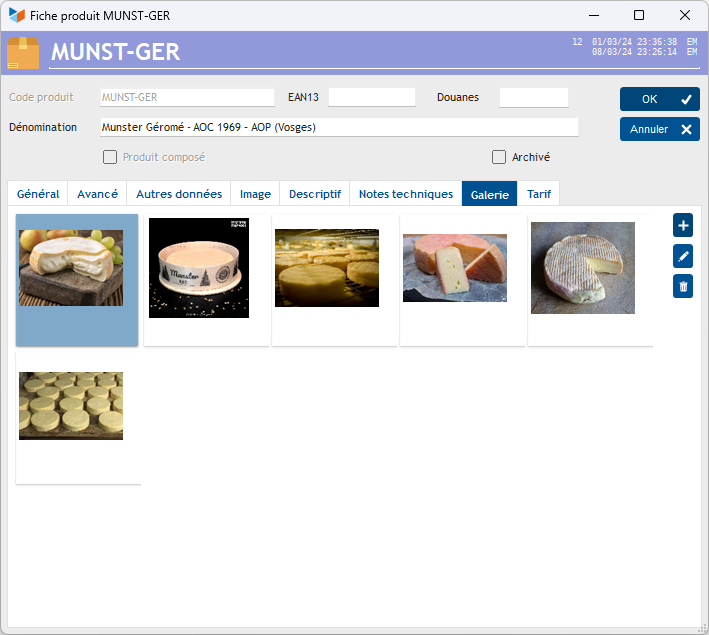
This tab allows you to store images and pdf files, without limitation.
Price tab
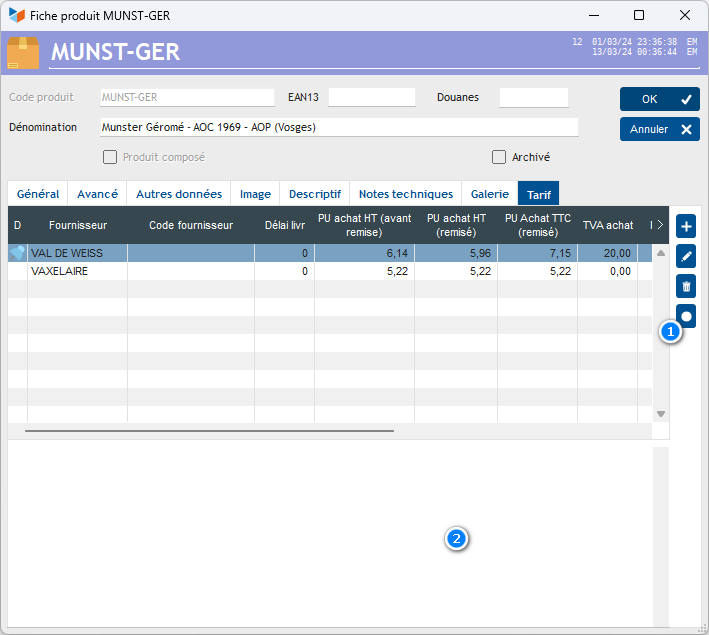
Gestan can store different supplier prices for the same product.
The 1 button allows you to declare the selected rate as the default rate.
The 2 area displays the supplier notes of the selected supplier.
Composition tab
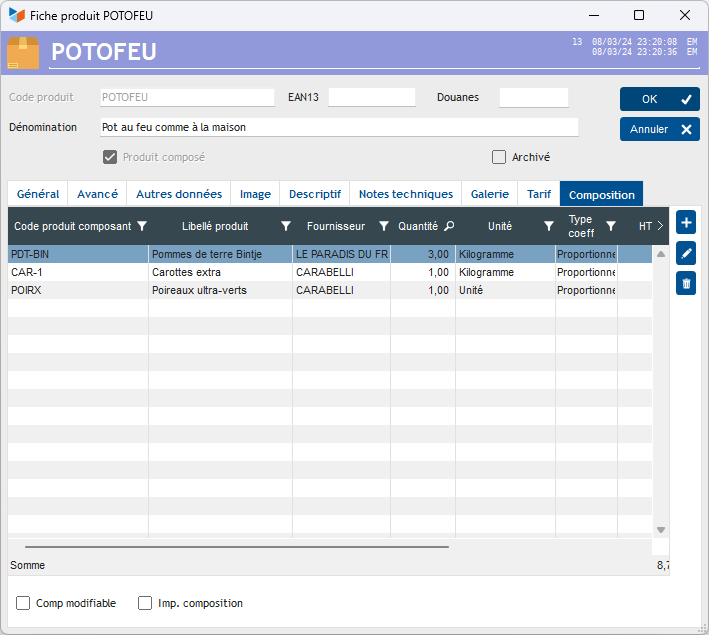
If you had declared the product as being a compound product, this tab allows you to update the composition of the product.
The Comp editable box will allow, once the quote, invoice, etc. established, to modify the initial composition of the product.
If the Imp composition box is checked, then all the components of the composed product will be printed on the quote, invoice, etc.
Rounding of product prices: excluding tax or including tax
You can enter a sales price excluding VAT or including VAT: if you enter a price excluding VAT, the price including VAT will be calculated by Gestan according to the applicable VAT rate.
But the effect is not the same, regarding rounding, when you enter the price excluding tax or including tax, Gestan memorizing all the calculated decimal places. This has an impact when calculating invoices and other documents: if you want to have “round” totals including tax, enter the final prices including tax, and vice versa. The tooltip displays the real price stored by Gestan.
The general parameter allows you to specify whether you wish to work in prices excluding VAT or including VAT, by requiring the entry of product prices excluding VAT or including VAT.
 Other “Products” articles