Conversion factors between units
This screen allows you to enter a conversion factor that applies between purchase units and sales units.
Using the screen
Access: Tools → Admin → Repository → Conversion factors between units
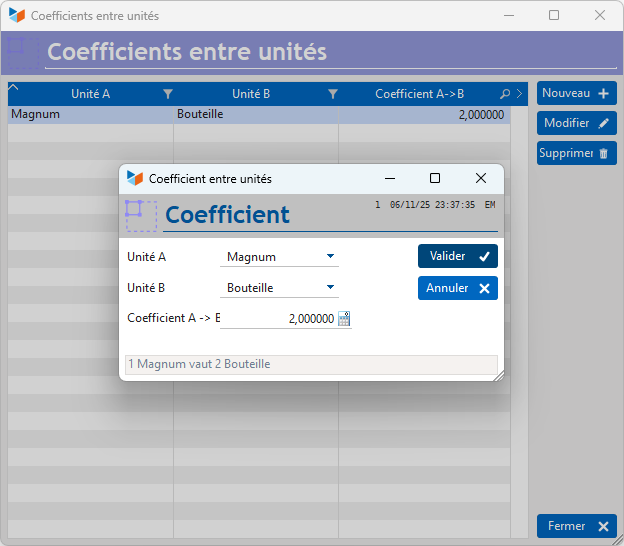
In the screen above, we have specified that one bottle is equivalent to two half-bottles, and that one Magnum is equivalent to two bottles. These conversion factors can be used to calculate a sales volume converted into bottles, for example.
These conversion factors are also used to calculate margins. Let’s imagine you buy yoghurts in packs of 12 and resell them individually: if you enter a purchase price per dozen and a selling price per unit, the margin calculation will be incorrect. Entering a conversion factor from a dozen to a single unit will ensure the calculation is correct.
EPAL pallets
It is possible to specify a correspondence between EPAL pallets and a particular packing configuration.
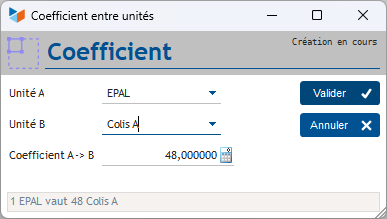
For example, you sell carrots in packages measuring 0.3 x 0.4 x 0.2, which you can palletise at 8 packages per layer across 6 layers without them being crushed. You will therefore be able to fit 48 packages per pallet.
Enter the mapping below between an EPAL unit (in capital letters) and the type of package in which you sell your carrots, in this case a “Package A”.
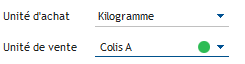
In the product record, you can, for example, specify a purchase unit in kilograms, a sales unit as ‘Package A’, and, if required, a 1:10 conversion between the two units (1 Package A = 10 kilograms).
In the Advanced tab, you can specify the dimensions and weight of Package A.

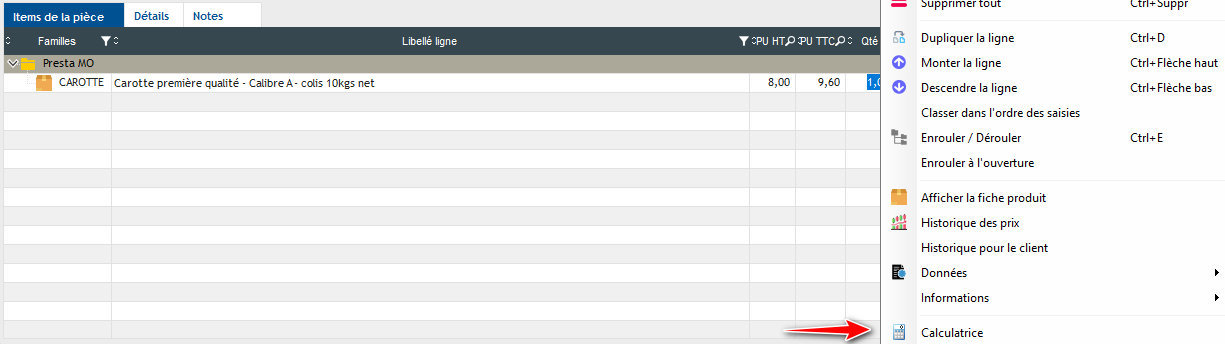
Let’s imagine a customer orders 550 kilos of carrots from you. You therefore create an order with a line item labelled “CARROTS”.
If necessary, right-click on the quantity to open the built-in calculator and work out 550 / 10, which equals 55 Packages A.
Then, with a single click, generate a delivery note to prepare the delivery (button Generatebutton).
The consignment note form will display the fields for entering the shipment details.
 You can manage packing information on all types of documents (not just consignment notes) by ticking the Packaging checkbox in the document settings.
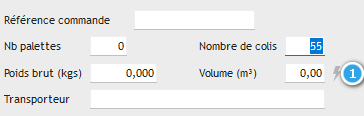
Simply enter the number of packages in the number of packagesfield – in this case, 55. Then click the 1.
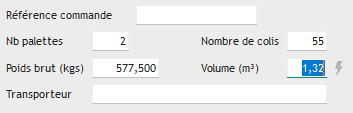
This button will calculate the total volume of the parcels, the gross weight of the consignment (excluding the weight of the pallets), and the number of pallets.
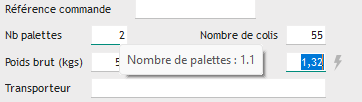
In this case, the number of pallets required is indeed 2.
The tooltip shows the calculated decimal figure: here, 55 parcels theoretically require 1.1 pallets. It is up to the logistics manager to decide whether to overload a single pallet or to use two pallets.
 Other “Reference” articles