Importing data into Gestan
Gestan offers a wide range of data import options:
- importing Importing data into Gestan text files (this programme);
- import of Import parts into Gestan documents (purchase or sales documents);
- import of Importer des lignes de pièce (écran dédié) document lines via the dedicated screen;
- import of Importer des lignes de pièce (tableur) document lines from a spreadsheet;
- import of Import a chart of accounts chart of accounts;
- import of Import supplier price supplier price lists;
- importing inventory data;
- import of translation of product descriptions;
- import of contracts, etc.
This programme allows to import or update data in bulk into Gestan from text files.
- When importing a file, the records read from the source file are created in the database. The source file must contain all mandatory fields. If a duplicate is created (for example, when creating a product that already exists in the database), the creation is rejected.
- When updating a file, the records in the database are updated with the data from the source file. The first column of the source file must contain the record ID in the database, with the other columns representing the fields to be updated. If the record is not found in the database (if the identifier from the source file is not found in the database), the update is rejected.
📍This programme is only accessible to users with administrative privileges.
⚠️As with all programmes that perform bulk updates, it is strongly recommended that you back up the database before use.
===== Using the ‘ =====’ screen Access: Tools → Administration → Data Import → Import text files
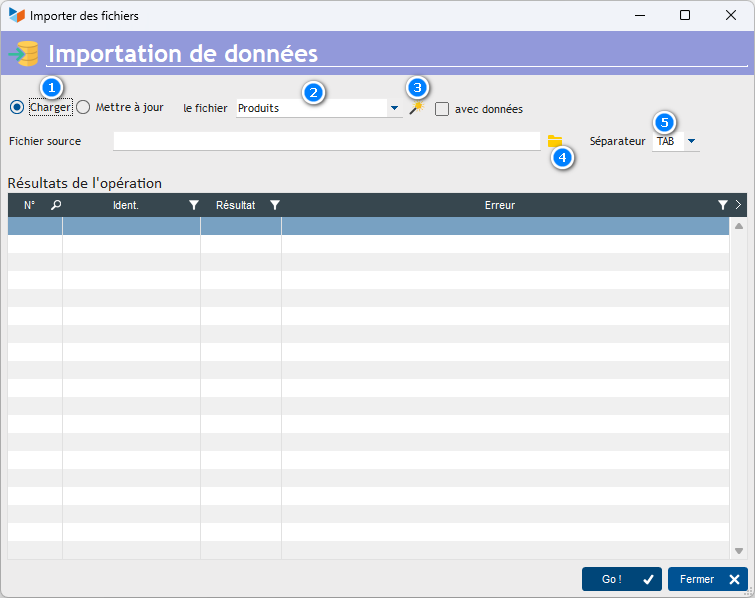
The radio button 1 allows you to specify whether you want to use the screen for file import or for updating.
The drop-down menu 2 allows you to specify the file to load:
- contacts
- products
- non-supplier companies
- supplier companies
- accounting entries
- stock movements
- children
- memberships
- payments
- equipment (resources, hire, maintenance)
- product families and sub-families
- labour hours (consumption)
- stock locations
In addition, you can update:
- contacts
- products
The magic wand 3 allows you to generate a sample file, ready for use. The tick box With data allows you to generate a sample file containing the data from the database: this makes it easy to retrieve the necessary identifiers.
The 4 allows you to select the file to be processed, whilst the drop-down menu 5 allows you to specify the separator used in the file to be processed (in CSV format, the separator is usually a semicolon, but can also be a TAB).
For importing companies:
- when you import non-supplier companies, the imported companies are not treated as suppliers to your organisation
- when you import supplier companies, the imported companies are treated as suppliers to your organisation, and a contact linked to that company – designated as the person responsible for orders – is created and linked to the imported company. This contact is created with the same name as the company’s registered name, which can be amended as required.
Input file format
The input file must be a text file with a separator (TAB, comma, semicolon, or any other character).
To create this, you can use a spreadsheet programme such as LibreOffice Calc or Microsoft Excel (remember to save the file in text format with a separator).
The first 5 lines of the input file will never be taken into account: these are lines describing the data to be entered.
- Line 1: field name
- Line 2: detailed description of the field, including coding instructions or consistency requirements with other files.
- Line 3: field type (text, numeric, integer, boolean (0 or 1) or memo (a large text field, such as a comment, for example).
- Line 4: indication of whether the field is mandatory or not
- Line 5: example value
Simply complete the sample file with the data to be added or amended, starting from line 6.
 You can indicate that a line is a comment by prefixing it with the character “#”.
You can insert line breaks in the “memo” columns by using the code <br> : this code will be replaced by a line break when the file is loaded.
You can indicate that a line is a comment by prefixing it with the character “#”.
You can insert line breaks in the “memo” columns by using the code <br> : this code will be replaced by a line break when the file is loaded.
The file generated by the file creation wizard is configured according to the settings of the current database, particularly with regard to any additional fields, which may or may not appear in the example file: it may not be usable with another database.
Do remember to save the file in text format! (Below is an example in LibreOffice. The CSV format is a text format with a delimiter.
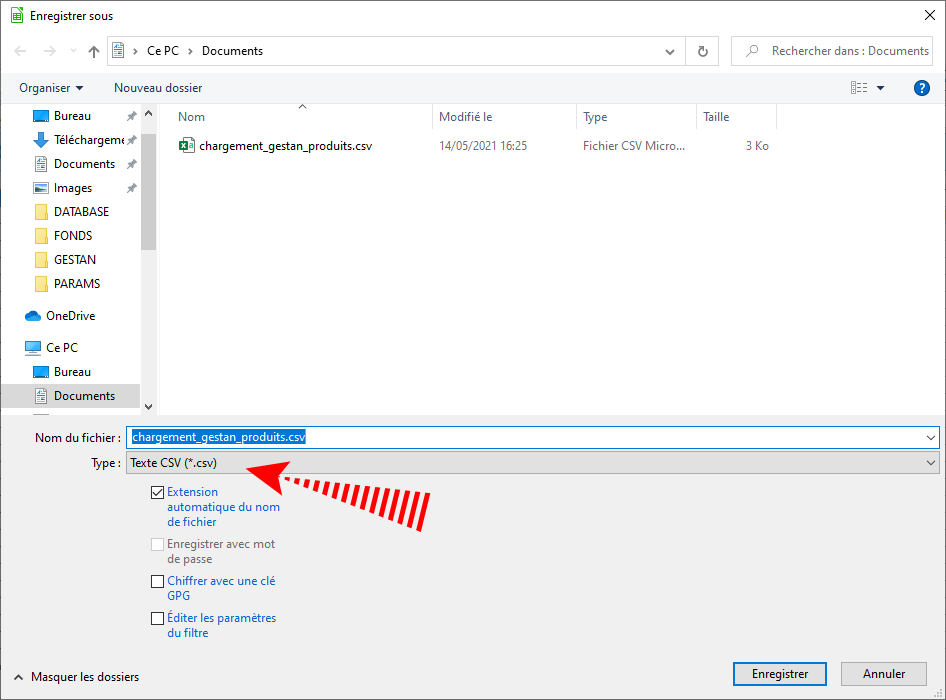
Use for adding data
Below is an example file for creating stock movements. The line in red has been completed and will be uploaded.

When importing the child file (memberships and payments), a selector box appears, allowing you to specify whether to use the contact ID or the ‘external reference’ as the key.
Be careful to avoid creating duplicates: for example, if you are uploading contacts and you have a contact named Éléonore MAROLEX in your database, as well as the same contact, Éléonore MAROLEX, in your upload file, once the process is complete, you will have two contacts named Éléonore MAROLEX in your database.
===== Using the ‘ =====’ file update function
You can update:
- the contacts file
- the products file
In “Update” mode, the sample file generated using the magic wand contains all the fields that can be updated: simply delete the columns that are not to be updated. However, you must retain the first column, which is the unique identifier for the record (IDCONTACT, contact ID when updating the contact file; CD_PRODUIT, product code, when updating the product file).
Here is an example of a product file generated by the wizard using data from the database.

Suppose we wish to update the VAT rate and the selling price of the product. We simply need to retain just two columns, in addition to the product code column. For convenience, it is possible to retain the product description column, as shown below.
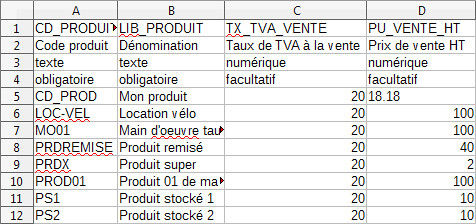
When you run the update, the VAT rates will be updated, as will the unit prices excluding VAT. The update process will also recalculate the price including VAT based on the updated details.
If you import product data, manage stock levels, and your current stock is not zero, then you must remember to import a stock movement file or an inventory to ensure consistency between the current stock declared in the product record, and the stock movements that result in that current stock level.
ℹ️ Other ‘Tools’ articles
Connexion à Gestan
Démarrage rapide
Exporter la base Gestan
Importer des contacts Google ou Outlook
Importer des contrats
Importer des documents d'achat ou de vente
Importer des données dans Gestan
Importer des imputations
Importer des lignes de pièce (écran dédié)
Importer des traductions de libellés produit
Importer un plan comptable
Importer une base Gestan
L'écran principal de Gestan
Minification de la base
OCR
Procédures compilables
Recommander Gestan
Réaffecter à un utilisateur
Réimputation des écritures
Réinitialisation des catégories de contact
Réinitialiser les champs complémentaires
Réorganisation des contacts
Structure des répertoires Gestan
Suppressions en masse
Traducteur
Transférer vos données au support
Trucs et astuces
Versions du programme Gestan
Zipper la base