Table des matières
Interventions
 A1 proofreading not yet effective for this page. In the meantime, you can ask any questions on the forum.
An intervention is an operation you carry out for a contact (usually one of your customers), usually outside the company. For example, a technician carrying out a maintenance operation on a customer's installation.
Intervention recording enables you to :
- Produce an intervention sheet which you can give to your customer when the intervention is due (so that he can validate his request), or done (so that he can validate the intervention), depending on your management process. You can have the technician responsible for the intervention and/or the customer sign it, on your computer, or on mobile or smartphone (via l'extension INTERWEB).
- keep track of ingredients consumed during the intervention, whether billable or not
- automatically bill the customer, based on a selection of intervention sheets, according to time spent and/or billable ingredients consumed.
List of interventions
**Access : ** Activities → Interventions
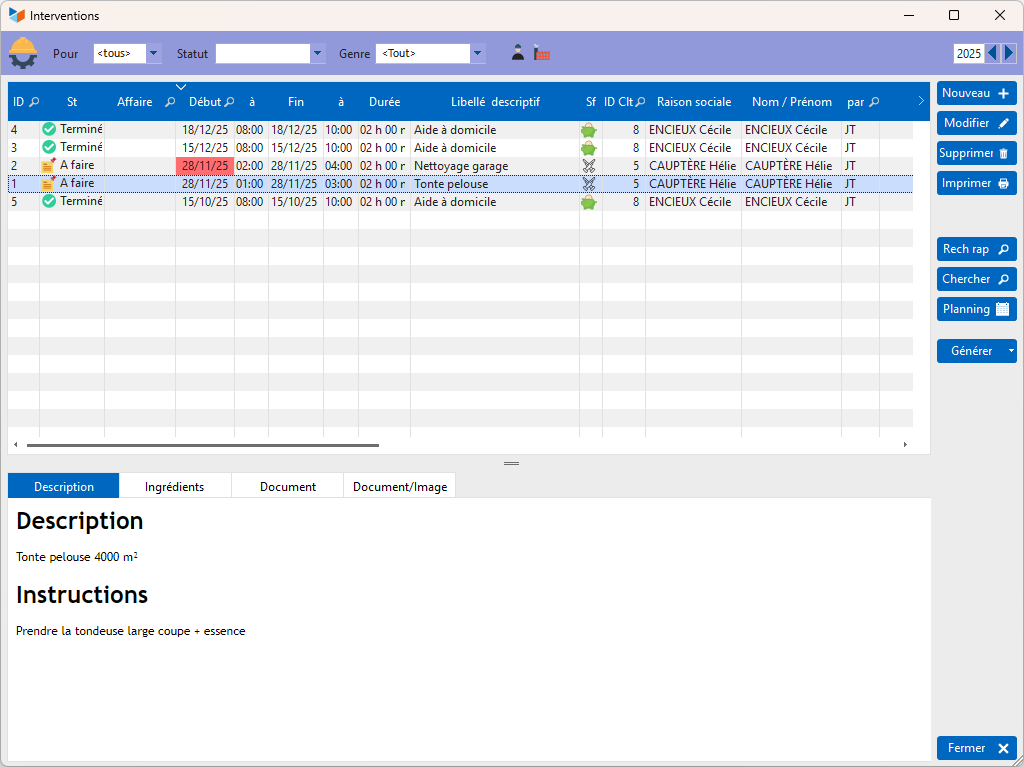
The lower part of the intervention list features:
- a Ingrédients tab. This displays the ingredients (products) consumed in the course of the activity, and allows you to specify which are billable and which are not.
- a Documents tab to link any document (contract, GTCs, work order, etc.).
- a Documents/Images tab to link before/after photos, for example, for the selected job.
The Generate button lets you :
- generate a document (quote, order, invoice, BL) for a job or a period of time
- a request for quotation for the ingredients of the job
- a supplier order for the ingredients of the intervention.
The Print button prints the intervention sheet, according to the printing options chosen in the general settings.
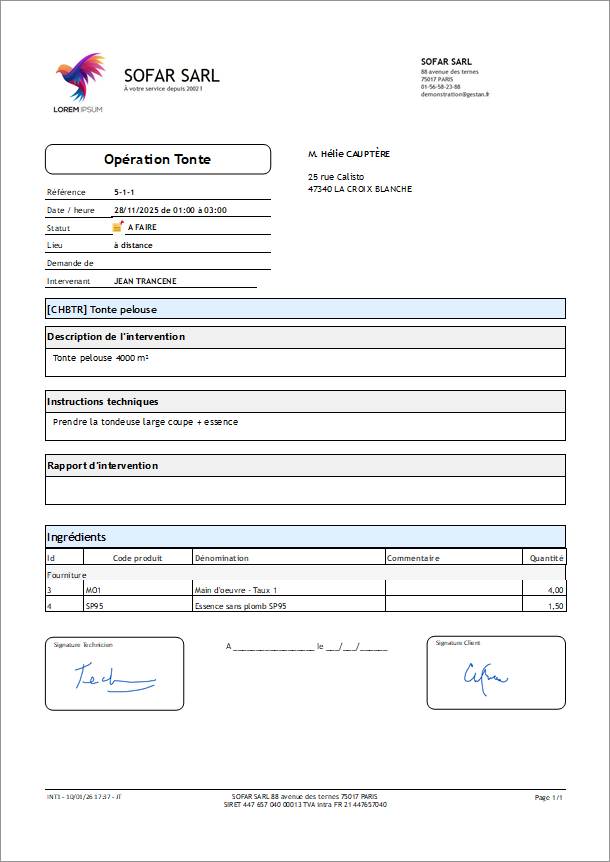
 Depending on the general settings, you can choose whether or not to print the technician and/or customer signatures on standard intervention sheets, as well as the list of ingredients.
 Intervention sheets are often specific to each company. If the standard form is not suitable for your activity, it can be replaced by any other model.
The intervention form
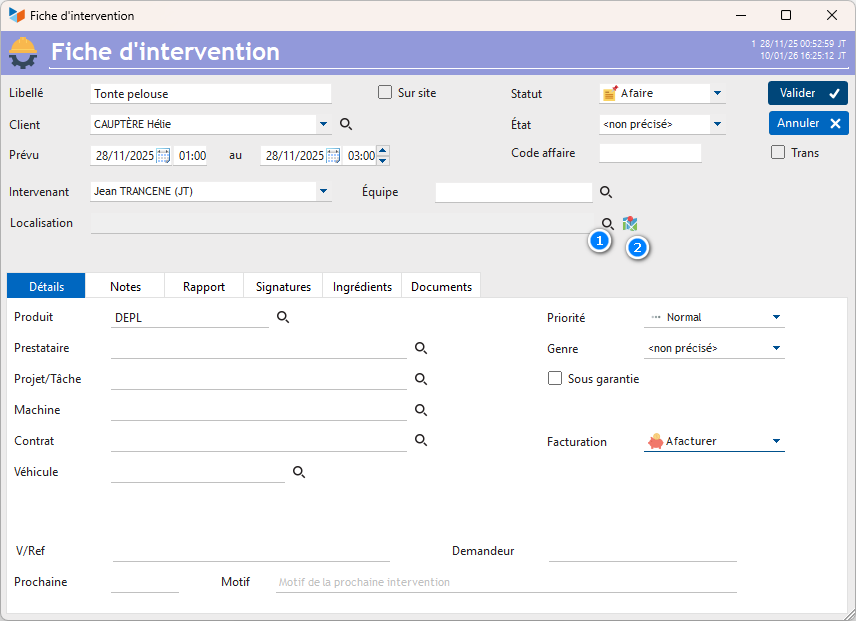
The intervention includes date/time limits for its completion.
 Intervention duration is calculated in gross hours: It does not take into account break times, conventional day lengths, or individualized day schedules (this is important if you are billing a product linked to the intervention, and this product is billed by the day or by the hour).
The intervention is attached to a client.
The Title field is used to indicate the general nature of the intervention.
The product allows you to match a job to a product, if required. This may be useful when automatically generating an invoice from a selection of job cards (the product code is not displayed if you are not using a product catalog).
The Dde field can be used to specify the person who requested the intervention. It will be printed on the INT1 job form report.
You can specify a type of intervention (if you have set up at least one).
The Intervenor is the main user performing the intervention, while the Team field allows you to specify any other intervenors.
You can indicate the date of the next call and its reason.
Finally, you can indicate the location of the intervention, when it is not at the customer's main address.
The Signatures tab is used to record the customer's and/or technician's signature. Once signed, signatures cannot be deleted, except by a Gestan administrator or a user with signature deletion privileges.
The Ingredients tab is used to record ingredients consumed or billable to the customer for the intervention.
The check mark Transmitted indicates that the job has been transmitted to the customer. It is set to “Transmitted” if sent by e-mail.
Intervention list context menu
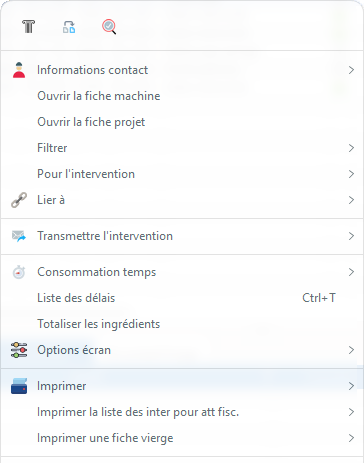
Available features include:
- Contact information → Show map displays the contact's position on a map, and/or the route to get there. This program is based on the Google Maps API, which has become chargeable since 2018…
- Send SMS allows you to send an SMS to the contact attached to the intervention (subject to the opening of an SMS account).
- It is possible to automatically generate hourly consumptions, for the user linked to the intervention, and also, if applicable, for the whole team that intervened. The consumption(s) generated will have a duration of the default intervention duration, and will be dated for the day of generation. The intervention must be linked to a project and a task
The list of available printouts includes the following reports:
- INT1, which is the standard intervention sheet. You can print it blank, or with your customer's contact details. This allows you to fill it out in pencil in the field, then save it in Gestan when you get back to the office.
- INT2, which shows the list of interventions over a date range.
- INT4, which shows total hours consumed over a date range
- MAC4, which is an acceptance slip. When your customer hands over equipment for repair, for example, you can indicate the operation to be carried out on this voucher, and have it signed by both you and your customer.
- INT3, which is the list of operations carried out for all or some customers. This is the tax certificate required for personal services.
The List of deadlines option displays a table summarizing the delay information for the interventions below.
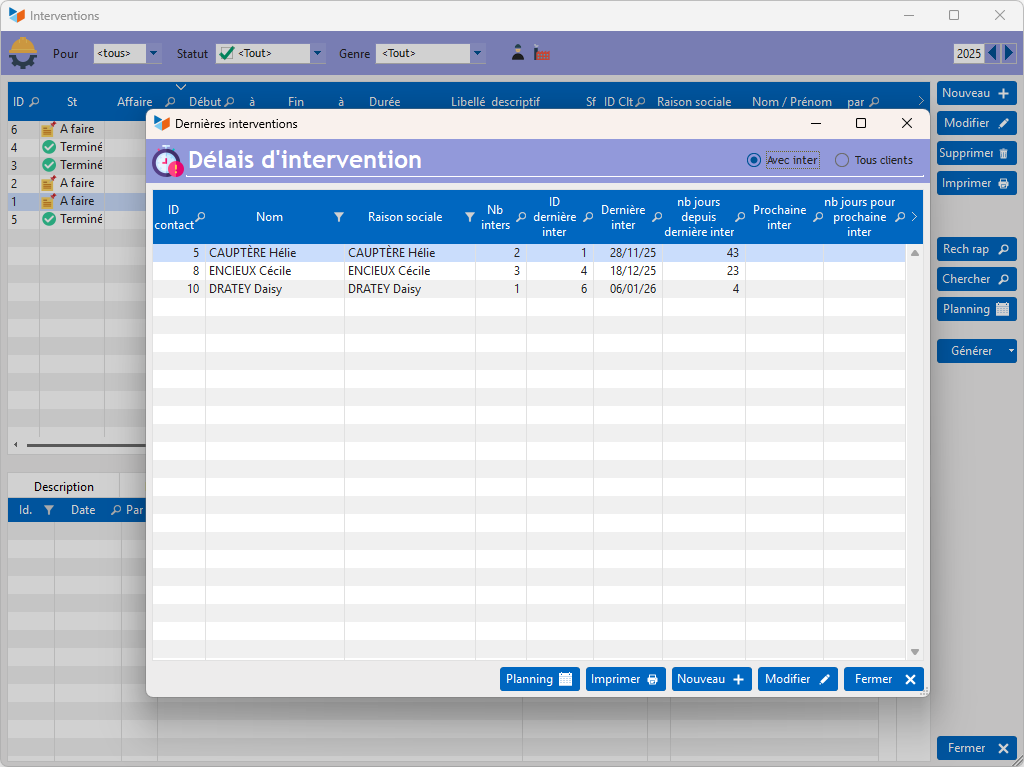
This screen lets you easily display customers in order of delay since the last intervention: the longer the delay, the more likely it is that you'll need to contact these customers.
Invoicing of interventions
Invoicing of interventions is carried out from the interventions table, using the Generate button, and two possible options:
- Document for an intervention: in the case where you wish to bill only one intervention
- Parts for a period: in the case where you wish to invoice interventions for a month, a week, or any other period.
This is the billing screen for a period.
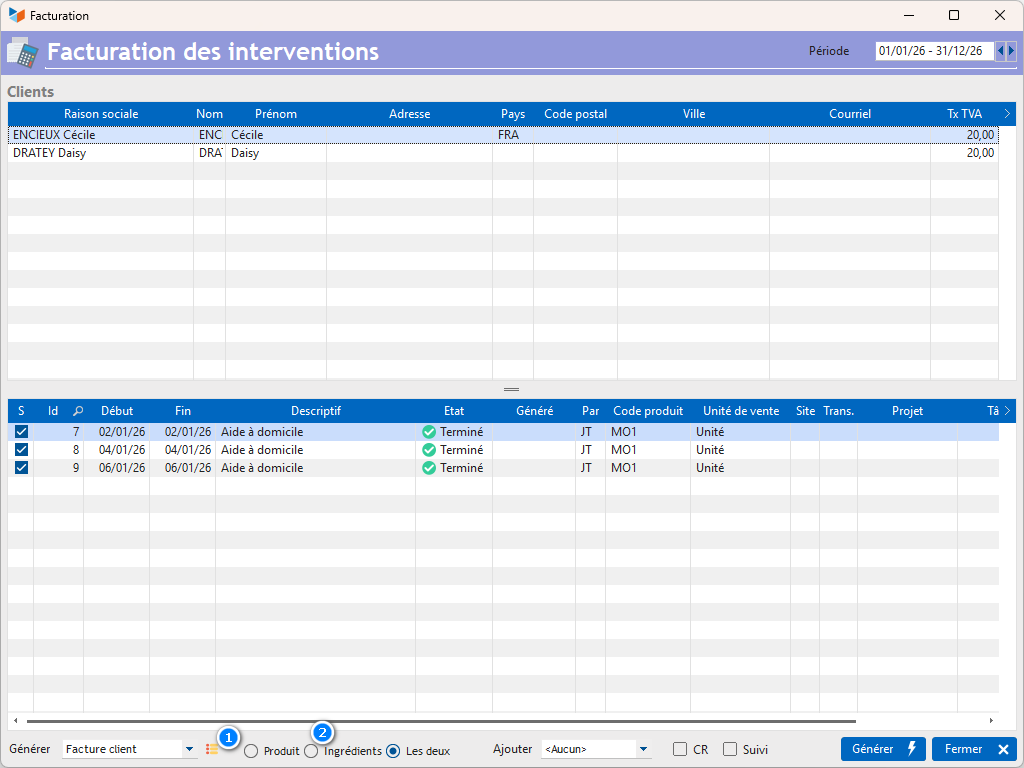
The screen displays at the top all the customers who have been the subject of at least one intervention during the period considered.
In the lower part the interventions carried out are displayed, which are pre-selected when their status is completed. You can select them for billing, or not, using the checkbox in column S. You can use the context menu of the table at the bottom to add or modify interventions for the selected client.
Before issuing invoices, it is strongly recommended to check the interventions taken into account for the period.
On this screen, you can specify:
- the document to generate: you can generate customer invoices, but also quotes, customer orders, and delivery notes.
- what you want to invoice: the product linked to the intervention, the ingredients, or both.
- if you check the box Addition CR, then the wording of the intervention will be added to the product wording
- if you check the Monitoring box, then the code of the person responsible for the intervention will be used as the person responsible for tracking the part. Otherwise, it will be the logged in user.
Then when everything is correct, click on the Generate button to generate the chosen parts.
Tips and tricks
The numbering of intervention sheets has the same particularities as that of parts (see Numbering of parts).
You can automatically generate intervention sheets from actions, from the right click on the list of actions.
The comment area allows free entry with formatting. You can simply copy and paste from any document (Open Office, Office, website, etc.). If you copy and paste using Ctrl-C, the formatting will also be copied. In case you don't want to, use the small “Paste” button on the comments area toolbar, or the shortcut Ctrl+Shift+V.
For recurring interventions, for example you are always going to wash Madame So-and-so's tiles on the 3rd of the month, you can automatically generate the corresponding intervention sheet, see Planned actions .
If you want to call the intervention sheets by another name: via Tools > Translations > Miscellaneous labels, select the item FINTR, and translate “Intervention sheet” by “Order of work”, for example.
You can automatically invoice interventions with variable durations, provided that you have linked them with products billable in hours, half-days, or days (see Calculation mode ).
 Other Activity articles