Scheduled tasks
Scheduled tasks are those you wish to carry out at a predefined frequency, such as:
- maintenance to be carried out on a piece of equipment every three weeks;
- generating a new invoice every month for a particular customer (another way to generate invoices on a recurring basis is to use contracts);
- generating an annual quotation, updating the prices in your catalogue;
- generating a supplier invoice every month, for example for your internet subscription;
- generating an accounting entry every quarter, for example for your cloud subscription;
- a reminder to prepare the VAT return on the 10th of every month for your ‘Trésor Public’ contact

- etc
 If you have a large number of recurring items to manage, we recommend using the Contrats contracts.
List of scheduled actions
Access: Activity → Auto Gen
This screen displays the list of scheduled tasks for the various items that can be scheduled.
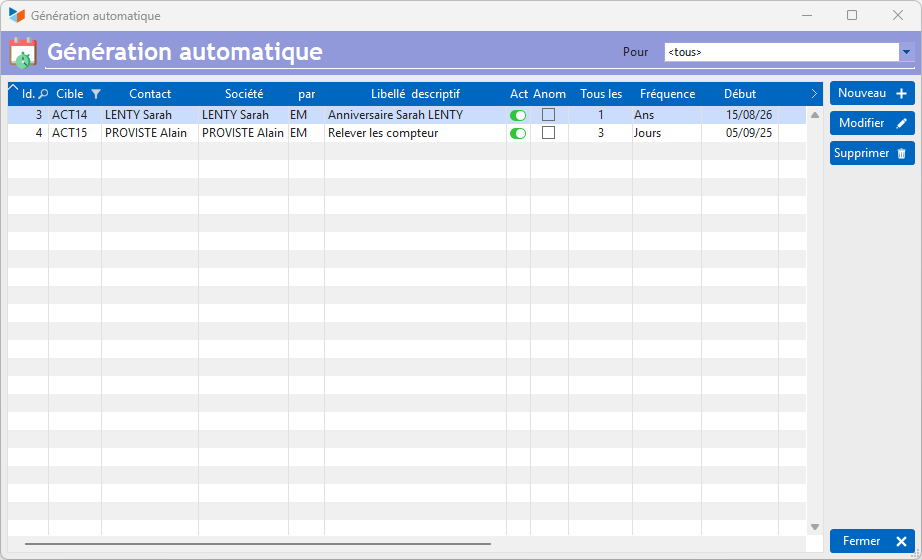
Use the New button to create a new scheduled action/
 You can reassign scheduled actions using the Reassignment of users.==== Scheduled Action Record ====
When you click the New button in the scheduled actions table, two screens open:
- the first allows you to specify the action to be scheduled
- the second allows you to specify the schedule for the action
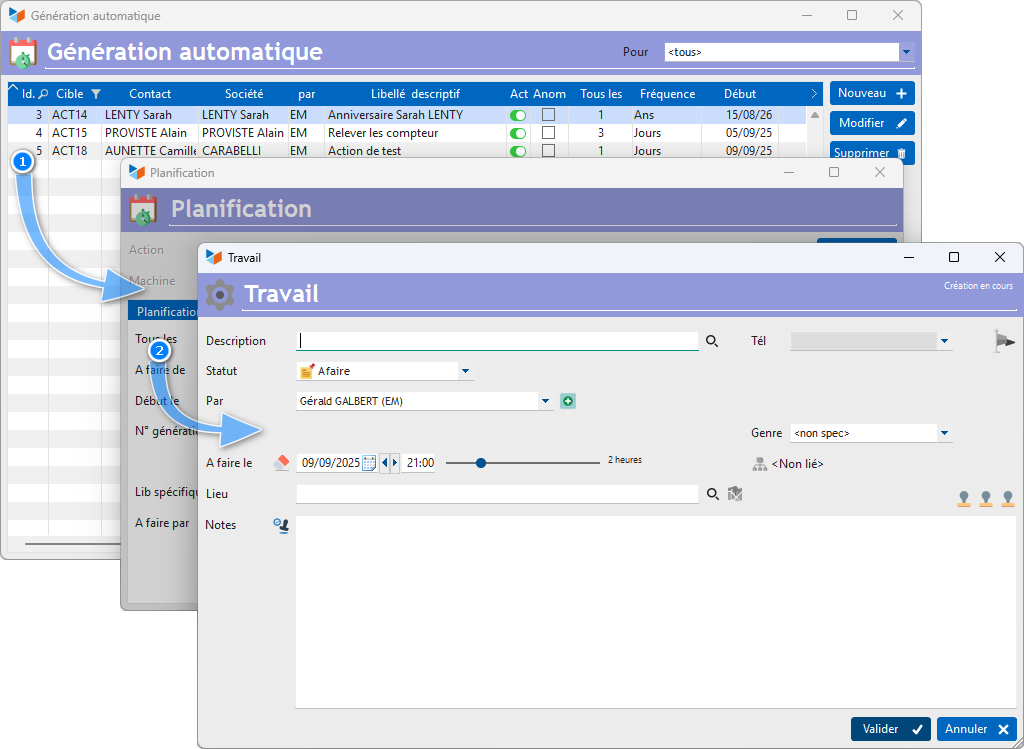
The action to be scheduled form
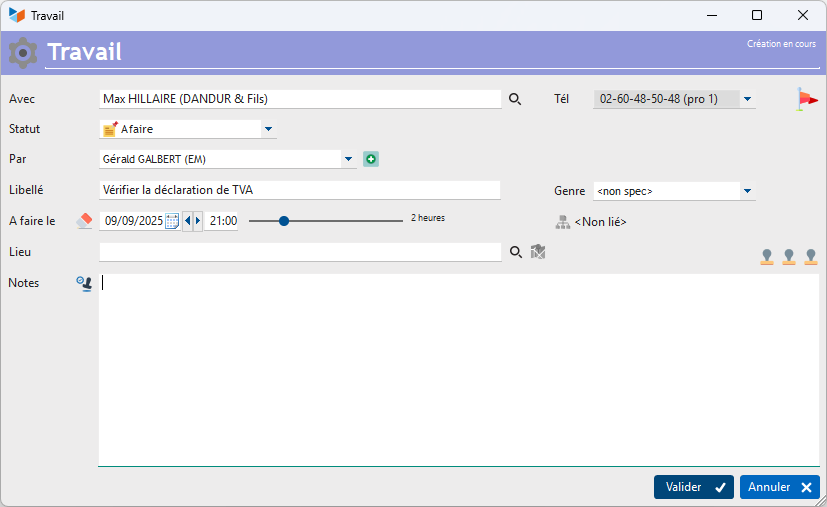
On the first screen, describe the action, exactly as you would for a action normal one.
The action schedule
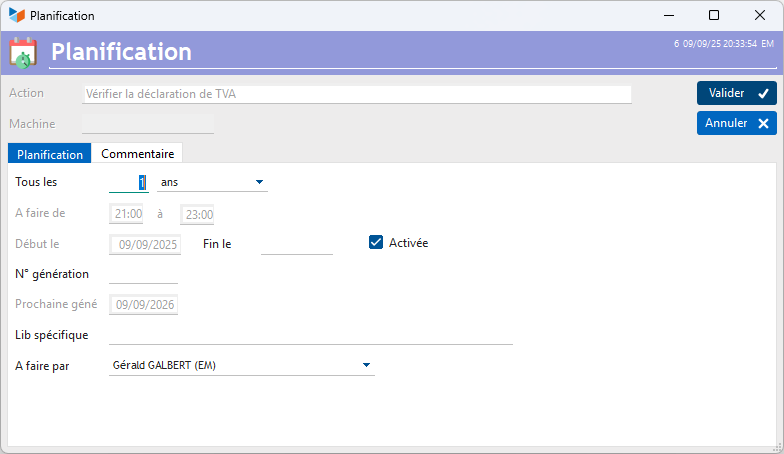
The Action field displays the name of the action, depending on the action currently being planned.
The drop-down menu All drop-down menu allows you to specify how often the action should be repeated.
The dates, start time and end time are greyed out and pre-filled with the details of the action that has just been created.
You can specify an end date for the action’s generation: after this date, the action will no longer be triggered.
The Enabled allows you to enable or disable the automatic generation of the scheduled action, without deleting it.
The generation number is a numeric value, incremented by 1 with each automatic action generation. It is intended for use as a keyword value in the generation of action labels.
Gestan generates scheduled actions at the time they are due to be displayed. For example, if you schedule a ‘sales meeting’ action every Thursday to be displayed two days in advance (this setting is configured in the general settings), the ‘actual’ action will be generated by Gestan on Tuesday. This avoids generating all actions right up to the presumed date when they will no longer be required, but has the disadvantage that you will not see these appointments on your Year N+20 calendar, should you wish to view it.
However, if you wish to actually generate the actions for the next X due dates, you can use the Generate up to, available from the table’s context menu. Automatic generation via Gestan will resume after this date.
Generating scheduled actions from other screens
It is possible to link a scheduled action to a project or a task via the 1. If the project or task has been completed, the scheduled action will not be generated.
Recurring actions for contacts
From the contacts list, use the context menu to create a scheduled action.
Recurring entries
From the list of entries, use the context menu For these entries → Schedule (recurring entry) to automatically generate a scheduled action from the selected entry.
The entry description will be generated from the Specific Lib field of the scheduled task (keywords can be used).
Recurring tasks
From the list of tasks, use the context menu For the task → Schedule (recurring task) to generate the schedule for the selected task.
If the task includes ingredients, these will be generated identically.
The task description will be generated from the Specific Lib field of the scheduled action (keywords can be used).
Recurring tasks
From the context menu of the task list, or that of the ‘Tasks’ tab in the project list, use the context menu Schedule (recurring task) to generate the schedule for the selected task.
The task name will be generated from the Specific Lib field of the scheduled action; the task comments will be generated from the schedule comments (keywords can be used in both).
Recurring quotations and orders
From the quotations list, use the context menu Action → Schedule (recurring item) to automatically generate a recurring quotation.
You can specify that you do not wish the prices to be updated with the values from the product catalogue.
The “Description” field of the quotation will be generated from the specific ‘Lib’ field of the scheduled action (keywords can be used, and these will also be included in the quotation’s comments and line items.)
Recurring invoices
You can generate a recurring invoice:
- either from a quotation. In this case, use the menu Schedule → An invoice from the list of quotations
- or from an invoice. In this case, use the menu Schedule from the list of invoices.
You can specify that you do not wish the prices to be updated with the values from the product catalogue.
The ‘Description’ field on the invoice will be generated from the specific ‘Lib’ field of the scheduled action (keywords can be used, and these will also be included in the invoice comments and in its line items.)
Recurring supplier invoices
From the list of supplier invoices, use the context menu Action → Schedule (recurring document) to automatically generate a scheduled action from the selected supplier invoice.
You can specify that you do not wish the prices to be updated with the values from the product catalogue.
The ‘Description’ field on the supplier invoice will be generated from the specific ‘Lib’ field of the scheduled action (keywords can be used, and they will also be included in the comments on the supplier invoice, as well as in its line items.)
Keywords that can be used
Here is the list of keywords that can be used:
- %NUM%: generation number
- %MMYY%: current month/year, for example “January 2018” if it were January 2018
- %MM%: current month, for example “January” if it were January 2018.
- %SSAA%: century and year
- %AA%: last two digits of the year
- %TT%: quarter number, e.g. “1” if it is January, February or March.
Ranges from 1 to 12:
- %MM-1% : previous month
- %MM+1% : next month
- %SSAA+1% : century and year of the following year
- %SSAA-1%: the century and year of the previous year
- %MMAA-1%: the previous month/year, for example “December 2017” if it were January 2018
- %MMAA+1%: next month/year
- %AA-1%: for previous years.
You can also use keywords in the lines of the documents to be generated automatically.
ℹ️ Other “Activity” articles