Table des matières
Send a message (email, letter or text message)
You can send a template email, letter or text message directly to any selected contact.
These template messages use a system of placeholders to personalise them with the relevant data. For example, you can include %CONTACT_NAME% in the body of your message, which will be replaced by the contact’s name when the message is generated (see Keywords keywords).
From the contact list
You can send an email using the 1 in the contact list,

or via the context menu in the contact list.

From the list of quotations, invoices, etc.
Similarly, you can send a message to the contact associated with the document from the list of purchase or sales documents.
From the list of actions and the list of interventions
Similarly, you can send a message to the associated contact from the list of actions and the list of interventions.
Send an email
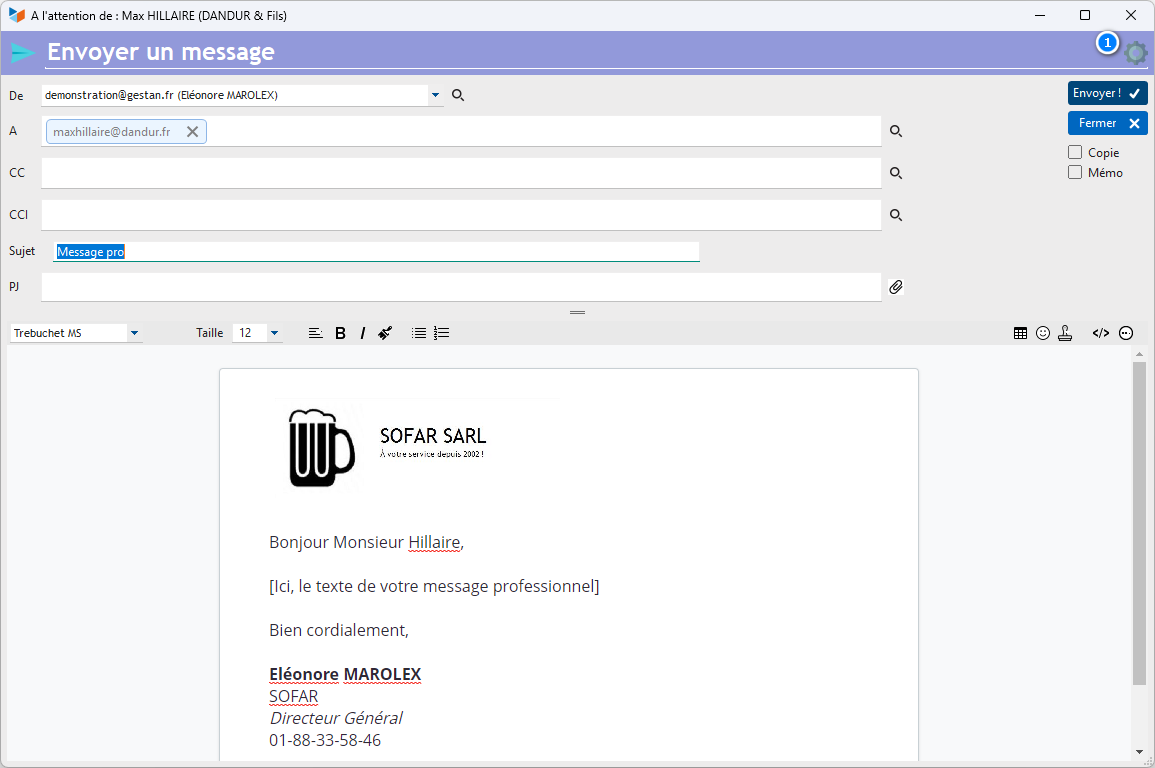
This window allows you to configure the email to be sent.
The button 1 allows you to set the email’s special features: priority, read receipt, and delivery confirmation.
The fields To, CC, and CCI are for the ‘To’, ‘CC’ and ‘BCC’ (blind carbon copy) fields.
If the CC is ticked, a copy of the email is sent to the sender’s email address.
If the memo box is ticked, an ‘email’ action is stored in the contact’s file, recording the details and text of the email sent.
The Attachment field shows the path to any attachment. You can open this attachment to check it before sending by right-clicking on the field. You can add as many attachments as you like (within any size limits imposed by your ISP). The context menu for the Attachment field below allows you to automatically add all or some of the documents linked to the contact, and/or to the products in the document, as email attachments.

Send an e
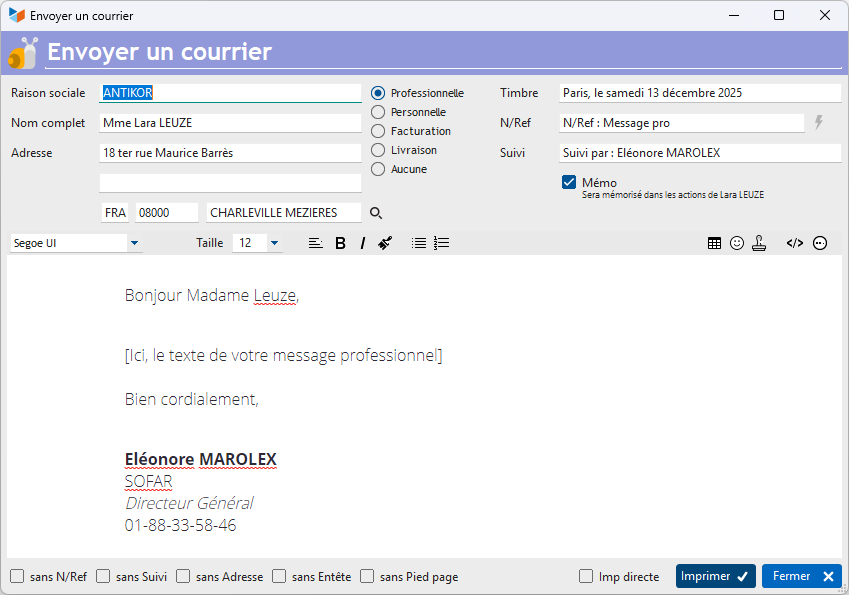
The selector Business/Personal/Invoicing/Delivery allows you to select the address to be used for the selected contact.
If the memo is ticked, a ‘letter’ action is stored in the contact’s file, recording the details and text of the letter sent.
The tick boxes:
- No Ref No : prevents the ‘Ref. No.’ line from being printed
- No tracking : prevents the ‘Tracked by’ line from being printed
- No address : prevents the address from being printed: this allows you to use letter templates for any document other than a letter, such as an internship agreement or a sworn statement, which do not necessarily need to follow the standard letter format.
- without a letterhead and without footer allow you to omit the header and/or footer. Very useful if you are using pre-printed paper.
Send an SMS
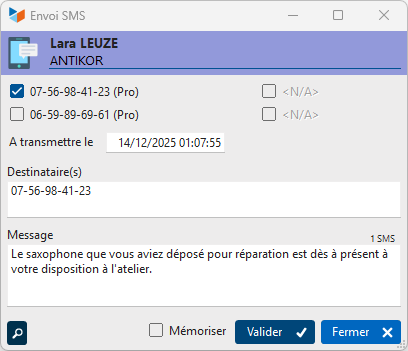
To send text messages, you must either have set up a text messaging account with a provider and configure Gestan for that SMS provider, or use the <ignore></ignore>Envoi</ignore><ignore>, which allows you to use the text message allowance included in your mobile phone contract.
Depending on which boxes are ticked, the selected phones will be displayed in the Recipientsfield.
Click the Confirm button sends the Message via SMS.
ℹ️ Other “Contacts” articles