General settings: Parts
 A1 proofreading not yet effective for this page. In the meantime, you can ask any questions on the forum.
In this general settings tab, the elements which mainly concern the Company as such are grouped: address, tax regime, SIRET identification, etc.
Functions
This tab presents the general functional options concerning all parts (quotes, invoices, orders, etc.).
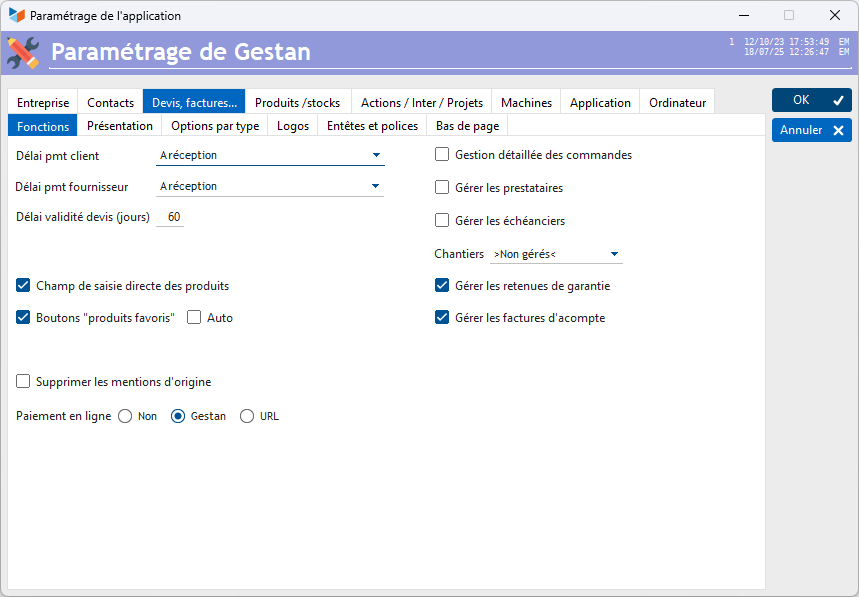
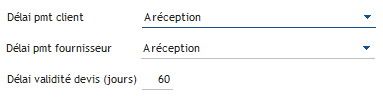
Customer pmt deadline is the payment deadline that you usually grant to your customers. It will be used by default when creating an invoice and other customer documents.
Supplier pmt deadline is the payment deadline with which you usually pay your suppliers. It will be used by default when creating a supplier invoice and other supplier documents.
Quotation validity period (days): this is the period beyond which an unaccepted quote will be considered as implicitly refused.
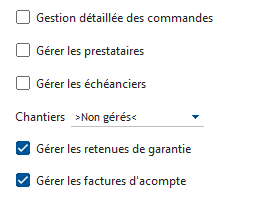
If the Detailed order management box is checked, it will be possible to follow the completion of an order in its different stages, via a dedicated screen.
Manage service providers allows you to store in the rooms the service provider who carried out the work, in the case of subcontracting, for example. This data can be included and possibly published in the invoice (For the record, we added this data to produce the MaPrim'Rénov invoices!).
Manage schedules: Check this box to be able to attach payment schedules to invoices.
Construction site: you can follow the progress of your construction sites based on quotes or orders. In both cases, you will be able to generate invoices corresponding to the recorded progress situations (progress invoices).
The Manage guarantee retentions option is compatible with progress management.
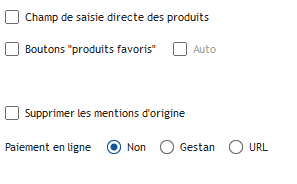
Direct product entry field: allows you to display - or not - a direct product entry field in the invoice form, quote, etc. screen, especially for those who regret the direct entry of product codes in the table of versions 01 to 12.OM of Gestan ; , or those who wish to use a laser scanner to scan products.
The Favorite product buttons box allows you to display, on the part sheet, three small stars which have the effect of adding a line of a favorite product. Very useful, for example, if you usually add a “POST” product for the postal costs of each invoice! The Auto check box allows you to add it systematically.
When a part is generated from another, the original part mentions the generated part, and the generated part the original part(s). For example, if a quote ID 6 generates an invoice 56, the quote will note: “Part generated: FCT56 on 06/13/20 3:39 p.m. by EN”, and the invoice will note: “Original part(s): DVS 20-06-5 (04/06/20)”. To delete these notes, simply check the Delete original mentions box.
 In France, a country which employs its best creative people to the daily complication of administrative systems and the improvement of global monitoring, if a purchase order has been issued before the invoice, the reference of the purchase order must appear on the invoice (Article L441-9 of the commercial code).
Online payment allows you to insert an online payment link directly into pdf invoices. You can use the payment form available to you on the Gestan website, or create a personalized form. If you create a personalized form, simply enter the URL of your payment page (example: www.maboite.com/payer.php). Gestan will send the amount to be paid in the mtt variable, and the wording of the invoice nature in the svc variable. Your php page will be able to retrieve these variables, and process them in a Paypal payment form or other. See this link.
Presentation
This tab presents the presentation options concerning all documents (quotes, invoices, orders, etc.).
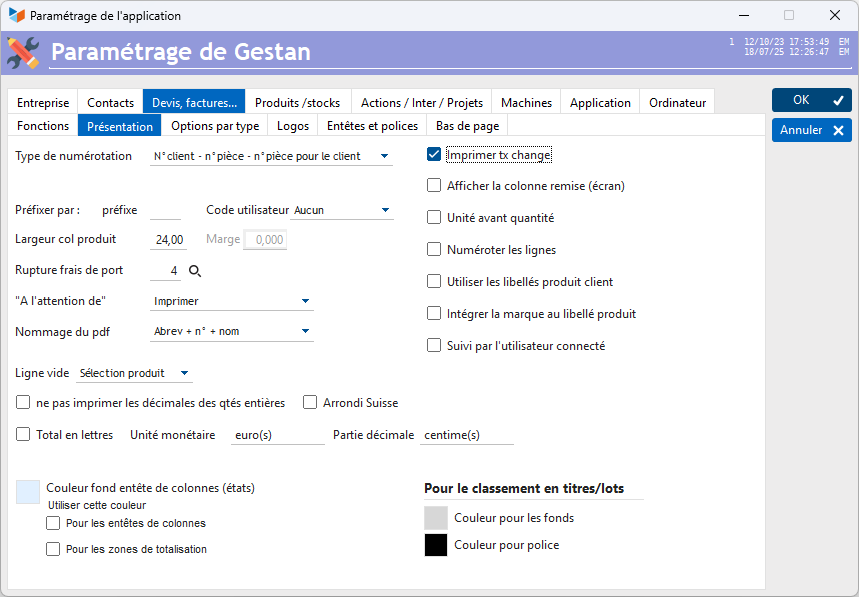
You can choose a Numbering Type for the parts. Any part (quote, invoice, etc.) is identified by a unique internal number specific to Gestan, but the number printed on the part may be different, and adopt various formats. For example, the default option “customer number / invoice number / invoice number for the customer” numbers with the contact identifier, the internal identifier of the invoice, and the order number of the invoice for the customer. For example, invoice 1528-556-7 is the 7th invoice for contact 1528, and has the internal number 556. See on this subject: Part numbering
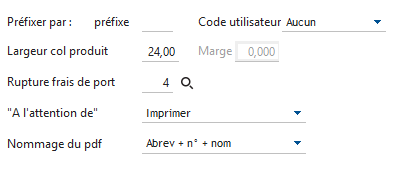
It is possible to prefix this number with a Prefix label, and/or with the user code who either created the part, or who is declared as being in charge of the part. For example, if we had entered BM in the prefix field and the Creator choice in the user code combo, our previous invoice 1528-556-7 would become BB/1528-556-7/EN, if it was the user EN who had created the invoice in the Bormes-les-Mimosas agency. It will also be possible to prefix with a wording specific to the type of document, for example FAC for invoice, etc. (see below).
Product width: In the printed invoice form, the product code may or may not be printed in a separate column. It is possible to adapt the width of this column, according to the usual length of your product codes, via the Product width field. The default is 24mm. It is also possible to specify a printing margin, especially for the Swiss QR code.
Shipping costs allows you to print the shipping costs separately from the body of the invoice. In this case, you must specify the product code which represents the shipping costs.
Quotes, invoices, etc., bear the name of the company in the header, and below, the wording “To the attention of”, which it is possible not to display via the combo “To the attention of “.
By default, the pdfs generated by Gestan are named in the form “Abbreviation_N°_Name”, for example invoice 202302 for Mr. Dupont will generate a pdf file named “Facture_202302_Dupont.pdf”. It is however possible to adopt another naming convention, via the PDF naming combo.
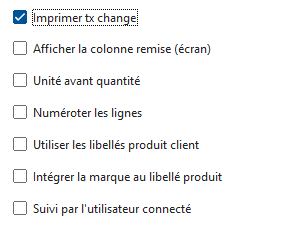
Print exchange rate: print or not the exchange rate of coins that are not expressed in the default currency.
Unit before quantity allows you to present the unit column before the quantity column on all parts.
Show the discount column (screen) allows you to systematically display the discount column on the invoice, quote, etc. sheet. Otherwise, it is only displayed on request, or if there is at least one discount per line.
Number the lines adds a number for each part line when printing. Its handy for finding your way around sometimes!
Using customer product labels allows you to generate a supplier document with customer labels. This corresponds to the following use case: your customer orders shirts embroidered with first names. The order will bear the product description, and you will note the first names to be embroidered. During the supplier order that you will generate from the product order, without this option, the supplier order will use the supplier product labels (i.e. without the first names), while with this check mark, they will be identical to the customer document (so with first names).
Integrate the brand into the product label: allows you to add the product brand to the label of the part lines, when adding the line.
The Followed by connected user box allows you to force that the user who follows the part, at the time of creation, is informed by the connected user, instead of the user responsible for the contact.
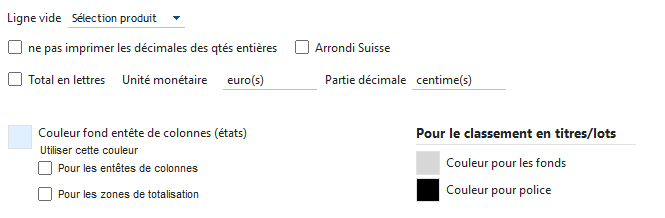
Blank line: behavior of the program in the event of entry on a part line: either creation of a “Non-catalogue” product line, or call of the product selector to add a new product.
The Do not print whole quantities box is useful for companies that sell individually, for example bottles, but purchase with decimal places, for example services per hectare. In this case, supplier invoices will be generated with as many decimal places in the product quantity as indicated in the ad hoc field, while customer invoices will be with 0 decimal places for the quantities, since they are all integers.
Swiss Rounding allows you to calculate roundings the Swiss way. The Swiss do not have centimes, the amounts are rounded to the tenth. For example, take an item at 75 CHF and 7.7% VAT, this gives a price of 80.78, rounded to 80.80. The accounting calculations are carried out without rounding, it is only when the documents are printed that the total will be rounded.
Total in words: allows you to print the total including tax in words at the bottom of the invoice (option intended for certain AFN countries, available only for documents published in the French language). In this case, you must enter the monetary unit (the written currency used, for example the French franc -belle époque…- or the dinard), and the decimal part (decimal part of the written currency used, for example example the centime - belle époque too! - or the centavo). Enter plurals in parentheses, for example: euro(s) and: cent(s).
The preferred color is the one that will be used to print the header defined on the part header tab below. You can harmonize it with your logo, or your company's graphic charter. It is also the printing color for envelope headers and labels.
The background color of the column headers is the one that will be used to print the column headers of the reports produced by Gestan, such as the list of clients or actions. This color can also be used for column headers and totalization areas, depending on the boxes checked (unless the fax printing option is checked - in the latter case, no color is applied to the column headers, to facilitate visibility in case of fax transmission).
If part lines are classified by title/lot, a separation line per lot is printed. It is possible to choose the background color of this line, as well as the font color (the name of the batch will be written on this line)
Options by type
In this tab, the options concerning a single type of part are grouped (Quotation OR invoice OR order, etc.).
The Part drop-down list allows you to select the type of parts to configure.
The 1 button allows you to use, or not, the type of part selected: for example, some companies never do BL: this button allows you to completely disconnect BL management.
Right next to it, the Btn generation check boxes allow you to control the display of the part generation buttons.
For example, it is possible to generate an invoice, an order, a BL or a credit note from a customer quote. You can configure the display of the buttons for generating Purchase Orders and Supplier Orders, for example. This avoids generating the same part twice from two different parts (for example generating an invoice from a quote, and generating an invoice from an order which would have been generated by the same quote: the second invoice would be an unnecessary duplicate)
Global Options
These are the options that apply by default to all created parts.
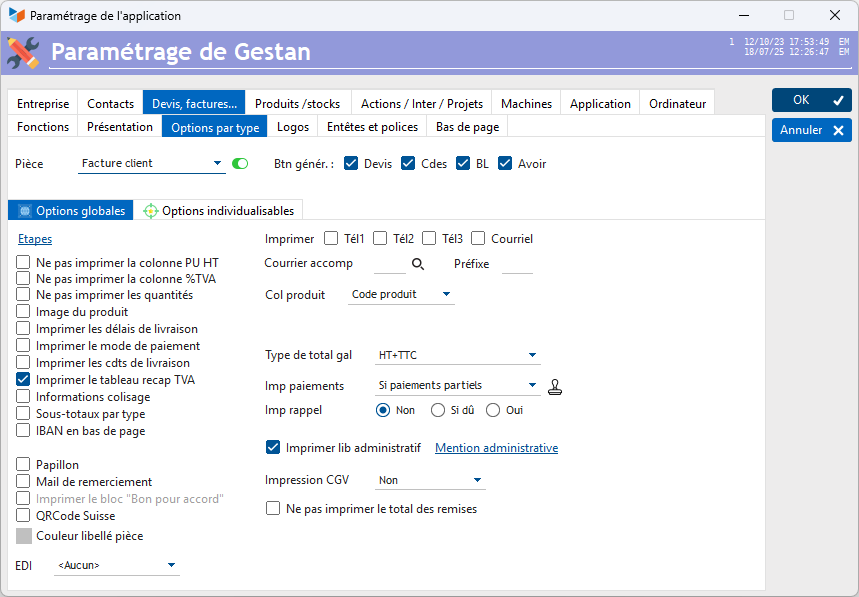
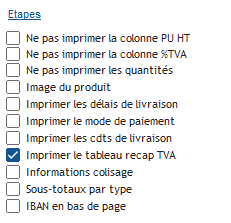
It is possible to configure various additional steps for customer parts (e.g. “in production” for customer orders.
Do not print the PU column: allows you not to print the unit price column excluding taxes.
Do not print the %VAT column: allows you not to print the VAT column.
Do not print quantities: allows you not to print the Quantity column.
Product image: allows you to print a column with the product image.
Print delivery times: allows you to integrate the delivery time into the product description, when selecting the product to add it to the part, if this time is greater than 0. This is the time delivery time for customer parts, and the supplier lead time for supplier parts.
Print payment method allows you to print the payment method, while Print delivery costs allows you to print, or not, the delivery conditions.
Print VAT summary table: commands the printing of the VAT summary by VAT rate. Thank you to the zealous civil servants who created this wonderfully Orwellian complication, to the great pleasure of the end customer, who is passionate about it. It would have been much simpler to maintain a single VAT rate per invoice, but just as impossible is not French, neither is simplicity.
Packing: allows you to print the packing information (weight, volume, number of pallets), when it exists for the part
Subtotals by type: this box allows you to display the totals by product family type (labor, service, costs or supplies). If this printing is requested, the general totals of the part must also be printed.
IBAN at the bottom of the page allows you to print an IBAN zone at the bottom of the document (if you request the IBAN header, you will obtain two IBANs on the documents!)
For BLs:
Generate shipped BLs allows, when generating a BL from an order or an invoice, to change the status of the BL to “shipped”, and not to “delivered” (this which corresponds to the process of certain companies).
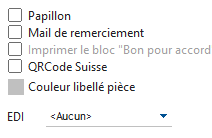
Butterfly allows you to print a butterfly to cut out at the bottom of each invoice.
Thank you email: allows you to attach the pdf to the standard thank you email for invoice payment received.
Print the “Good for agreement” block allows you to print a “Good for agreement” signature area on sales orders or quotes.
QR Code allows you to print the Swiss QR code at the bottom of the invoice, or Swiss QR code, obligatory in the Swiss confederation from 01/10/22. Note that the Swiss offer a Swiss QR code validator which works perfectly well.
Room label color allows you to print the color label of the room in the chosen color. Often black is best, even though it's not a color.
Factur-X allows you to choose the Factur-X format for generating invoices. For the moment, only the first level is managed.
Print: depending on the boxes checked, it is possible to print telephone numbers 1, 2 or 3, or the email address of the contact concerned, below their postal address. This is the professional information that is printed. Otherwise, it is personal information.
Accompanied mail is a field which allows you to enter the ID of a standard letter, such as for example a standard accompanying letter for an invoice. This mail will be printed before the part.
Prefix Numbering prefix specific to the part type. Allows you, for example, to prefix your invoice numbers with FAC, or F, or whatever you want.
The combo Col. Product allows you to specify what should be printed in the product column: the product code, the EAN13 code, or both. If the EAN13 code of the product is not entered, the product code will be printed, preceded by ”→”.
Schedule is only displayed for quotes, orders, customer invoices. It allows, if schedule management is activated, to print, or not, the schedule on the part. The Imp due date combo allows you to print, or not, the current due date for the invoice in question, in automatic mode or on request.
Gal total type: controls the printing of grand totals. You can thus print the amounts excluding VAT or including VAT alone, the NET amounts (especially for companies not subject to VAT), the amounts excluding VAT and including VAT, or the PU excluding VAT and the amount including VAT.
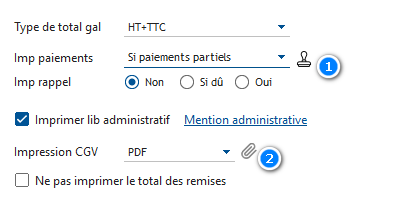
Print payments: allows you to print an additional line displaying the amount remaining to be paid, based on payments already made.
The small 1 stamp allows you to choose an image file, which will be printed on paid invoices (you can use the paye.png file, supplied with Gestan)
Imp reminder: allows you to print the amounts previously due on previous invoices (special difficult payments!)
Print administrative lib allows you to print this wonderful administrative wording on recovery costs, mandatory in France at the beginning of 2013. The standard wording is: In accordance with decree no. 2012-1115 of October 2, 2012, the amount of the fixed compensation for recovery costs due to the creditor in the event of late payment is set at 40 euros.. For other countries you can display whatever you want, or nothing at all. The Administrative mention button opens the input window. It can be translated via the translations screen.
Print the T&Cs allows you to print the general conditions of sale following the part. The GTC Text button allows you to enter text and format it. Please note that the text of the T&Cs can be translated and include all the keywords available to contacts.
 Tip for T&Cs. Some companies wish to print T&Cs in two columns, integrated into the generated PDF. To do this, it is possible to specify only the path of an image in the Text of General Conditions field. You can try for example with this example file.
The small paper clip 2 allows you to select a pdf file, which will be systematically sent with the transmission emails. For example, you select the invoices, and you specify a pdf to attach: when you send the invoice by email, in the automatic email, there will be two PJs: the pdf of the invoice, and the pdf of the general conditions. This allows two things: the best presentation of the T&Cs, and greater comfort for your customer, who can decide whether or not to print the T&Cs independently of the invoice.
For BLs:
Signature on the BL allows you to specify who must sign the BL given to the customer: either no one, the carrier, the customer, or both.
Customizable options
These options, defined at the general level, can be re-defined to decide that in general, you print amounts excluding VAT in your invoices, but that for this and that invoice, they will be published including VAT.
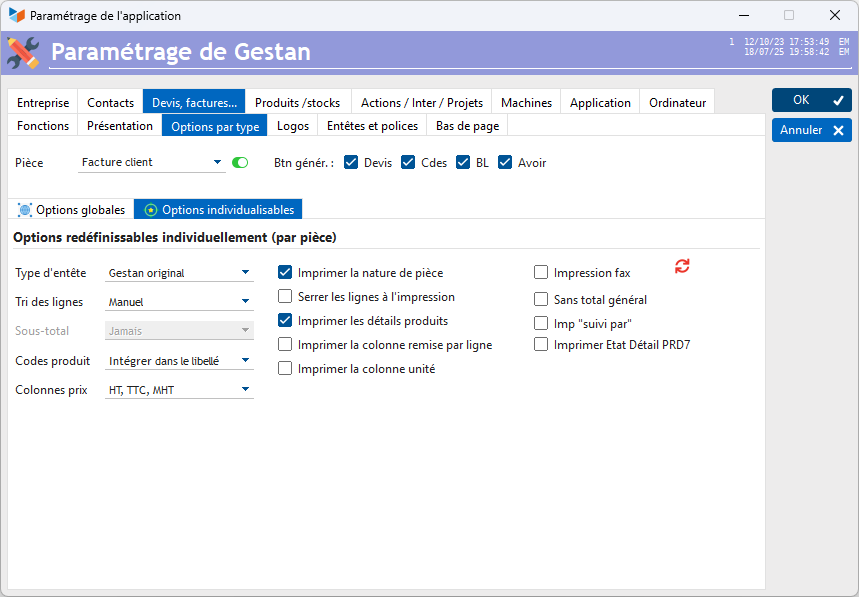
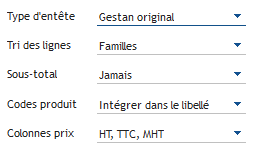
Header type allows you to choose the type of header to apply to quotes, invoices, credit notes. See the part headers page. If a document of the same type has already been created for a contact, the type of header previously used will be used for the contact if a new document of the same type is created.
Sorting lines: defines the sorting order of the lines of invoices and other documents. Three options are available:
- Manual: part lines are printed in the order in which they were entered
- Family: the lines are edited in the order of the product families
- Title/Batch: lines are classified by billing title and billing batch
Subtotal: commands the printing of the subtotals of the item lines, either by family or by title/lot (in manual sorting, the subtotal would always be equal to the grand total).
- Never: never print it
- Always: the subtotal will always be printed, if the corresponding column is visible (if the amount excluding tax column is visible, it will be, for example)
- If necessary: the subtotal will only be printed if there is more than one line of the same category
- Force: the subtotal excluding tax will always be printed, even if the column is not visible.
Product Column allows you to either have a dedicated column for product codes in quotes and invoices, or not to print it, or to integrate it into the description, for example “[ART01] Flower pot designer decor”
Price column defines the price(s) to print in the columns, according to the following table:
| Table of published currency columns | ||||
| Option | PUHT | PUTTC | MttHT | MttTTC |
|---|---|---|---|---|
| Excl. VAT, VAT, MHT | X | X | X | - |
| Excl. VAT, VAT, MTTC | X | X | - | X |
| HT, MNet | X | - | X | - |
| HT, MHT, MTTC | X | - | X | X |
| VAT, MHT, MTTC | - | X | X | X |
| None | - | - | - | - |
| HTr, TTCr, MHTr | Xr | Xr | Xr | - |
| HTr, TTCr, MTTCr | Xr | Xr | - | Xr |
| HT, MHTr | X | - | Xr | - |
| TTC, MTTCr | - | X | - | Xr |
| HT, MTTCr | X | - | - | Xr |
X = yes, - = no, Xr = amount discounted
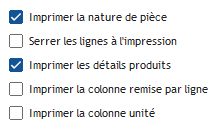
If the option Do not print the PU column is checked, the PU HT column will not be printed (note, the mention of PUHT is part of the mentions mandatory in certain countries, including France.
The quantity is printed, or not, depending on the general option Do not print quantities. The VAT % column is printed according to the general option Do not print the VAT column.
Print the nature of the document: commands the printing of the general purpose of the document (for example “Services September 2018”).
Tighten lines when printing: tightens the layout of the part lines.
Print product details: if it is not checked, only the product name will be printed (the first line of the part line). Otherwise, the full product description appearing on the product sheet is also inserted.
Print the discount column by line: allows you to display discounts by invoiced product line, and not just a global discount
Print unit column: allows you to print a sales unit column
Fax printing: allows you to remove the gray from certain areas such as column headers: if you transmit your documents by fax, this improves the readability of these areas. Well, okay, the fax machine is now an antique, but in 2012, there were still quite a few of them.
Without grand total: allows you not to print a grand total on the part.
Print Followed by: prints the person following the piece.
Print PRD7 detail report: allows you to print the PRD7 report following the document, displaying the details of the products concerned (including any photo), except for products in the “fresh” type families.
The small red button 1 allows you to apply the selected default options to all existing parts.
Logos
This tab presents the logos that are used in quotes, invoices, etc., and also in certain reports.
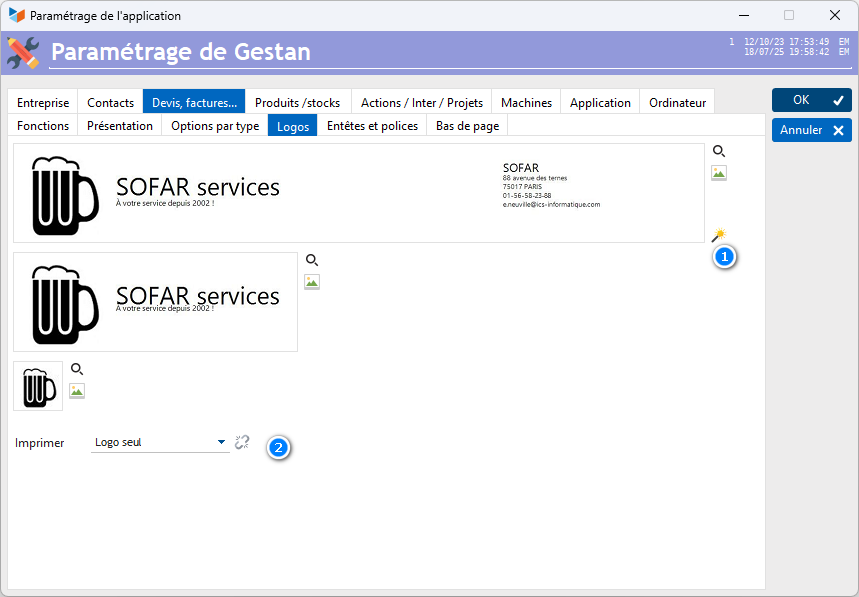
These three logos are images.
The 1 button opens the header creation wizard.
The large logo: its maximum dimensions are 100 pixels high by 692 pixels wide, but it can be smaller. In the latter case, it will be extended homothetically over the available space. It may be necessary to print the “Logo only”, rather than “Logo+address”, to avoid the overlap between the address created by the header creation wizard and the one which appears natively at the top right.
Example of a large logo

 Respect the proportions of 692 * 100, otherwise the logo will be extended to occupy the entire space.
The half-page logo: its maximum dimensions are 100 pixels high by 285 pixels wide. It is used for the headers of sales orders, BLs, supplier orders and invoices, price requests, as well as invoices, quotes and credit notes for which you have chosen a header other than “Gestan original”.
Half-page logo example
 Respect the proportions of 285 * 100, otherwise the logo will be extended to occupy the entire space.
The reduced logo: its dimensions are 30 by 30 pixels. It is used for the following pages of the documents, and most of the states published by Gestan.
Example of a reduced logo
 Respect the proportions of 30 * 30, otherwise the logo will be extended to occupy the entire space.
You will find example files in the RESOURCES directory of the program.
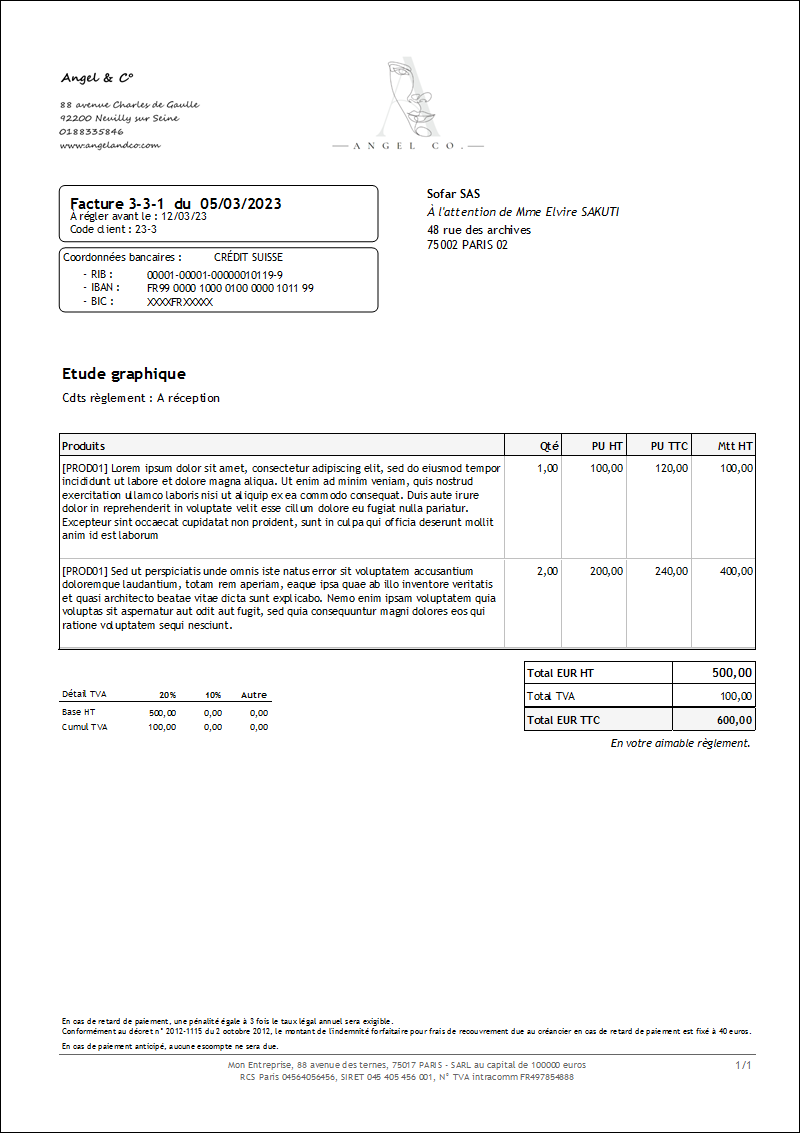
In this example, this invoice (Gestan IBAN header) uses a logo 692 pixels wide: it is the entire width of the page.
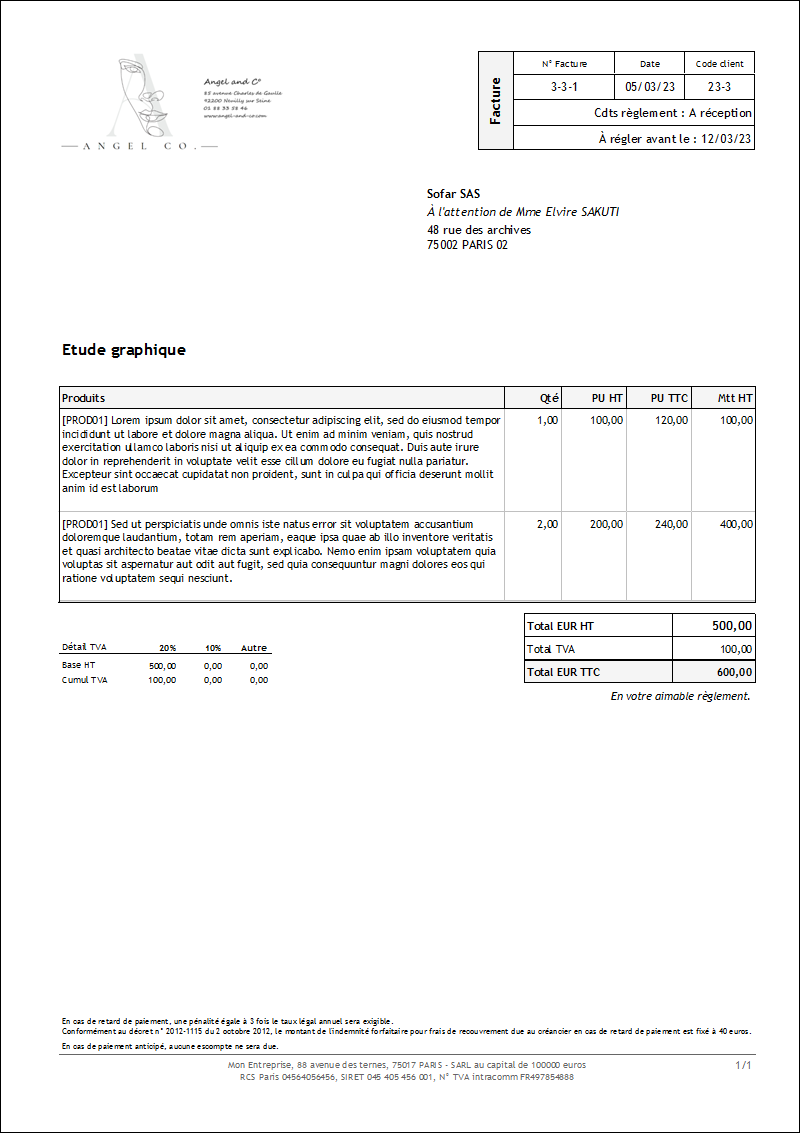
In this second example, it is the same invoice, but with the Gestan Classic header, using the half-page logo.
The Print combo allows you to choose the logo printing option: for example, if you print on pre-printed paper, it is useful to be able to deactivate logo printing. It is possible to choose a different option in the case of Direct printing, i.e. when the report is sent to the printer without going through the report viewer. The 2 button allows you to make these two options identical (the option chosen for direct printing will automatically be applied to direct printing).
Headers
This tab presents a way to populate the invoice header, when the header images presented on the previous tab (Logos) do not use the entire available width. Inherited from the old header configuration mode, it is intended to disappear eventually.
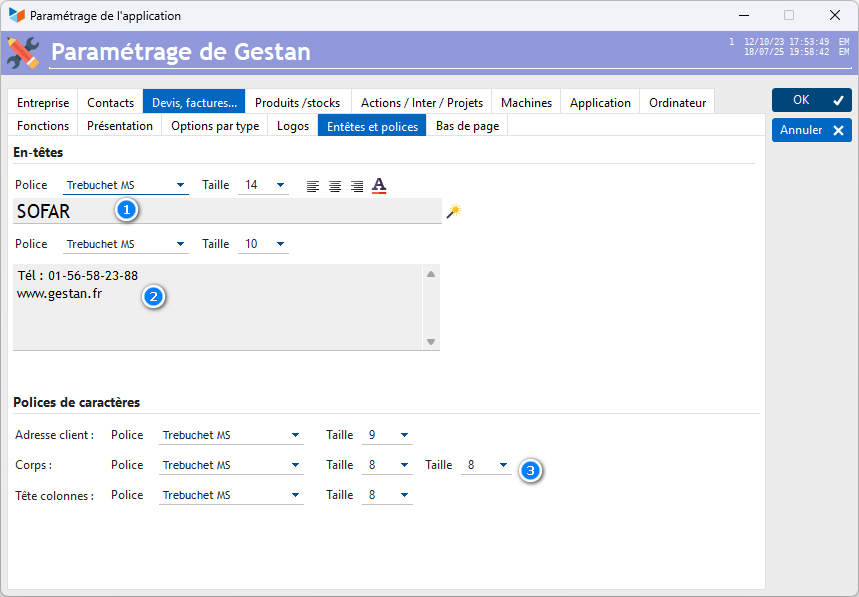
It has two zones:
- The 1 zone is intended to receive the company name
- The 2 zone is intended for company identification (address, telephone, email, etc.).
The following areas allow you to configure fonts and sizes for:
- The customer address block
- The body (and it is possible to specify a different font size for the numeric columns via the 3 combo)
- Column headers.
Footer
You can print a fixed label, systematically, depending on the type of part.
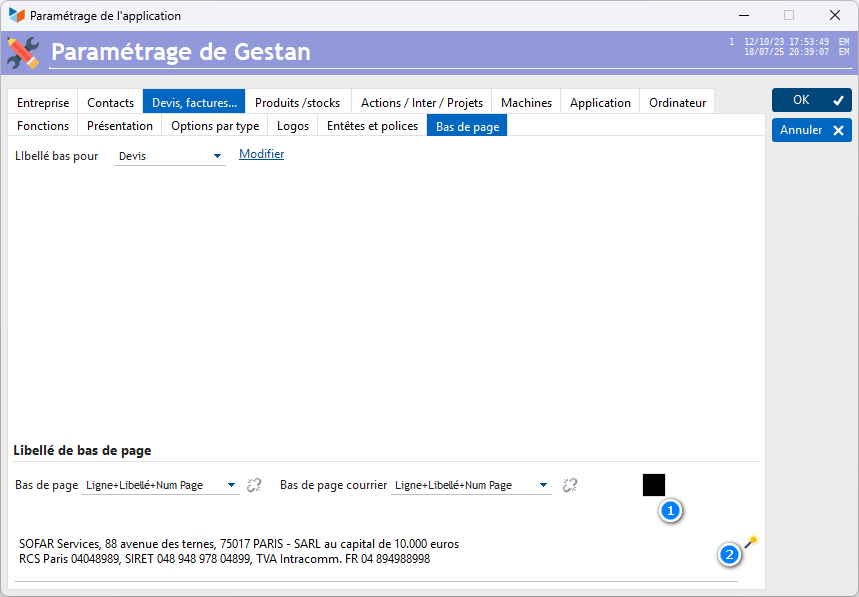
This is what this screen allows, for quotes and invoices, but also for supplier orders, supplier invoices, customer orders, and delivery notes.
The footer combo allows you to specify what should be printed at the bottom of the page: by default, Gestan ends the printing of pages with a horizontal line, the Identity label just below, and the page number. You can choose to print all of these items, some of them, or none. The 1 zone allows you to assign it a color.
The mail footer combo allows you to specify what must be printed at the bottom of the page of letters generated by Gestan: it has the same effect as the “footer of page” combo, but for pdf letters generated by Gestan based on the contents of standard messages.
Direct Print combos allow you to have another footer when you send documents directly to the printer, and you have letterhead. See Part Header tab for detailed description. If you are not using letterhead, set the Imp Directe combos to the same value as those at the top.
The identity wording is printed at the bottom of all documents intended for external use: invoices, quotes, orders, BL, intervention sheets, letters. Use the magic wand 2 to automatically fill it.
 Other articles “General settings”