====== ======Contracts
enables you to manage contracts – whether those you hold or those you offer to your clients – i.e. to record the details of these contracts and generate the relevant invoices.
The general settings offer 5 types of invoicing:
- Gestan None : no invoicing
- Manual : invoices are issued manually and then manually linked to contracts
- Amounts without invoicing : the contract amount is recorded for reference purposes, but no invoice is issued
- Amounts with invoicing : the invoice will correspond to the total contract amount.
- Products : the invoice corresponds to the products listed in the contract (including their quantities, prices, any discounts and any dates).
 If you have only a few recurring invoices to manage, you can generate recurring invoices via scheduled actions.
Enabling the feature
This feature is enabled via the General settings.
This triggers the display of the Contracts button in the main menu of Gestan.
A ‘Contracts’ tab can be displayed in the contact list via the menus_et_onglets user options.
📍 Additional fields fields are available for contracts.
Contracts table
Access: Contacts→Contracts

The table displays all contracts, by type or status, depending on the selected filters.
These contracts are classified into different categories: sales, insurance, savings, supplier, finance, maintenance, property and other.
The Invoicing column displays the current invoicing status.
The multi-criteria search field 1 allows you to search by: customer name, company name, contract number, contract reference, contract description.
The table’s context menu allows you to specify options:
- do not display terminated contracts
- set the alert period. For example, if you choose a 7-day alert period, contracts will change to ‘To be invoiced’ status 7 days before the contract expiry date.
- mark a date range as compliant or non-compliant. This is a display aid that allows you to highlight the start and end dates of contracts corresponding to the period you have specified – whether compliant or non-compliant – in red or green.
Contract details
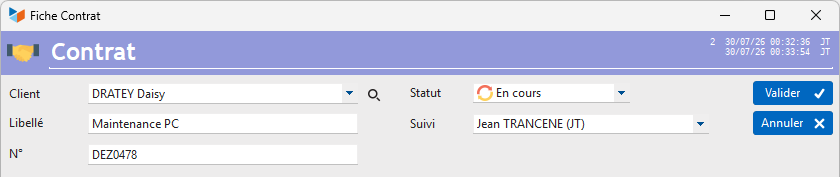
The top section of the screen contains general information, starting with the client to whom it relates. When editing a contract, the customer cannot be amended if at least one machine is linked to the contract, or if it has resulted in at least one invoice.
A contract may have different statuses :
- To be created
- Pending (customer documents, third-party documents or agreements, internal approval)
- Active,
- Overdue,
- Suspended,
- Terminated.
The contract number is mandatory.
‘Characteristics’ tab
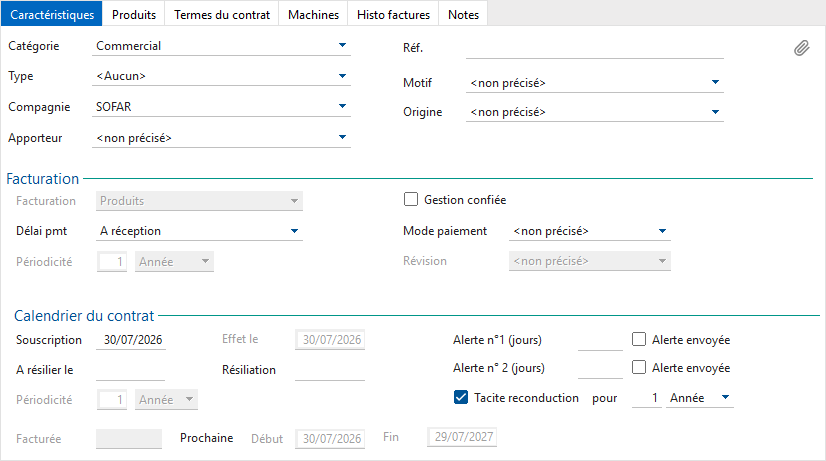
This tab displays the contract’s characteristics.
The category is used to distinguish between contracts. If it is a maintenance contract, the Machine tab will be displayed, so that the relevant machine can be linked.
It is possible to define as many contract types as required for each contract category (see customisable labels).
The company is the supplier for the contract; typically, this is the name of the company for insurance contracts. It is registered as a supplier in Gestan. This could be yourself if, for example, you offer equipment hire contracts. However, it may be one of your suppliers, for example, if you hire lorries from a company to carry out your work.
The reference is an internal reference number specific to you.
Invoicing
The drop-down menu Invoicing drop-down menu displays the contract’s invoicing method. Currently, this is determined by the general settings and cannot be changed.
The invoicing may differ from the contract’s duration: you can set up a one-year contract that is invoiced quarterly.
If the ‘outsourced management’ is ticked, the commission amount will be deducted from the contract amounts.
If revision have been set up, it is possible to specify them.
Contract schedule
This section contains, in particular:
- the subscription, the date ofeffect
- the frequency
The effective date and frequency are greyed out if the contract has generated at least one invoice.
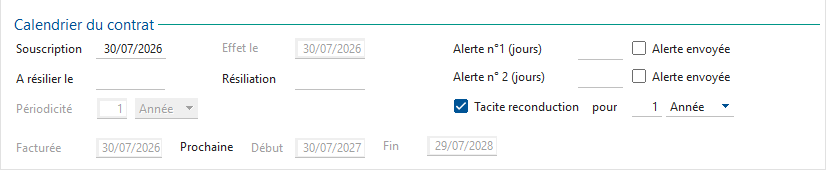
When the contract has generated an invoice, the invoice date appears in the Invoicedfield, whilst the Start and end display the dates of the next.
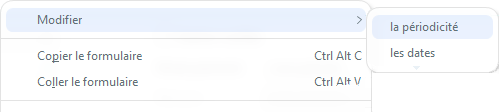
The context menu on the screen above allows you to change either the frequency or the start, end and invoiced period dates, where applicable. Please note: if you change these dates or the billing frequency, it is your responsibility to check that previous invoices have not already been generated; this could happen, for example, if you switch from monthly to annual billing.
There are two alerts : You can set it so that you receive an alert 30 days before the end of the contract, and then again 7 days before, for example to schedule the sending of an expiry notification to your client. On the agreed date, a reminder task will be created by Gestan for the relevant contract and assigned to the user responsible for monitoring the contract. All the user then needs to do is carry out the planned action and record it by ticking the Alert sent.
Billing Terms tab
The Billing Conditions tab is visible for the billing types “Amount without billing” and “Amount with billing”. It breaks down the contract amount into its constituent parts.

In the case of a “non-invoiced amount”, it allows you to specify the cost of the contract and whether there is a premium (in the case of savings schemes). It also allows you to specify whether there is a commission, management fees or other charges. The total amount is calculated automatically.
For a “Amount with charges”, you will also need to add a product and a product . This will be used during invoicing.
Products tab
The Products tab is displayed for the “Products” invoicing type.
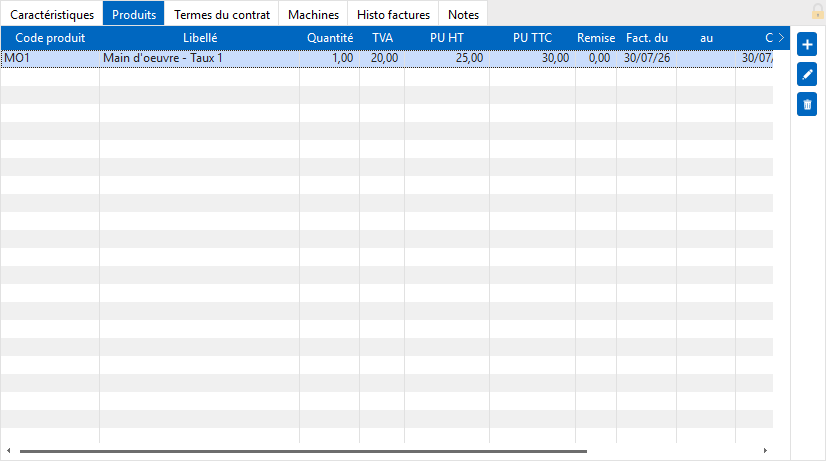
In this mode, one or more products will be linked to the contract for invoicing purposes.
For each product, you can specify a quantity, a price (which may differ from the catalogue price), a discount rate, and any start and end dates for invoicing.
Extras tab
The “Extras” tab is displayed when additional fields have been defined for contracts.
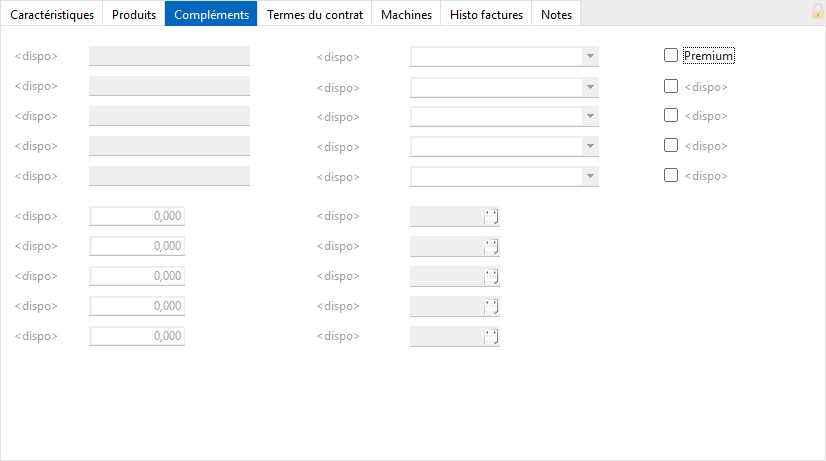
Contract Terms tab
This tab is not displayed when creating a contract, but only when editing one.
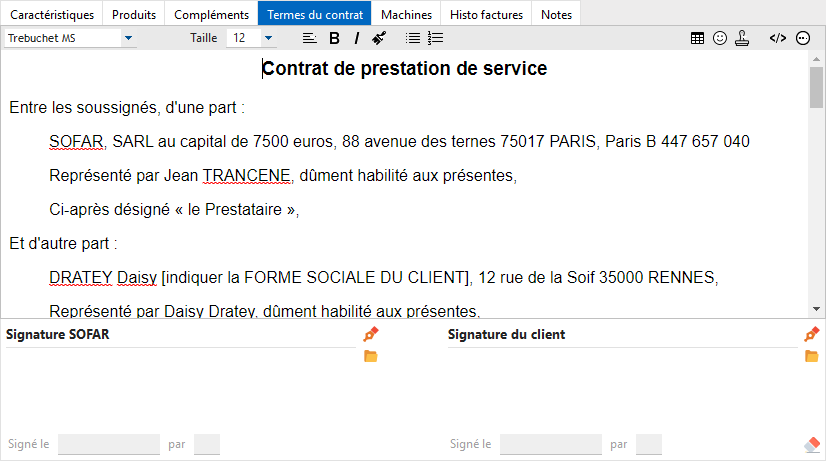
This is a text box where you can enter the terms of the contract.
This content will be printed when you request a copy of the contract via the Print button in the contract list.
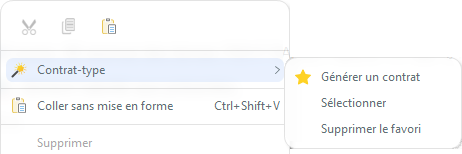
Via the context menu Generate a Contract, you can easily generate a contract from a ‘Standard Contract’ template containing keywords, which you can edit as you wish.
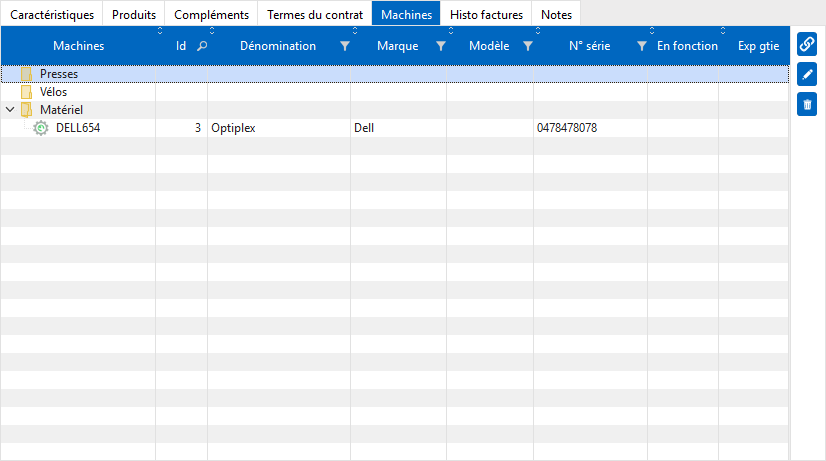
Machines tab
This tab is displayed when one or more machine types are managed.
It displays the list of machines covered by the contract (a Contract tab will also be displayed in the machine master record).
Invoices History tab
This tab is displayed when the contract type allows invoices to be linked to the contract.

 Once an invoice has been issued, it is no longer possible to amend the contract.
Notes tab

This tab is used to store any notes relating to the contract.
Contract Invoicing
For two types of invoicing, ‘amounts with invoicing’ (overall invoicing of the contract amount) and ‘product invoicing’ (invoicing of products linked to the contract), the invoicing status is calculated by the table.
This status can take four forms:
- Error: there is an error or inconsistency in the contract data. Open the contract record and correct the errors.
- Not applicable: the contract is not subject to invoicing
- Coming soon: the contract will be invoiced within the timeframe specified in the screen options
- To be invoiced
- Not yet: the contract is not yet due for invoicing and is not yet within the “Coming soon” timeframe
- Terminated: the contract has been terminated and will no longer be invoiced
The Invoice button displays all contracts due for invoicing.

The Remove button removes the selected contract from the list without deleting it: this applies to a contract that is due for invoicing but which you wish to exclude from invoicing for any reason.
The Cancel refreshes the list of contracts.
The Generate generates invoices for all the contracts displayed.
A contract is considered billable when:
- its status is ‘active’
- its effective date is on or before today’s date
- there is no existing invoice covering the period between today’s date and the start date of the current billable period.
For example: consider a contract with an annual renewal date and annual invoicing, taken out with an effective date of 10 December 2018. It is 15 December 2025: the current billable period (term due) is the range 10 December 2025 to 9 December 2026. The contract will be billable if its status is “active” and if there are no invoices linked to it between 10 December 2025 and 9 December 2026.
For the billing type “Amounts with invoicing”, the generated invoice will contain as many lines as there are non-zero items across the five available categories (Main premium, Fees, Management fees, Commission (unless management is outsourced), and Other charges).
For the invoicing type “Invoicing by ‘Products’”, the generated invoice will have as many lines as there are products linked to the contract. If a start date and/or an end date is specified, and either of these dates falls within the invoiced period—thereby reducing it—a pro rata duration is calculated and applied to the invoiced quantity.
When the contract gives rise to an invoice, the base price is taken as that corresponding to the contract’s billing cycle; the invoiced amount will therefore depend on the billing cycle. For example, a contract worth 100 EUR per year, invoiced annually, will result in an invoice for 100 EUR. However, if the invoicing frequency is every 6 months, this will result in two invoices of 50 EUR each (rather than two invoices of 100 EUR).
ℹ️ Other “Contacts” articles