Transfer your data to technical support
 A1 proofreading not yet effective for this page. In the meantime, you can ask any questions on the forum.
This screen allows you to transfer data from the local machine (yours) to a remote server used by the Gestan technical service, using the FTP protocol.
It thus allows:
- transmit your Gestan data (full transmission option) for migration to Gestan Cloud
- transmit your Gestan data to ICS when ICS invites you to do so (DATABASE transmission option only)
- forward any other files to technical support.
Using the screen
Access: via Tools → Administration → Send to support.
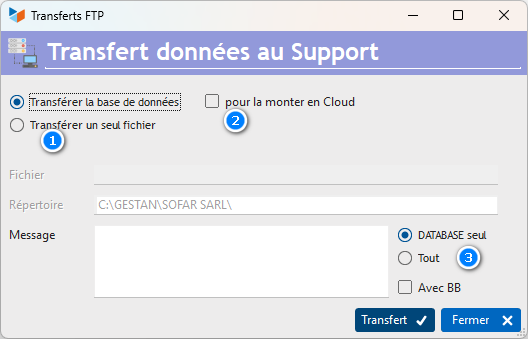
Select what you want to transmit with the 1 selector.
- or your database, in this case the directory concerned is displayed in the Directory field.
- if you transmit a file, the File field will allow you to specify which one.
At the end of the transfer, an information email is sent to Gestan's technical services. The Message area allows you to include additional information that may be useful.
When you transfer your base, you can also transfer, if necessary (rare):
- linked documents, by selecting the All option via the 2 selector.
- logging files (BB files), via the With BB box.
Transfer your data to mount it in the Cloud
When you want to transfer the data from your database to the Cloud, simply select the 1 and 2 options, then click on the Transfer button 3.
(do this only at the invitation of ICS Gestan Cloud technical support)
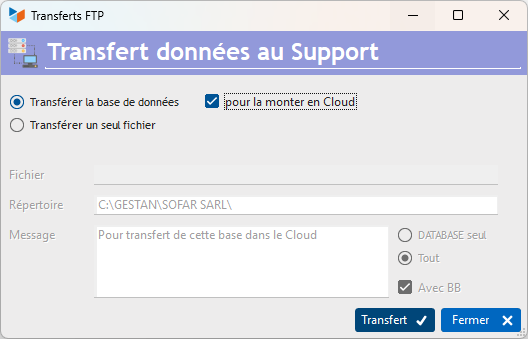
When you have transmitted your database to the Gestan Cloud service, do not make any more entries in Gestan until the technical service informs you of the opening of your Cloud database: the modifications you have made to the local database will not be possible. would not be taken into account (generally allow 1 hour of interruption).
Alternatives
Transfer your data to mount them in the Cloud manually
First make sure that Gestan is up to date: the Gestan version number is indicated at the top left of the main screen, and the current Gestan version number is indicated on www.gestan. Fr

To update Gestan, simply use the dedicated menu ? → Check for an update.
Then go to the Gestan data directory: by default, it is C:\GESTAN, but you can change it. This directory is indicated at the bottom left of the main screen, for example C:\GESTAN\MY COMPANY\DATABASE. In this example, your data directory is C:\GESTAN\MY COMPANY.

Zip the entire data directory of your machine (in our example C:\GESTAN\MY COMPANY\ with its subdirectories DATABASE, DOCUMENTS, BACKUPS, RESOURCES), and send the compressed folder via www.swisstransfer.com to address cloud@gestan.fr.
 Other Tools articles
Conexión con Gestan
Consejos y trucos
Eliminación masiva de piezas
Estructura del directorio Gestan
Exportar la base de datos Gestan
Gestan en una memoria USB
Importación de la base Gestan
Importando datos a Gestan
Importar asignaciones de cuentas
Importar contactos de Google/Outlook/Notes
Importar contratos a Gestan
Importar piezas a Gestan
Importar traducciones de productos
Importar un plan de cuentas
Inicio rápido
Mantenimiento de archivos HFSQL
Minimización de bases de datos
Procedimientos compilables
Reasignación de contactos por región
Reasignación de usuarios
Reasignar asientos
Restablecer archivos
Restablecer campos adicionales
Restablecer categorías
Transfiera sus datos al soporte técnico
Versiones Gestan