Configure the search
 A1 proofreading not yet effective for this page. In the meantime, you can ask any questions on the forum.
This screen allows you to modify the behavior of screens concerning files that may be large.
It is available from the context menu:
- from the contact list
- from the list of companies
- from the product list
 To date, the record to beat for the largest product catalog is that of a distributor of lighting products, which manages more than 74,000 references with Gestan!
Using the screen
For example, for the Contacts file, via the context menu of the filter field, open the search settings screen.
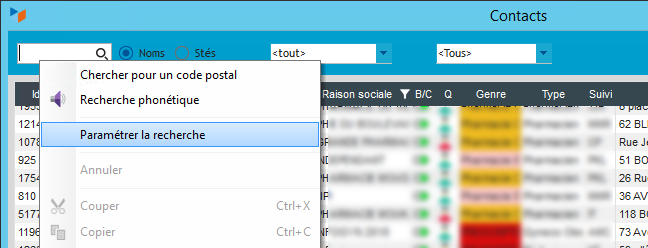
The screen below opens.
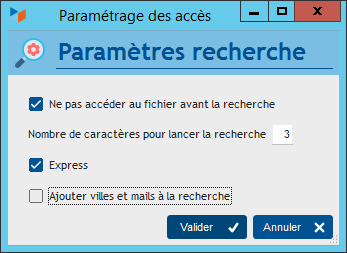
On this screen you can choose:
- do not access the file before searching: the list of contacts (or companies or products) will be empty, as long as you have not entered a few search characters in the filter area.
- the number of characters to start the search: by default, as soon as you enter a character in the filter box, a search is launched in the file to position the list on the first corresponding item. For example, if you are looking for a product with the code CHAMPAGNE, when you enter the C, Gestan will display the first product starting with C, then when you enter the H, Gestan will display the first product starting with CH, etc. On the other hand, if you define that the search must start for example at the 5th character, Gestan will wait until you have entered FIELD to filter the file and only display products starting with FIELD. It's much faster. You can put 99, to only carry out the search when you click on the small magnifying glass.
- Express search mode: in this mode, the search is carried out on the beginning of the name only. For example, if you are looking for a DEVIERS-JONCOURS contact, if you indicate DEV in the filter, you will find it whatever the mode, but if you type JONC, you will only find it in “non-express” mode. . Express mode is less exhaustive, but faster.
- if you check add email and cities to search, by typing PARI, you will find Paris Hilton, all contacts living in PARIS, and any contact who has Paris in their email address. This is a search that requires going through the entire file, therefore potentially slow depending on your volume.
Show tab contents only after finding allows tabs dependent on a main file (for example the Documents or Actions tab of the contact list) to be updated only after finding actually the desired recording.
 Other Technical articles
Configure Gestan
Configure the search
e-Mailing: good practices
Gestan CS - Client/Server mode
Gestan data backup
Gestan on a MAC
Google SMTP Server
libcef.dll file not found
Mail outsourcing
ODBC on HFSQL
Online payment
Reports and Queries
Rounded
Send emails with Gestan
Specific developments