Gestan CS - Client/Server mode
 A1 proofreading not yet effective for this page. In the meantime, you can ask any questions on the forum.
Gestan works in “Classic” mode or in “Client/Server” (C/S) mode, depending on its data access mode, as we will see below.
C/S mode has the following advantages:
- improvement in response times when there are a large number of simultaneous users on the base and/or high volume;
- data protection: data files are no longer directly visible to users.
- easy database administration: via the HFSQL server utilities.
The installation of an HFSQL server is detailed in the tutorial below. If necessary, this installation can be carried out for you by the Gestan technical service.
 C/S mode has been available since version 13.0R of Gestan Entreprise, and does not incur any additional cost,
Operating principle
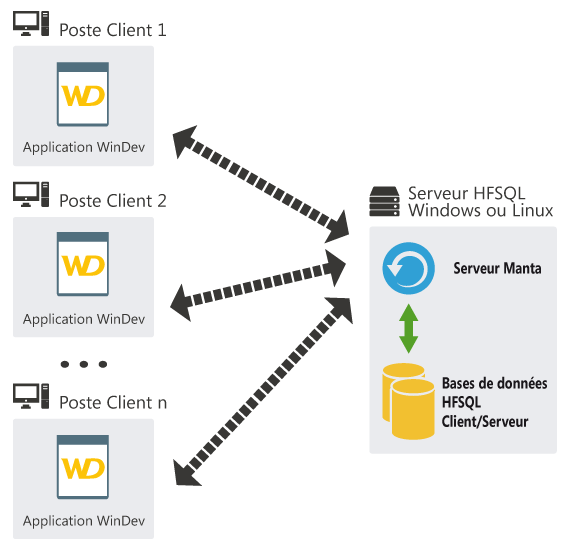 In Classic mode, the program (Gestan.exe) directly addresses the database (the xxxxx.FIC, .NDX and .MMO files). Data access management is ensured exclusively by the operating system (reads, updates, concurrent access, caches, etc.), in this case Windows, and uses the Windows data sharing system.
In Client/Server mode, the Gestan.exe program addresses a data software server (the HFSQL server), and it is this server which queries the database and returns the requested data. Windows file sharing is no longer used: only the HFSQL server is responsible for accessing the data on the server.
Technically, this has two advantages:
- The first is to get out of the management of network access by Windows, access being managed by the HFSQL data server. You no longer have to worry about updating the network layers of your Windows machines: the consistency of the machines in the fleet is in fact an important condition for the proper functioning of a Windows network. If all the workstations are not up to date, the Windows network share may fail and cause indexes to be out of phase with the data (in this case, simply reindex the data).
- The second is to access data via the TCP/IP protocol, and therefore through any type of connection, network cable, USB, WiFi or Internet. In the latter case, it allows for example to have the Gestan executable (the gestan.exe program) on your machine or USB key, and the data on a remote server, provided that it is accessible via the Internet. It also allows you to communicate with mobile applications.
Install Gestan in Client/Server
Step 1: install the HFSQL server
First, install a Gestan in Classic mode.
Then install the HFSQL server. It is available free of charge on the PCSoft site, for Windows or for Linux (You will even find a cluster with load balancing, for cases of use with many users).
The program is installed by default in C:\Program Files\PC SOFT\HFSQL Server.
You can install the HFSQL server on:
- your company server if you have one (recommended solution)
- any standard machine on your corporate network (if you turn it off, no one will be able to connect to Gestan).
- an old machine installed under Linux can be an interesting solution: very low cost and good efficiency
- a hosted server (seen at a customer's home: a Gestan C/S running on an entry-level OVH server, cost 5/month - Be careful, however, with the quality of the connection)
- a NAS (pay attention to the performance of the machine: risk of poor response time, depending on the performance of the NAS)
It is not mandatory that the machine hosting the server part of the application runs under a server operating system (Windows Server, Windows Enterprise Server, Linux Server, etc.). A simple PC running Windows 7, 10, or 11 or Linux Desktop is enough. However, server versions of OS are always superior and will impact the overall performance of the software.
You can find many videos on the internet, for example:
Step 2: configure the HFSQL server
Users
At the time of installation, you will be able to declare codes and passwords for users authorized to connect and/or administer the server.
Data location

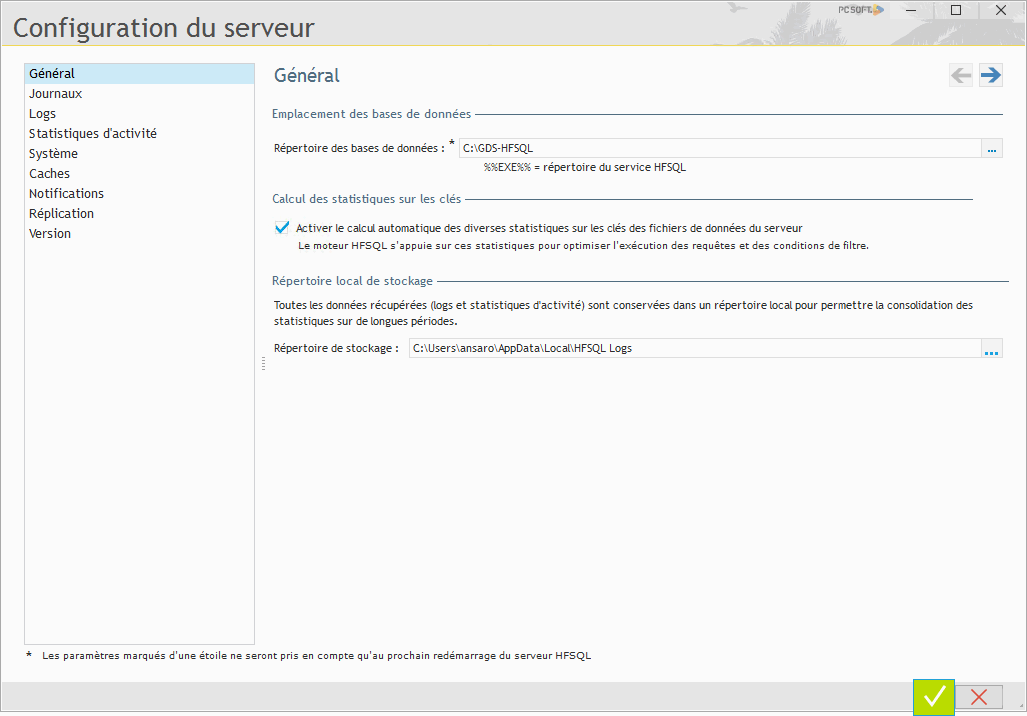
The Database Directory field on the Configuration tab specifies where the databases are stored.
By default, the directory is %%COMMONAPPDATA%%\PC SOFT\HFSQL Server [server name]\BDD, i.e., for example C:\ ProgramData\PC SOFT\HFSQL Server srv1\BDD for a machine whose Windows name would be srv1.
It is preferable to designate a directory that is easier to access, for example C:\BDD-HFSQL, in order to make backups more practical.
 To stop the HFSQL services: Control Panel → Administrative Tools → Services, and stop the Hyper File Server and MantaManager services.
Step 3: Importing a database
You must now import your “Classic” database into the HFSQL server, via the button below.

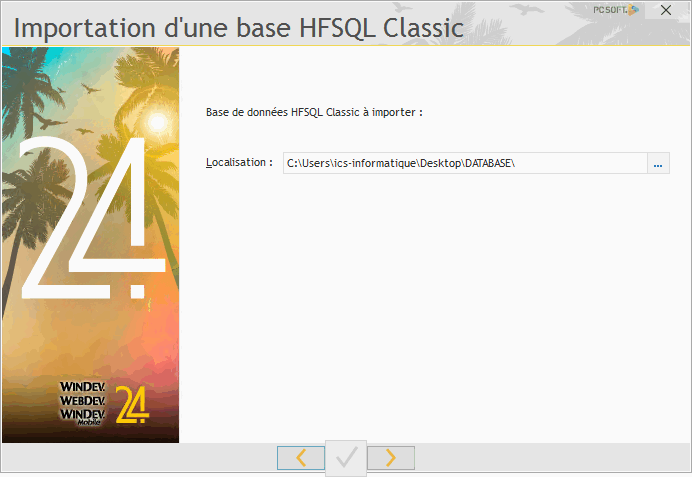
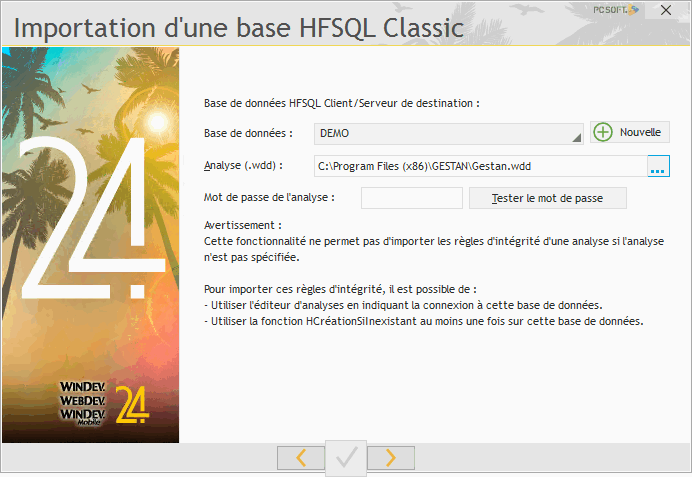
The control center will ask you to specify:
- the physical location of the database to import. Indicate the directory which contains the files to import (ACTION.FIC, ACTION.NDX, ACTION.MMO and following files)
- the name of the database as it will be known to the HFSQL server.
- the location of the analysis: indicate the directory where the Gestan.wdd file is located. You will find it in C:\Program Files (x86)\GESTAN if you had installed Gestan normally.
Since 01/01/2018, French law requires software publishers to data locking, also all Gestan files are encrypted and password protected. However, you do not need these passwords for the import: to make the password optional, do not provide the location of the analysis.
Step 3bis - Cleaning the connections

From versions 15.41.00/U03, Gestan includes a menu specific to client/server installations: Tools → Administration → Special tools → Connection cleaning. This procedure will clean up any erroneous links from the database, which are randomly created at the time of import. This is a very old bug in the HFSQL server, reported to PCSoft services about ten years ago, but which their services never took the time to correct.
More details: cleaning connections.
Sincere thanks to Yves B., IT consultant, for detecting the problem.
Step 4: Check the firewall
The HFSQL connection normally uses port 4900, but nothing prevents you from using another port. Normally the HFSQL server installer opens it automatically, but if you had to check it, here are the items.
The communication port (normally 4900) must be open in TCP, as configured below (you can restrict the exception to your internal network)
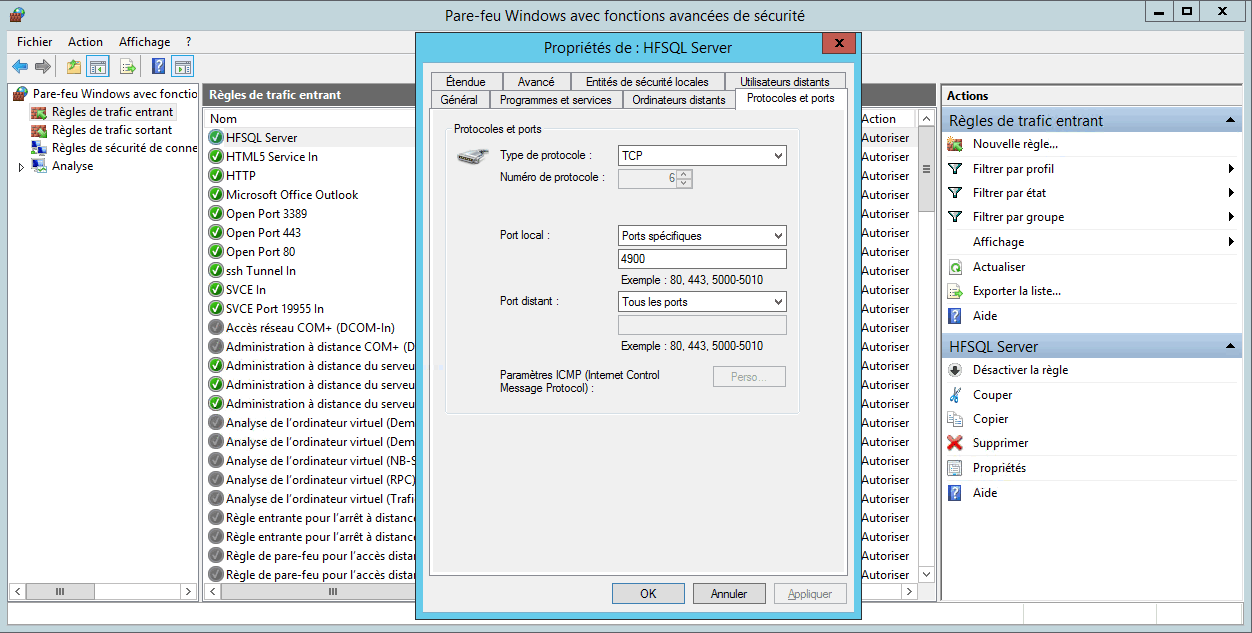
- Under Windows 2012
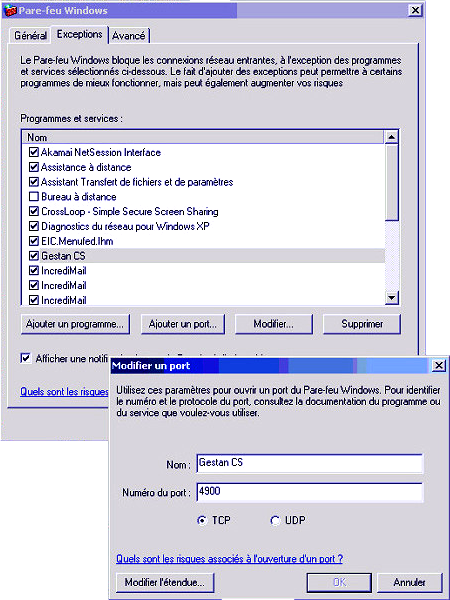
- Under Windows Server 2008 R2
To verify that your port 4900 is open, you can use telnet (telnet [IP] 4900).
Step 5: Check the box
If you have an internet box and a local network, you probably need to add a port forwarding rule.
Below is the setting of an Orange livebox for an HFSQL server which would be installed on the 192.168.1.100 machine

 This setting works with a LibeBox V3, it is different for V4.
- HFCS server inaccessible following Chgt de Livebox (PCSoft forum)
If you want the Gestan data from your own server to be accessible from outside via the Internet (the HTTP protocol), you must open your port 4900 in TCP. From client machines, you will need to indicate the IP address of your server.
You will need to open a port in the firewall protecting the server.
We can choose:
- Place the server in the DMZ, all of the server's ports will then be visible from the Internet. If the server is protected by its own software Firewall (eg that of Windows XP SP2, IpTable under Linux), you must then open the HFSQL server port (which is by default 4900).
- Perform a port forward on your router-firewall. You must add a rule in the router which specifies that connections arriving on port
If the client uses a firewall, in the same way, it must allow applications to connect via the port used to the outside
Step 6: Declaration of the connection under Gestan
You must then indicate the connection parameters to Gestan.
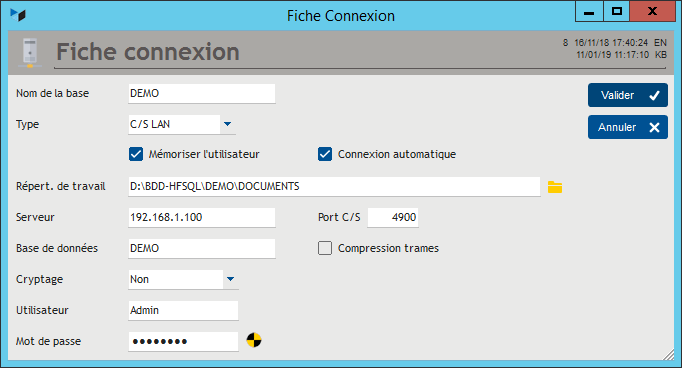
To do this, under Gestan, use the tools menu → Administration → Multi-company management, then the New button.
Describe the connection, as detailed, in LAN mode or in WAN mode.
And There you go !
Flow test
Response times depend in part on the quality of your Internet connection, which you can test the speed.
Migration from Gestan CS to Gestan classic
The reverse migration, i.e. moving from a Gestan C/S to a Gestan Classic, requires two steps:
- Copy the *.fic, *.ndx and *.mmo files (i.e. all files) located in the Client/Server data directory (see this link), and paste them into a local DATABASE directory (for example C:\GESTAN\DATABASE).
- Then, in Gestan, via the “Multi-company management” menu, declare a new classic connection, designating this local directory as the base directory (here, C:\GESTAN)
Backing up a C/S database
The definition of a robust backup strategy is the primary mission of any company's IT manager.
Although it is not the only solution, the control center has a tool that can be used to automate backups.
To do this
- click on the database to be backed up.
- click on the “New backup” button
- scroll through the menus that appear. You can dispense with the need to store indexes, as they can easily be recreated from the data.
- In the backup scenario options, you can select “full monthly backup + daily differential backup”.
 Backup testing is part of the backup strategy!
Physical Server Recommendations
Even if this information is a little dated - Thanks to Guillaume Bayle - PC Soft - they remain interesting.
What points should you pay attention to for correct configuration in Client/Server mode? (certain points are also valid for optimizing response times in classic network mode)
RAM
The most important thing is to have sufficient memory on the server. Indeed, when memory runs out, the system uses a swap file on disk (swap) which causes performance to drop, even degrading it very significantly if the swap is on the same disk as the data from the HyperFileSQL Client engine. /Server.
Generally speaking, 16 GB of RAM is a good starting point. This is the standard memory on current server configurations.
For an accurate assessment of the amount of RAM required, it can be done during “full-scale” tests of the application, based on server activity statistics. In the HyperFileSQL control center, simply go to the Logs and statistics pane, then: - indicate the test period, - click on Show, - use the “Parameters” pane of the “HyperFileSQL server activity statistics” window, to find out the RAM used, the use of caches, etc.
You can thus finely evaluate the RAM used by one or more connections, in order to evaluate the RAM necessary depending on the number of stations to be connected to the server during production.
We must not forget to take into account the RAM also necessary for the system (8 GB for W11, very demanding), and for other applications.
The speed of the disks
Fast disks (7400 rpm 15000 if possible) improve response times, the best being SSD disks.
If possible, separate the data disk and the system disk (especially its swap file. To move the swap: see here, or there.)
Processor quality
The speed of the processor will affect the server response. A Xeon processor or higher will be preferred if the applications execute numerous processes on the server (stored procedures, triggers, etc.)
Network quality
Use good quality routers. In particular, the routing functions of certain boxes are frankly bad.
The operating system
In 32-bit, a process cannot allocate more than 2 GB (around 1.6 GB maximum in practice). A 64-bit processor allows you to go beyond 2GB. Only install the HFSQL server in 64 bits.
The HFSQL engine is available for Windows and for Linux, the choice must be made according to the habits and skills of the teams in charge of administration.
For Windows all versions can be suitable. However, a server version should be preferred for the best performance and system security.
For Linux the most used distributions are: Debian, OpenSuse, Ubuntu, Fedora, and Mandriva.
See also on the PCSOFT blog:
Accéder à des fichiers HFSQL via SAMBA sur Linux
Si le serveur HFSQL est installé sous Linux, et si l'accès aux fichiers est géré par SAMBA, un paramétrage spécifique est nécessaire. Dans le fichier smb.conf qui se trouve communément sous /etc/samba, il faut rajouter ou modifier les paramètres suivants dans la section [global] du fichier.
[global]
locking = yes
strict locking = yes
share modes = yes
oplocks = no
kernel oplocks = no
blocking locks = no
fake oplocks = no
level2 oplocks = no
Ensuite, il est nécessaire de redémarrer le service Samba pour prendre en compte le nouveau paramétrage.
 Autres articles “Technique”
Configure Gestan
Configure the search
Email marketing, spam: best practice
etatsetrequetes
Extending the functionality of Gestan
General Overview of Gestan
Gestan CS - Client/Server mode
Gestan data backup
Gestan on a MAC
Google SMTP Server
libcef.dll file not found
Migration from version 15 to version A1
ODBC on HFSQL
Online payment
Outsourcing of post handling
Remote access
Request a bespoke development
Rounding
Sending emails using Gestan