Planned actions
 A1 proofreading not yet effective for this page. In the meantime, you can ask any questions on the forum.
You can schedule actions for any contact or any user, at a chosen frequency.
For example :
- an operation to be carried out every three weeks on equipment;
- the generation of a new invoice every month for such customer;
- the generation of an annual proposal (quote), updating the prices in your catalog;
- the generation of a supplier invoice each month, for example your Internet subscription;
- the generation of an accounting entry every quarter, for example your Cloud subscription;
- a reminder for the VAT declaration to be prepared every 10th of each month for your Public Treasury contact

- etc
There are two types of planned actions:
- planned actions of type “simple”, which only refer to themselves
- planned actions of type “cloning”, which refer to another record in Gestan, for example a planned action which refers to an invoice, which should be issued on a recurring basis.
 The contracts also allow you to generate recurring invoices.
Using the screen
**Access: ** Activity → Actions → Planned actions
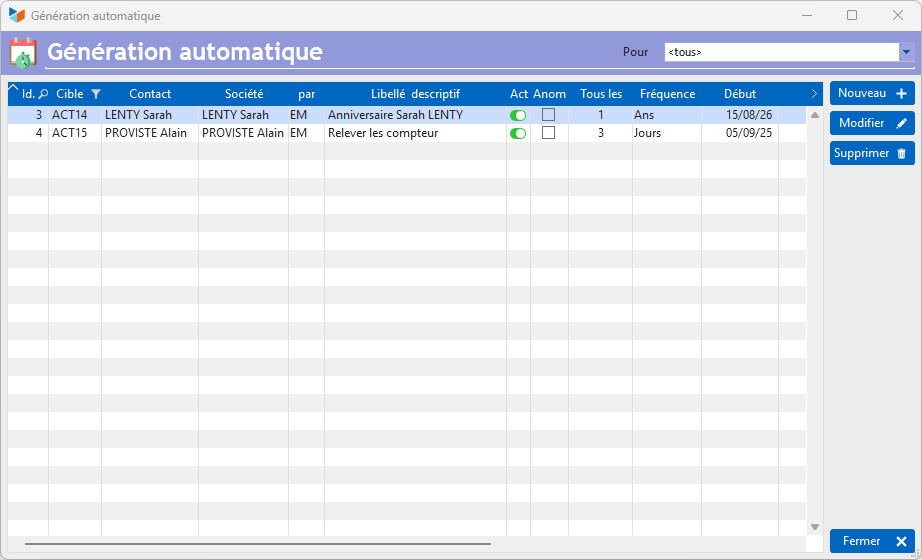
This screen allows:
- to create planned actions of the “simple” type only, whether they are linked to Gestan users, or to contacts saved in Gestan with the New button;
- to modify or delete any type of planned action (simple or cloning) with the Modify and Delete buttons.
Use the New button to create a planned action linked to a contact, and the New (U) button to create a planned action linked to a Gestan user.
We will see below how to create a scheduled action of the “copy” type.
Planned action sheet
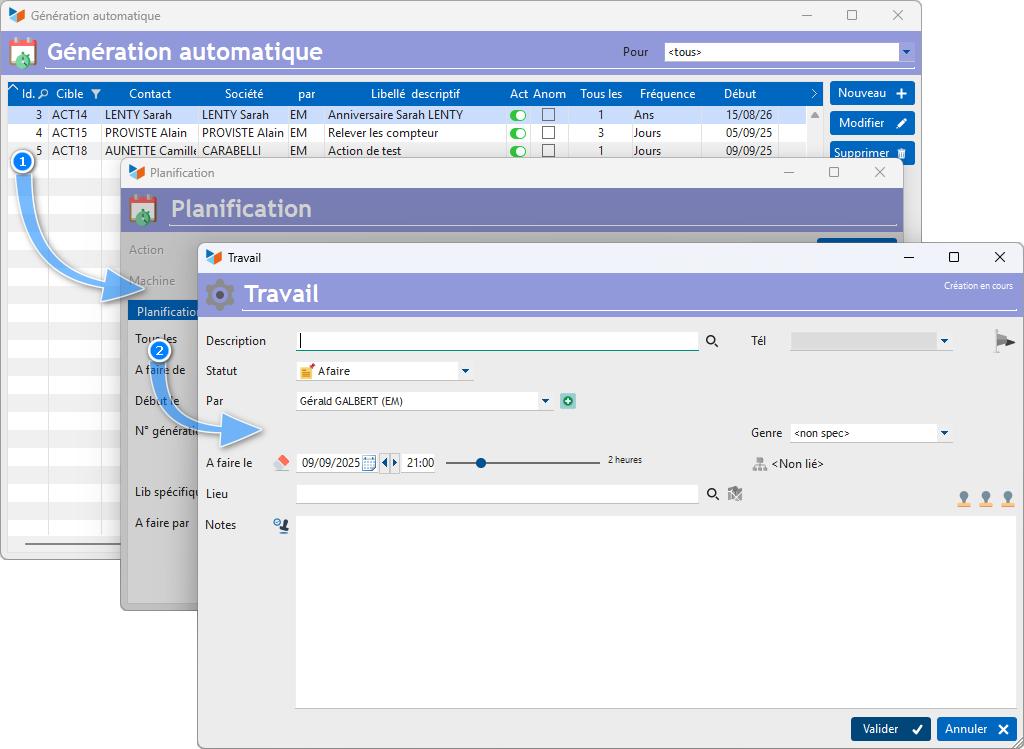
The Activated check box allows you to switch on or off the automatic generation of the planned action, without deleting it (once the action has been validated, you must use the context menu of the list of planned actions to enable or disable it).
The Action area indicates the wording of the action. For planned actions referencing another record, it is in a codified form and cannot be modified.
The generation number is a numeric, incremented by 1 each time an automatic action is generated. It is intended to be used as a keyword value in generating action labels (see below)
Show is the number of days before the action to display it in the ToDoList. If you indicate that it must be displayed 3 days before the due date, it will be displayed from the 12th of the month (since it must be done on the 15th) in the list of actions to do on the screen. 'welcome.
It is possible to link a planned action to a project or a task via the 1 icon. If the project or task is completed, the scheduled action will not be generated.
Gestan generates the planned actions at the time it should be displayed. For example, if you schedule a “sales meeting” action every Thursday with posting two days before, the “real” action will be generated by Gestan on Tuesday. This avoids generating all the actions until the presumed date when it will no longer be necessary, but has the disadvantage of not seeing these appointments on your schedule for the year N+20, if you wanted to consult it.
However, if you really wanted to generate the actions for the next X deadlines, you can use the generate until menu, available on the context menu of the table. Automatic generation by Gestan will resume after this date.
Planned cloning type actions
These scheduled actions are created by cloning a reference record. It is thus possible to record recurring entries, recurring interventions, quotes, invoices, or recurring supplier invoices.
 A generated scheduled action cannot be modified, but only activated or deactivated, via the list context menu. When it no longer meets what is needed, delete it and create a new scheduled action.
Recurring entries
From the list of entries, use the context menu Schedule (recurring entry) to automatically generate a scheduled action from the selected entry.
The planned action will be worded:
GEN_AUTO ECRITURE xxxx.
xxxx designating the identifier of the entry to copy (for example GEN_AUTO ECRITURE 456)
The wording of the entry will be generated from the first line of the “Comment” field of the planned action. The keywords that can be used for actions (%NUM%,%MM%, %MM-1%, %MMYY%, etc.) can be used in this label.
Recurring interventions
From the list of interventions, use the context menu Schedule (recurring intervention) to automatically generate a scheduled action from the selected intervention.
The planned action will be worded:
GEN_AUTO INTERVENTION xxxx
with xxxx designating the identifier of the intervention sheet to copy.
If the intervention includes ingredients, these will also be generated, and the billable quantities reproduced, but the quantities consumed will be zero.
Recurring quotes
From the quote list, use the context menu Schedule (recurring item) to automatically generate a scheduled action from the selected quote.
The planned action will be worded:
GEN_AUTO DEVIS xxxx
xxxx designating the estimate to be copied.
You can specify that you do not want the prices to be updated with the values from the product catalog. In this case, the wording will be:
GEN_AUTO DEVIS xxxx /RECOPIE_SIMPLE
Recurring invoices
You can generate a recurring invoice:
- or from a quote. In this case, use the Schedule → An invoice menu from the list of quotes
- or from an invoice. In this case, use the Schedule menu from the list of invoices.
The planned action will be worded:
GEN_AUTO FACTURE xxxx
xxxx designating the invoice to be copied.
You can specify that you do not want the prices to be updated with the values from the product catalog. In this case, the wording will be:
GEN_AUTO FACTURE xxxx /RECOPIE_SIMPLE
The invoice lines will possibly be updated with the updated prices, if the product prices had been modified in the product sheet, unless the /RECOPIE_SIMPLE option is specified,
If the invoice must be generated from a quote, the wording will be:
GEN_AUTO DEVIS->FACTURE xxxx
xxxx being the quote serving as the source for the invoice.
Recurring supplier invoices
From the list of supplier invoices, use the Schedule (recurring item) context menu to automatically generate a scheduled action from the selected supplier invoice.
The planned action will be worded:
GEN_AUTO FACTUREFOU xxxx
xxxx designating the supplier invoice to be copied.
You can specify that you do not want the prices to be updated with the values from the product catalog. In this case, the wording will be:
GEN_AUTO FACTUREFOU xxxx /RECOPIE_SIMPLE
Advanced use of keywords
It is possible to use keywords in planned action labels, in order to be able to automatically process dates.
For example, you made a quote with the following wording:
ABONNEMENT 2023
and containing a line
Abonnement revue 01/01/2023 - 01/01/2023
All you need to do is provide information in the quote.
ABONNEMENT %SSAA%
and containing a line
Abonnement revue 01/01/%SSAA% - 01/01/%SSAA+1%
In the next generation, the keywords %SSAA% will be replaced by the date of the current year, %SSAA+1% by that of the following year.
You can also use %AA% to take only the last two digits of the date, add or subtract from 1 to 9 units (for example %AA-8% would be replaced by the date of the 8th year before today's date)
You can use keywords in the description of actions, these keywords will be replaced by their value when they are generated.
For example, you can create a planned action “Sylvie's Birthday” to take place every year on December 2. But if you put “Sylvie's Birthday %NUM% years”, you will be able to obtain an action label “Sylvie's Birthday 35 years”, which can be useful in certain circumstances (right-click on the date of birth of the contact card allows you to generate this birthday reminder automatically).
Here is the list of keywords that can be used:
- %NUM%: value of the generation number
- %MMYY%: current month/year, for example “January 2018” if it was January 2018
- %MM%: current month, for example “January” if it was January 2018.
- %SSAA%: century and year
- %AA%: last two digits of the year
- %TT%: the number of the quarter, for example “1” if it is January, February or March.
Operating from 1 to 12:
- %MM-1%: previous month
- %MM+1%: following month
- %SSAA+1%: century and the year of the following year
- %SSAA-1%: century and year of previous year
- %MMYY-1%: previous month/year, for example “December 2017” if it was January 2018
- %MMYY+1%: following month/year
- %AA-1%: for previous years.
You can also use keywords in the lines of the parts to be automatically generated.
 Other Activity articles