====== =====products
Products are the items you sell or buy. These may be goods or services.
They are grouped into families and, where applicable, sub-families.
There are two types:
- simple products
- compound products of simple products, known as construction projects in the construction sector. For example, you can list a product as ‘Door’, which would consist of 1 door unit, 3 hinges, 1 lock, and 3 hours’ labour for fitting. On the quotation or invoice, only one line will appear: ‘Door’.
There are also model products—products that are sold as a set. For example, you can list a set product called “Basic Kit”, comprising a hammer, three screwdrivers and a spanner. When invoicing, there will be three lines on the invoice.
📍 additional fields are available for products.
Product list
Access: Products → Products
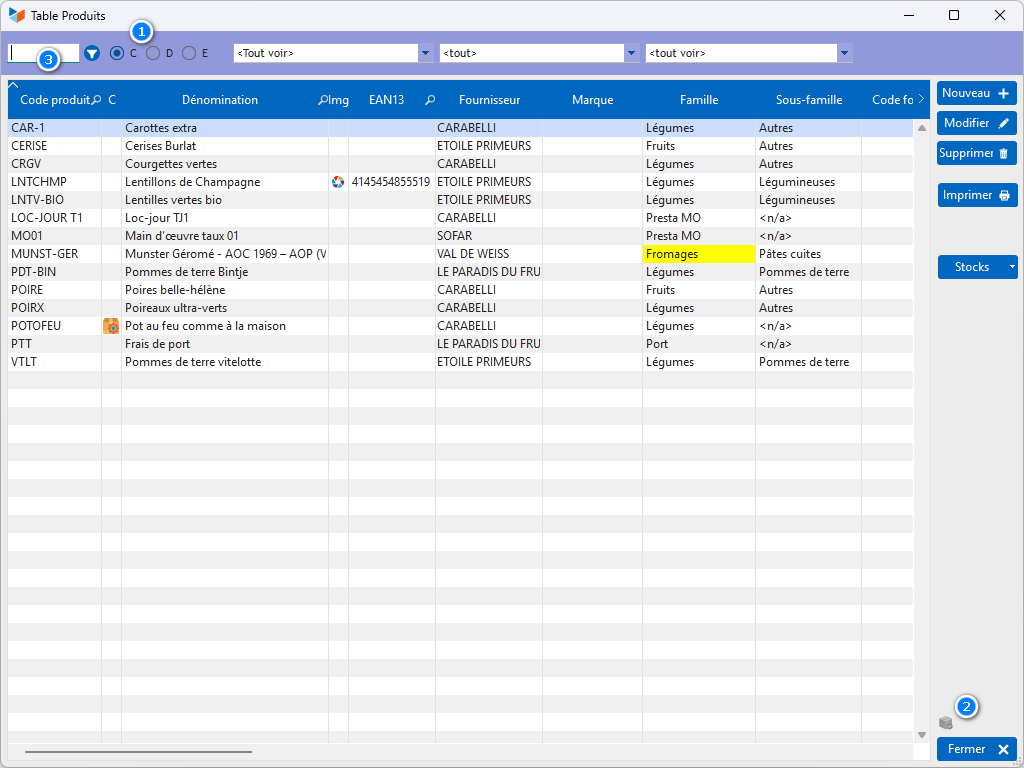
The selector 1 allows you to search by Cproduct code, Dname, or EAN13.
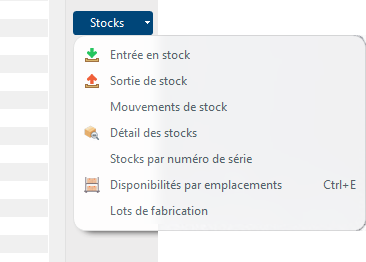
The Stock button displays the stock management menus, if you manage stock.
The icon 2 allows you to show or hide products in stock, if you manage them.
 If you select a family or sub-family, these will be populated by default when creating a new product. The same applies to suppliers

The context menu for the search filter 3 allows you to change the display behaviour when dealing with particularly large files (configure the search).
Context menu for the table
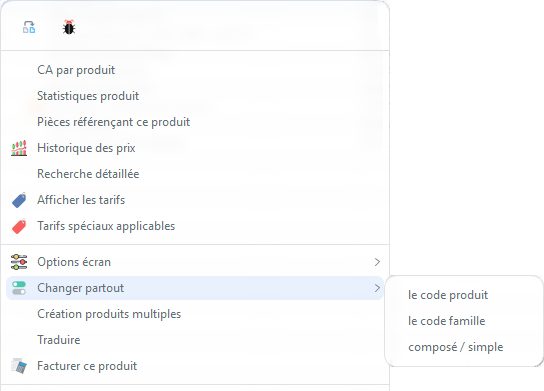
Create multiple products allows you to create products by duplicating the selected product. You then simply need to edit it. This function is useful when you want to save products with different variants (e.g. power rating, colour, etc.)
Replace Everywhere allows you to change the product code, its family/sub-family affiliation, and its type (compound/simple), and, if necessary, to apply this change to the documents. For example, suppose you had a product code CHAMP-BB that you invoiced to several customers and now wish to change this code to BLBL18, for instance. This option allows you to change the product code in the product file, and also to change CHAMP-BB to BLBL18 in the invoices that have already been issued. If you decide not to make this change in the documents, the product code CHAMP-BB will become ‘orphaned’ (but the invoice will retain the original product’s details, in particular its supplier and purchase price)
Invoicing the product allows you to generate an invoice directly for this product, with the option to amend the quantity and add other products.
Product record
General tab
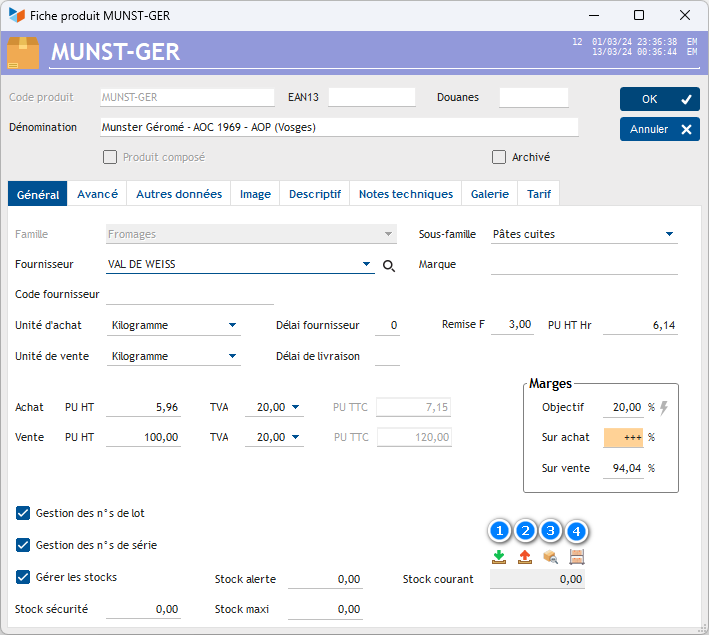
A product always has a product code, which is your own personal coding system. When editing, the product code or the link to the product family can only be edited via the programme accessible through the context menu of the product table.
You can enter an EAN13 codecode, which is essential for working with barcodes. The EAN13 code’s context menu includes an Automatic option that automatically populates this field with a random EAN13 code if it has not been entered. You can, if necessary, disable the EAN13 consistency check via the same context menu, so that you can enter a different code in this field if required.
The customs code will be essential if you are involved in import/export. Within the European Union, it is theoretically an 8-digit code (‘Combined Nomenclature’, or CN8 code), except in France, which uses a 9th digit and refers to it as the ‘General Product Nomenclature’ (NGP).
Products are linked to supplier : this is your company, when you produce the goods yourself, or your supplier’s company, when you purchase them elsewhere.
The supplier code is the code for that same product at your supplier’s; it may be the same as the product code, or different. When you enter a sales order, your product code will be displayed, but when you issue a purchase order, the supplier code will be printed.
Thepurchase unit may differ from thesales unit : for example, you may purchase bottles in cartons of 6 and resell them individually. In this case, define a conversion factor between the units so that you can manage stock correctly (stock is managed in sales units).
If you enter a purchase price, enter the discounted price if you receive a discount from the supplier (you can enter the purchase price excluding the discount in the PU excl. VAT hrfield, and the supplier’s discount rate in the Supplier Discount Ffield).
When creating a product, the VAT rates are populated with the default rate. If the VAT rate is not the default rate, the field is highlighted to alert you to this.
The VAT for sales is the one that will be entered by default when you create a quotation, an invoice or any other customer document, unless the customer’s VAT regime requires a different rate. The same applies to the VAT purchase, for supplier documents.
When both the purchase price and the selling price are specified, Gestan calculates your margin :
- on purchase (margin rate, margin as a percentage of the purchase price) = (Sale price excl. VAT – Purchase price excl. VAT) / Purchase price excl. VAT × 100.
- on sales (margin rate, proportion of margin in the selling price) = (Selling price excl. VAT – Purchase price excl. VAT) / Selling price excl. VAT × 100.
You can specify a Target margin target (when creating a product, this is set to the default product margin rate by default – see General settings). The selling price is then recalculated to meet your target.
Stock management
If you manage stock, the Manage stock allows you to specify that stock levels are managed for this product. In this case, you can specify:
- the reorder point : the level below which the planned restocking procedure must be initiated.
- the safety stock : the level below which stock must never fall, unless there is a problem with the restocking procedure
- the maximum stock level : your maximum storage capacity.
The current stock is the stock theoretically physically present in your warehouse. The 1 allows you to enter a stock receipt, 2 a stock withdrawal, 3 to view stock information, and 4 to check availability by storage bin, if you manage storage bins.
If you manage stock levels by storage bin, the values of the alert stockand safety stockand maximum stock are greyed out: these values must be entered on the Disponibilités par emplacements.
WEEE tax management
In France, the tax on WEEE, also known as the “eco-tax”, “eco-contribution” or “eco-levy” – in line with standard greenwashing practices – adds complexity to the invoice.
An EEE is Electrical and Electronic Equipment, whether battery-powered or mains-powered, for domestic or professional use. And a WEEE (or D3E) is Waste Electrical and Electronic Equipment. Regulations require the collection and recycling of such equipment – a process that remains highly uncertain – whilst the tax intended to fund it is very much a reality. Its equivalent in Switzerland is the TAR.
From the customer’s perspective, the WEEE charge is included in the sale price and is subject to VAT, but is not included in any discounts (if you offer a discount on the price, the WEEE charge is not discounted). The WEEE charge is treated as the purchase of a service and is therefore subject to VAT.
To calculate this, the formula is:
(prix de vente H.T * tauxTVA) + (écotaxe * tauxTVA) = prix à payer par l'acheteur
And in the case of a discount:
((prix de vente H.T - remise) * tauxTVA) + ( écotaxe * TauxTVA) = prix remisé à payer par l'acheteur
From the supplier’s perspective, it is not included in the price.
This levy, which introduces a high level of complexity just to recover a few fractions of a euro, incurs costs at every level: IT, training, accounting and auditing – costs which are obviously not borne by those responsible for generating them. Here, the legislator, through this complex, unproductive and unnecessary process, is undermining the country’s economic performance.
Advanced tab
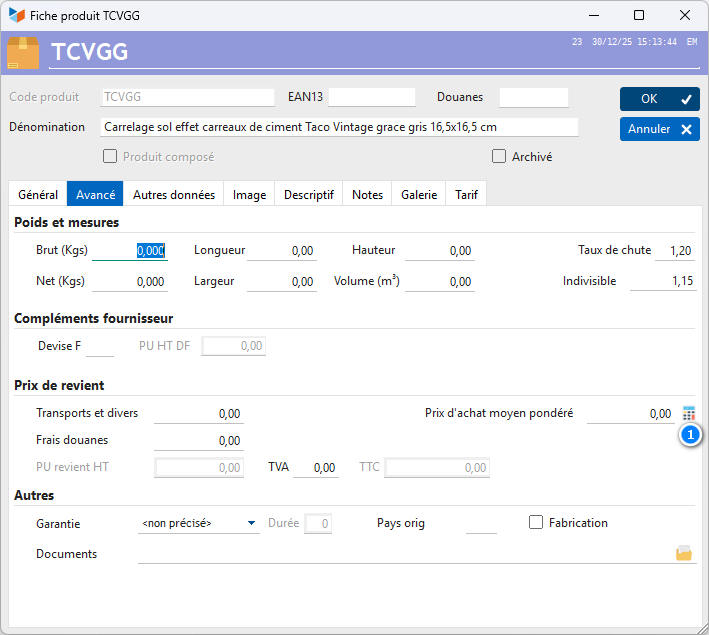
The waste rate allows quantities to be adjusted using the scrap rate, which can be combined with the indivisible quantity.
The weighted average purchase price can be entered. You can also calculate it using the 1 button: in this case, Gestan calculates the WAP based on all supplier invoices containing this product.
Practical example of using the wastage rate and indivisible quantity
Let’s take the example of a “TCVGG” tile model sold in boxes, with each box containing 1.15 m² of tiles. The customer needs to tile an area of 40 m².
In the product details for these tiles, specify an indivisible quantity of 1.15.
In the quick entry field, enter TCVGG*40.
There are two scenarios:
- either your sales unit is the box. In this case, Gestan will perform the following calculation: to tile 40 m², you need 40/1.15, which is 34.78 boxes. Gestan will round the quantity up to the nearest whole number and enter 35 in the ‘Quantity’ column of the sales document.
- Or your unit of sale is the m². In this case, you must tick the box Reverse indivisible quantities in the general settings. The calculation will be as follows: for 40 m², you need 35 boxes, so the quantity will be 35 × 1.15, which is 40.25 m².
The calculation may also take into account the wastage rate specified in the product data sheet.
For example, if the wastage rate for these tiles is 20 per cent, in our first scenario we would automatically have a quantity of (40 × 1.2) / 1.15, which is 42 boxes, and in the second case we would have a quantity of (42 × 1.15), which is 48.3 m².
If you wish to vary the wastage rate each time (the wastage rate may vary, for example, depending on the total area or the shape of the surface to be tiled), do not specify a wastage rate in the product details, but use the direct product entry field as follows: [product code] * [area] * [waste factor], as in the example below (invoice details screen).

‘Other Data’ tab
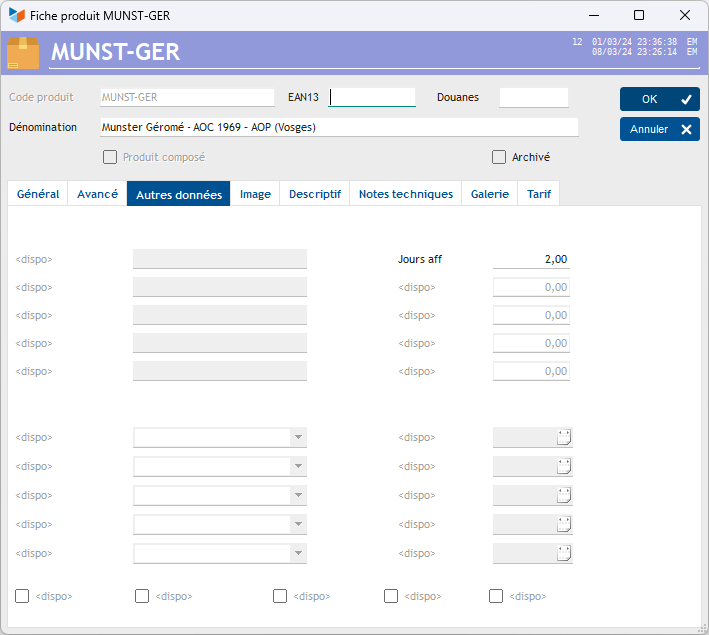
This tab is displayed when entering additional fields product.
Image tab
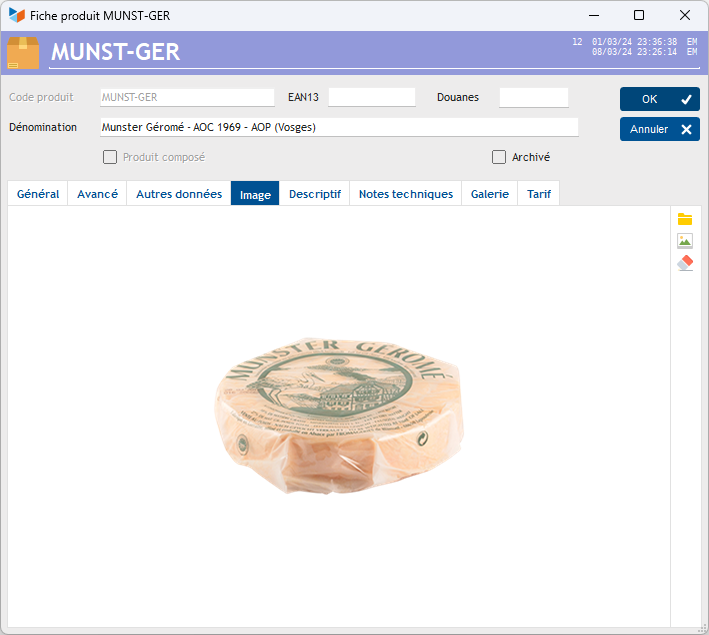
This tab allows you to store an image of the product.
Product images can be printed on quotations, invoices, etc.
‘Description’ tab
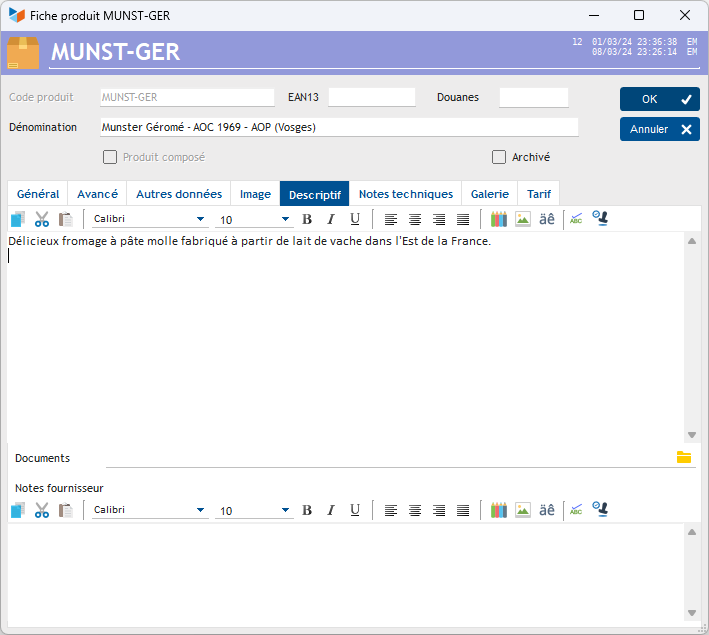
The Description field will supplement the product description when you create a customer document.
The Document allows you to attach a document to the product, such as a PDF file, a folder in which you can store a set of product documents, or a URL (see the context menu for this field)
The Supplier Notes will supplement the product description when you create a supplier document.
Technical Notes tab
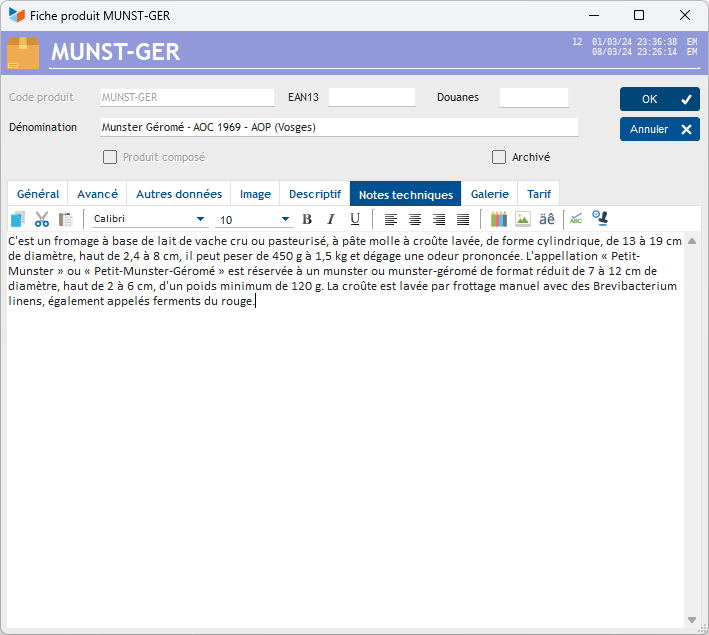
This tab allows you to store technical notes about the product for your own use.
Gallery tab
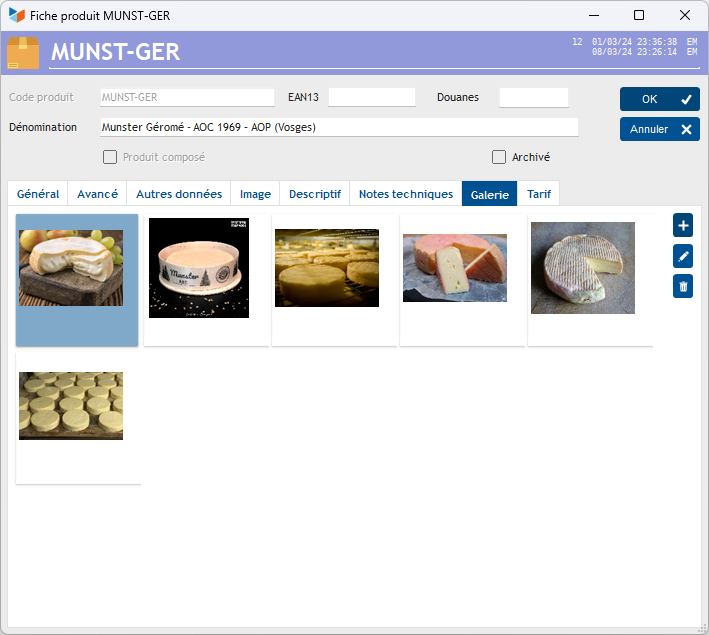
This tab allows you to store images and PDF files, with no limit.
Pricing tab
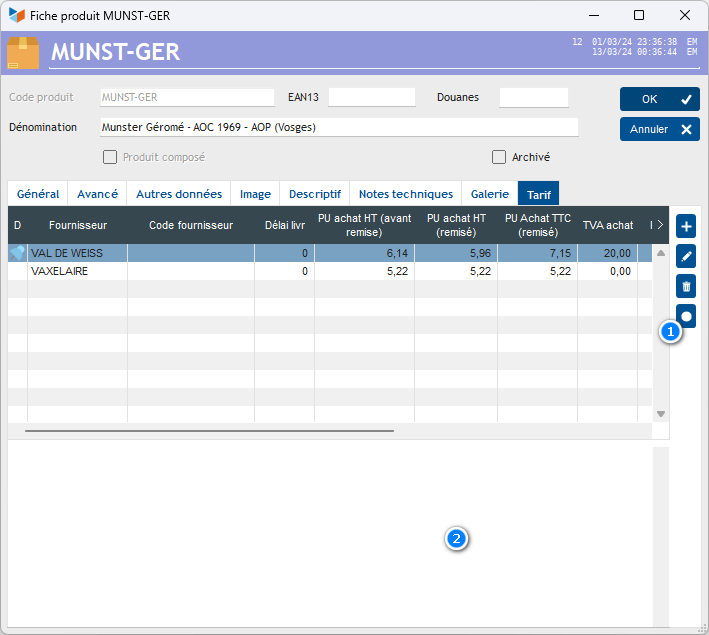
Gestan can store different supplier prices for the same product.
The button 1 allows you to set the selected price as the default price.
The 2 displays the supplier notes for the selected supplier.
Composition tab
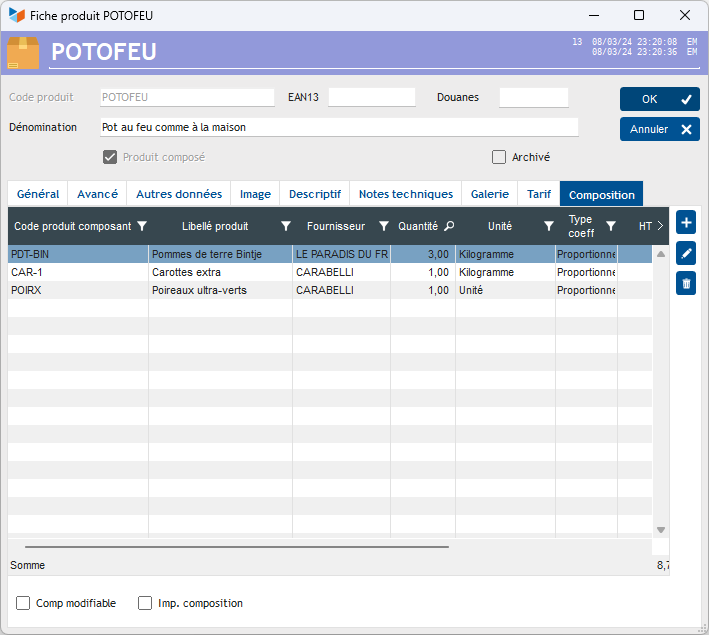
If you have designated the product as a composite product, this tab allows you to update the product’s composition.
The ‘Composition editable’ allows you to modify the product’s original composition once the quotation, invoice, etc. has been issued.
If the Print Composition is ticked, then all the components of the composite product will be printed on the quotation, invoice, etc.
Product price rounding: excluding VAT or including VAT
You can enter a selling price excluding VAT or including VAT: if you enter a price excluding VAT, the price including VAT will be calculated by Gestan based on the applicable VAT rate.
However, the effect is not the same with regard to rounding when you enter the price excluding VAT or including VAT, as Gestan retains all the calculated decimal places. This has an impact when calculating invoices and other documents: if you wish to have ‘round’ totals including VAT, enter the final prices including VAT, and vice versa. The tooltip shows you the actual price stored by Gestan.
The general settings allow you to specify whether you wish to work with prices excluding VAT or including VAT, thereby requiring product prices to be entered either excluding VAT or including VAT.
ℹ️ Other “Products” articles
Configurateurs Produit
Familles et sous-familles (de produits)
Historique des prix Produits
Importer des tarifs fournisseur
Lots de fabrication
Modification des produits en masse
Numéros de série
PAMP : Prix d'achat moyen pondéré
Produits
Produits Composés
Produits hors-catalogue
Produits équivalents
Produits-Modèle
Rechercher un n° de série
Recomplètements produit
Tarifs fournisseurs
Tarifs spéciaux *
Variantement de produits