Ceci est une ancienne révision du document !
DRM: Monthly Summary Declaration
Overview
All winegrowers, as well as brewers, are required to submit a DRM: each month, this involves carrying out a stock-take of the cellar, which must match the stock movements recorded during the month.
This extension uses the stock movements recorded in Gestan and automatically calculates the theoretical results based on the recorded movements and previous stock levels: all that remains is to compare these with the physical stock count.
It also enables the calculation of taxes payable in the case of a brewery.
Configuration
Configuration of stock movement types
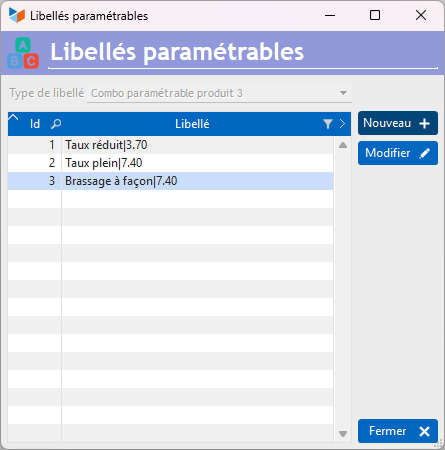
Via Tools → Administration → Customisable Labels, configure the transaction types. For example:

Configuring unit conversions
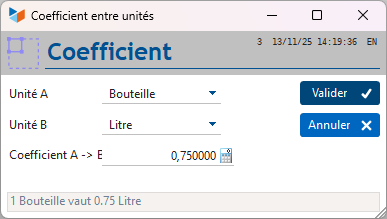
Then configure the unit conversion table via Tools → Administration → Repository → Unit Conversion Factors, to record the ratio between your reference unit for calculating DRMs (usually the bottle or the neck) and other possible units: for example, a magnum = 2 bottles, a jeroboam = 8 bottles, 1 ‘fillette’ = 0.5 or 0.75 bottles (depending on the region), 12 bottles = 1 ‘cuite’, 24 bottles = 1 ‘coma’, etc.

Configuring the extension itself
Continue with the configuration via Tools → Application Settings → Extension Settings → DRM.
General tab

Specify the product family or families that correspond to the wines (or beers) sold, then thereference unit for wine for the calculations.
The ‘Synth in reference unit’ allows you, on the Summary tab, to total not by Appellation/Centilisation, but by Appellation, by converting everything into the reference unit.
It is possible to specify a number of decimal places, which is useful, for example, when you have a large number of bottles but your reference unit for wine is the hectolitre.
If you need to manage appellations, store them in a customisable drop-down list in the product record, and specify them in the Appellation drop-down menu. Also store the alcohol content in an additional numeric field, and specify this field in the Alcohol Content.
Specify the product family for the Capsules, and specify the CRD reference unit for CRDs. Store the capsule type in a configurable combo box in the product master record, and specify this combo box via Capsule drop-down.
Finally, specify in tax drop-down which drop-down list in the product master record you use to store the tax regime for the wine in question.
The date First Inventory field will be filled in automatically the first time the application is opened, or when the stock history by appellation is cleared. This is the start date for stock calculations, normally the last day of the month.
Markets tab
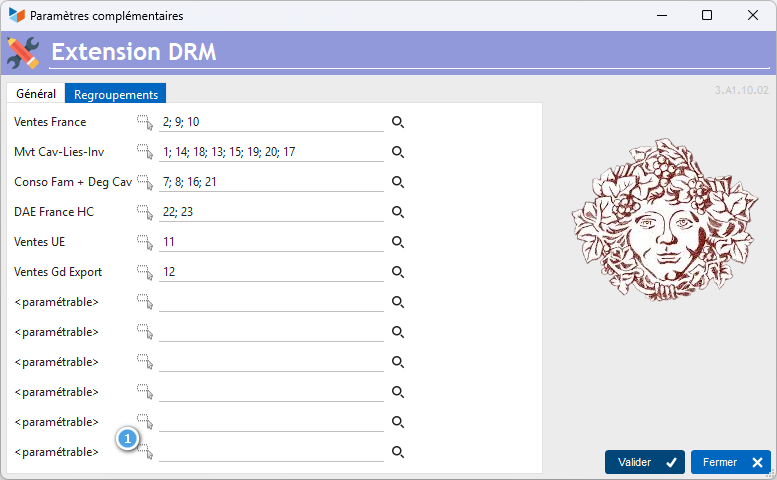
You can group stock movements into markets, depending on the type of movement.
First, enter a description using the small buttons 1. Enter at least ‘Sales in France’, ‘Sales within the EU’ and ‘Sales outside the EU’. You can enter, for example, ‘Personal consumption’, ‘Tasting room’, etc.
The small magnifying glasses 2 allow you to select one or more types of movement.
You can also specify, where applicable, the types of movements not to be included in the calculations (for example, movements corresponding to a draw-off for bottling), via Excluded Movements.
Additional fields in the product record
Via Tools→Settings→Additional fields.
Here are the settings for the additional fields corresponding to the configuration above.
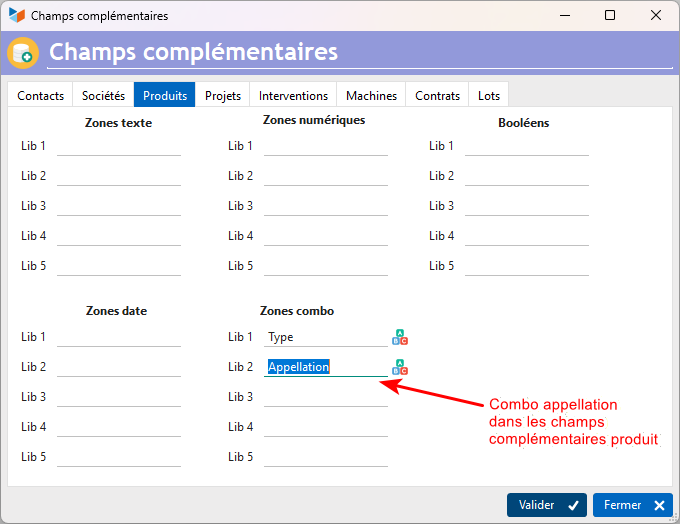
- Drop-down menu 1 stores the appellation (tax category)
- Field 1 stores the alcohol content.
- Capsules are managed in drop-down menu 2
- The tax regime is selected in drop-down menu 5.
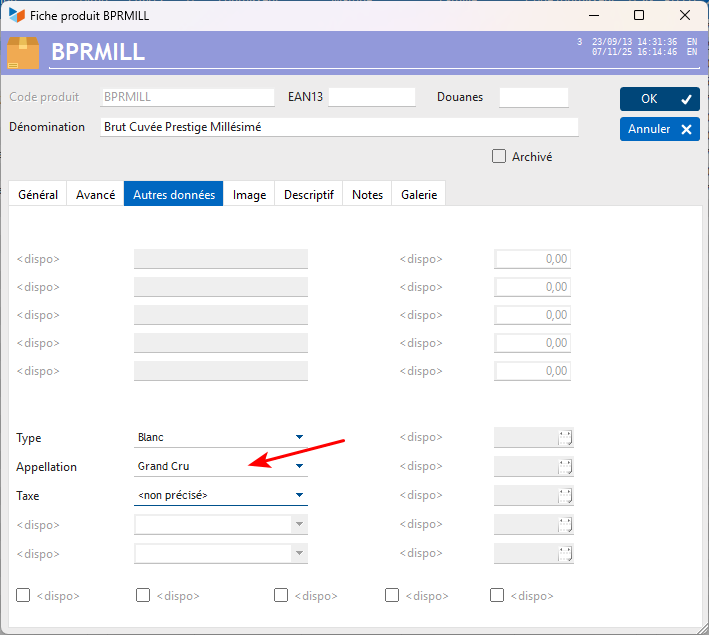
In the product record, it will be possible to enter this information, as shown below, for example.
Calculation of duties and taxes payable
If you wish to calculate duties and taxes payable based on the volume of alcohol sold:
Using the additional product fields, enter a numeric field for managing the alcohol content by volume (ACV, or alcohol percentage, or alcohol degree) and a drop-down menu for managing taxes, as shown below:
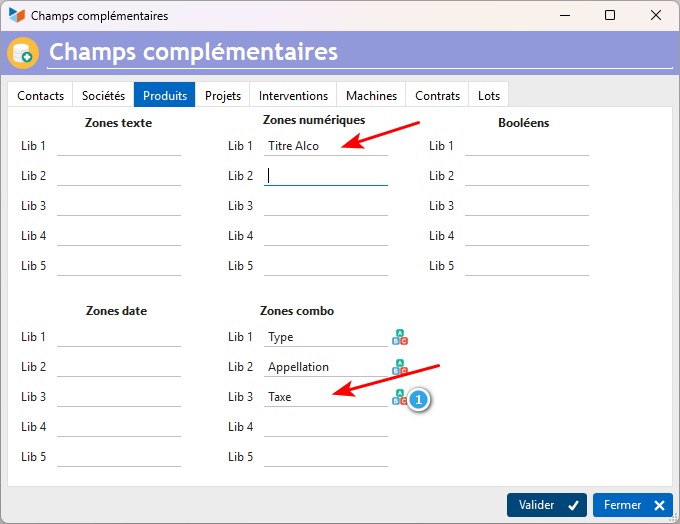
Here, we have specified that the first additional numeric field available for the product record is used to specify the alcohol content, and that the third additional drop-down menu available for the product record is used to specify the applicable tax regime (e.g. reduced rate, standard rate, contract brewing rate). These two fields form the basis for calculating the taxes levied on beer production.
The button 1 button allows you to set up the mapping between the tax regime and the tax rate (this avoids having to update all product records in the event of a change in the tax rate), which must be saved as follows:
[libellé du régime] | [taux de taxe]
for example “Contract brewing|7.40”
You will also need to specify the correspondence between the reference unit (the bottle) and the litre, as shown below.
Usage
 You can use a shortcut button with the command “Table_DRM” to display it as a button on the desktop at Gestan.
Transactions for the month
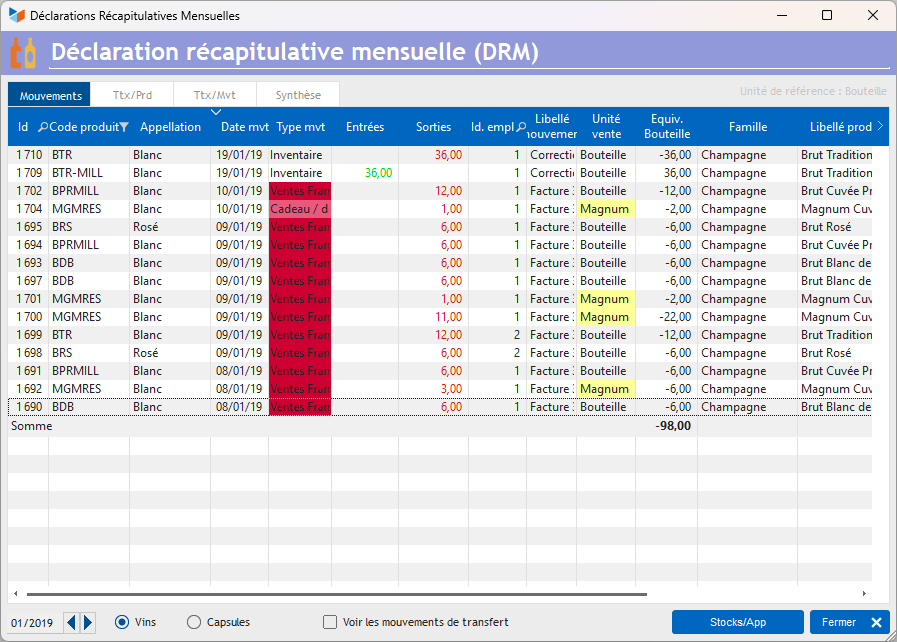
On this tab, all transactions for the month are displayed. You can exclude transfer transactions if you manage several different locations, for example two separate warehouses.
The Market column shows the market derived from the transaction type (transaction types can be grouped into markets).
The table’s context menu includes a sum the selected rows. There is also an option to Removeoption, which allows you to exclude certain transactions if required.
The context menu for the transaction list also allows you to request the printing of the DRM1 report: it is a good idea to file this alongside your Monthly Summary Declaration, so that you have a hard copy of the basis for the calculation. You can also print the STK2 report on stock movements.
The Stk/App button displays stock levels by item name for the current month.
Movements where the units could not be converted to the reference unit are highlighted in red on the first tab (and are not taken into account on the subsequent tabs). Otherwise, a successful conversion is indicated by a straw-yellow colour.
The context menu for the year/month selection field allows you to choose a custom date range.
Totals by product
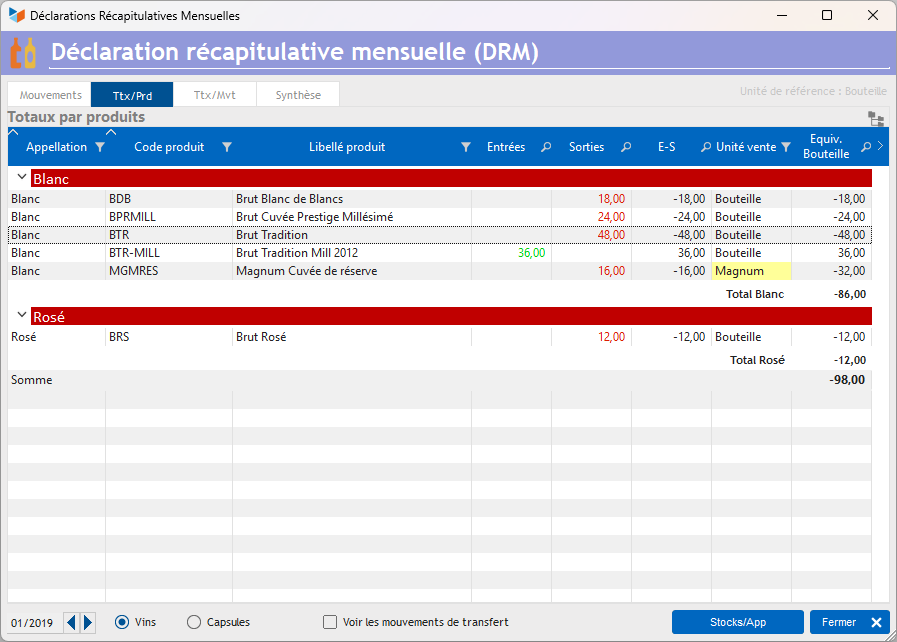
This table shows the totals by product.
If a product name management drop-down list has been defined, the results are presented by product name, as shown below:
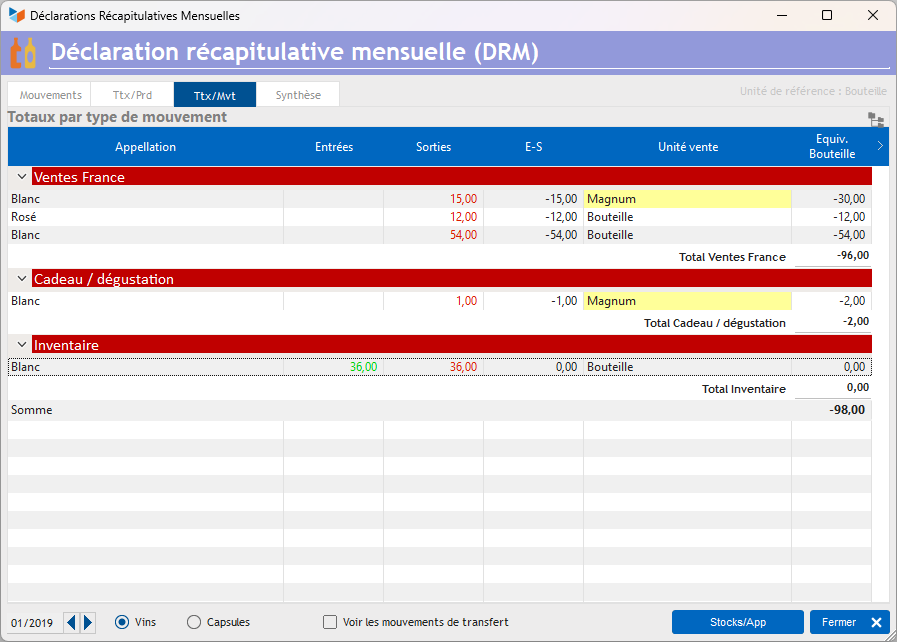
Totals by transaction type
This table shows the totals by transaction type.
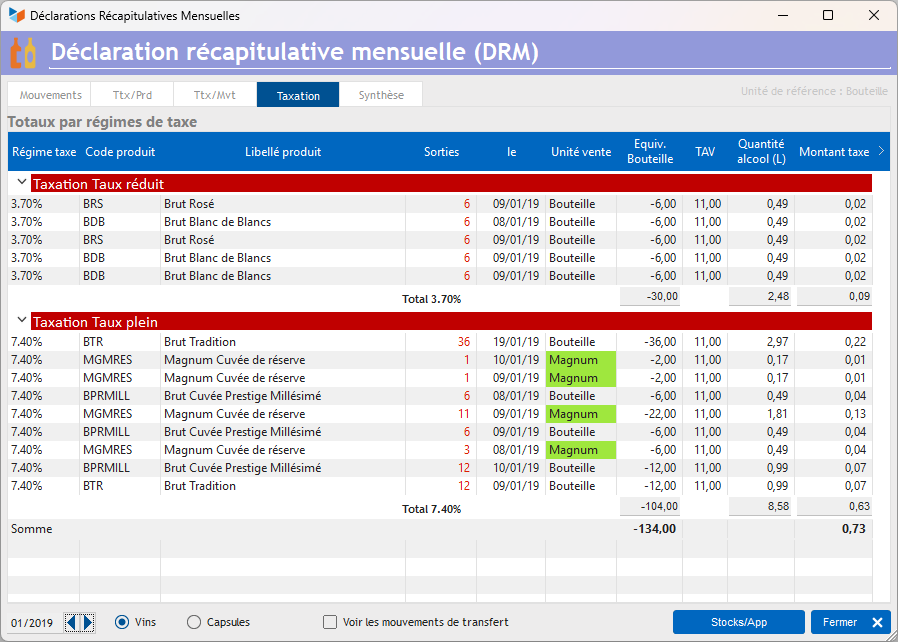
Totals by tax regime
This tab is only displayed if you have configured an alcohol content drop-down list and a tax regime drop-down list.
The table shows the transactions for the period, grouped by tax regime. For each row, the alcohol equivalent is calculated and the tax rate applied. The total is the amount you will need to pay. 
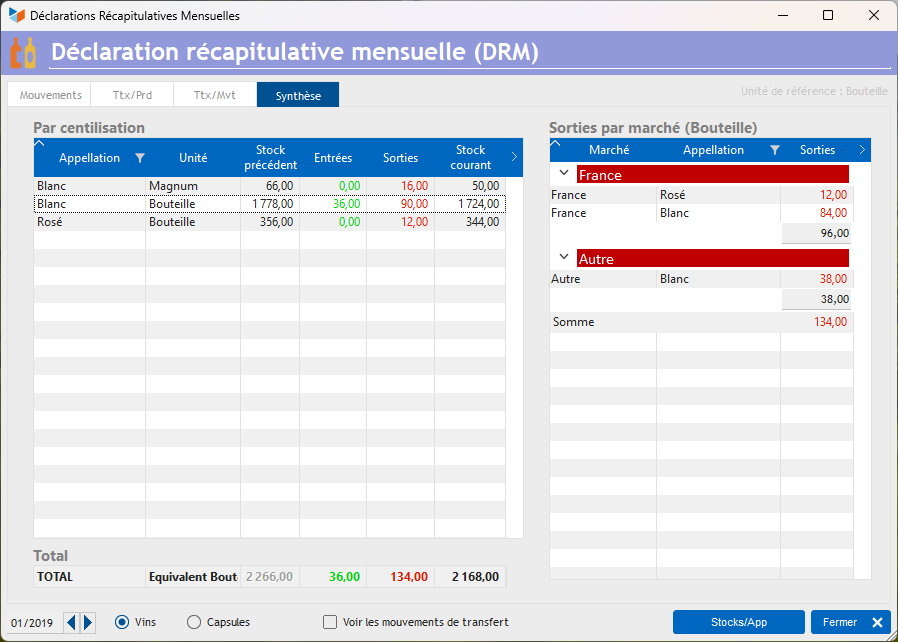
The summary
These are the figures you will need to enter on your DRM.
You can enter the previous month’s stock values directly into the table (which you will find on your DRM for the previous month, of course). These will be saved for the following month, unless the current month precedes the month of the last stock take (which would not be a normal situation).
The last row is a total row calculated in the reference unit.
In addition, a table shows the breakdown by market, according to the types of movements you have configured.
If you have specified a product name management drop-down menu, the totals are calculated by product name, as shown below.
The table’s context menu (below)
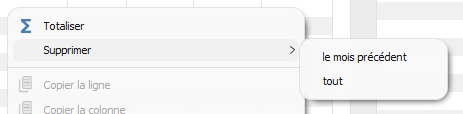
allows you to delete the stock history for the previous month (it will be recalculated automatically), or to delete all stock histories from the start. The last day of the month preceding the current month will be considered the date of the last stock take.
Versions
| Version | Date | Comments |
|---|---|---|
| 3.A1.10.01 | 17/10/26 | Change to the calculation of totals by market (now explicit) |
| 3.A1.09.00 | 11/08/26 | Adaptation for Gestan A1.09 |
| 3.A1.01.03 | 17/11/25 | Migration to A1 format |
| 3.15.38.05 | 11/07/22 | WD27 + addition of the option to reset stock histories by item name. |
| 3.15.21.04 | 07/02/21 | Various improvements and fixes |
| 3.15.00.1F | 17/02/18 | Various improvements – Storage of historical figures with decimal places - Addition of a summary table by transaction type |
| 3.15.00 | 06/01/18 | Addition of tax calculation for breweries |
| 3.13.2A | 16/05/17 | Addition of further configuration options. Fixed an issue causing confusion between wine and capsules |
| 3.13.00 | 00/00/00 | Initial version |
ℹ️ Other “Extensions” articles
ATELIER : Atelier de réparation informatique
CAISSETACT Caisse tactile (paramétrage)
CAISSETACT Caisse tactile (Utilisation)
CARNEDBOR : Carnet de bord véhicule
CERFA : Génération de CERFAs
CHRONSTAT : Séries statistiques liées au temps
COMMISSIONSCO : Commissions commerciales
CYBERBANQUE : Intégration fichiers bancaires
DEV : Développements (informatiques)
DRM : Déclaration Récapitulative Mensuelle
EBAY : Interface eBay
ETATSPE : États spécifiques
ETIQSPE_ICS : Étiquettes spécifiques
ETIQUEXPED : Etiquettes d'expédition
FACTURETTE : Génération de facturettes
INTEROR : ordres de réparation (OR)
LOADIMAGE Chargement en masse d'images
OBJVENTE : Objectifs de vente
PARCELLR : Parcelles et opérations culturales
PREPBON : Bons de préparation
PRESTIMPORT : Interface Prestashop
PROPALE : génération de propositions commerciales *
PROSPECTS : Gestion des prospects
PROSTEP : Étapes de prospection
RELAUTO : Relance automatique de facture en masse
SAVTICKET: Tickets de SAV
SCAN : Scanner un code barre
SIGNATURE : signature électronique des devis
SMS: Envoyer des SMS avec Gestan
STATEC : Export STATEC
SUIVCOM : Suivi des commandes
TRESO : Gestion de trésorerie *
URSSAF: Avance de crédit d'impôts
WISHLIST : Liste de courses
WOOCOMMERCE Commerce en ligne
WORDPRESS Espace client sous Wordpress