Stock Report
This screen displays the stock levels of managed products.
Using the screen
Access: Products → Stock Report
The screen displays a list of products for which stock is managed. The drop-down lists at the top of the screen allow you to specify selection criteria for the display.
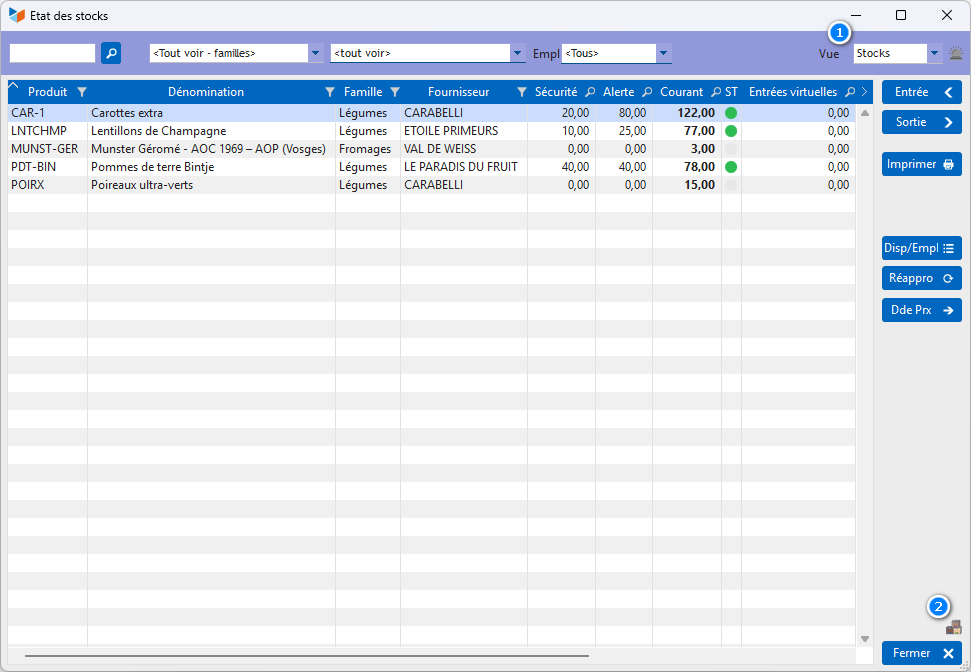
The columns Receipts V and Virtual Outputs V represent virtual receipts and issues. For example, depending on the settings you have chosen, a product may be added to the virtual stock between the date the order is sent to your supplier and the date the product is received in your physical stock. And it may be virtually removed from stock between the date of the customer order and the date of the delivery note (reference documents can be configured via the general settings).
Items are recorded as virtual stock entries or exits from the moment the reference document is no longer in ‘draft’ status, and cease to be recorded once the document’s reference date has been entered, as shown in the table below:
Virtual additions
- supplier orders: date of receipt
- supplier invoices: date of payment
- goods receipt notes: date of receipt
Virtual issues
- customer quotations: date of acceptance
- sales orders: date of confirmation
- customer invoices: date of receipt
- delivery notes: date of delivery
The column Potential Stock as at DD/MM displays the virtual stock calculated as at the current date, which provides greater accuracy for the overall virtual stock, expressed without reference to a specific date. It is displayed according to the settings for the replenishment options.
The column ST (status) column displays the product’s stock status, based on the defined stock thresholds (alert, safety and maximum stock levels).
The drop-down list 1 allows you to select other views:
- the Valuation view shows the valuation of stock for sale (in Sales PU and PAMP)
- the Stock+Value view displays the elements from the two previous views
- the Order shows the number of products to be ordered immediately, based on current stock levels and stock alerts
The Enter and Out allow you to enter stock receipts and issues for the product selected in the table.
The Avail/Loc button displays stock availability by storage location, if storage locations are managed.
The Replenish initiates a supplier order for the products selected in the table that require replenishment, in accordance with your stock management objectives, whilst the Price Enquiry generates a quotation request according to the same rules.
The 2 allows you to limit the display to products with a current stock level greater than zero.
Stock Valuation View
The “Valuation” view displays the following columns:
- Valuation shows the valuation of stock for sale, with stock valued using the formula: Unit price (excl. VAT) * Quantity in stock
- WAP Valuation shows the stock valuation based on the weighted average purchase price (WAPP), with stock valued using the formula: Sales unit price (excl. VAT) * WAPP
The WAP is calculated using one of the methods specified in the general settings of the application (CUMP, PEPS/FIFO, or DEPS/LIFO).
Before using the WAP valuation column, you must ensure that the most recent WAP calculation was carried out on the reference date of your choice, as described on the page WAPP: Weighted average purchase price PAMP Calculation . For example, if you require day-to-day valuation, recalculate the PAMP as at today’s date and then view this screen; or, if you wish to use the closing date of your financial year, recalculate the PAMP as at that date and then view this screen (the screen does not recalculate the PAMP, which must be calculated beforehand).
Context menu options
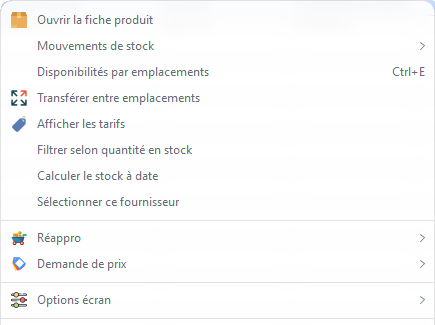
- Stock movements : opens the list of stock movements for the selected product, either the general screen or the detail screen showing virtual stock levels.
- Transfer between storage locations : allows you to transfer a quantity of the selected product to another (if storage locations are managed)
- Filter by stock quantity : allows you to display only those products whose stock level is below a certain threshold
- Select this supplier : allows you to select all products from the same supplier, for the purpose of placing a supplier order or requesting a quote
- Re-stock and Request a quote allow you to carry out the same actions as the Reorder and Request Price, but with additional restocking options
The screen options menu offers:
- Do not display products without stock alerts allows you to hide products ‘without a stock alert’, i.e. those for which both the alert stock level and the minimum stock level are zero.
- Show archived products : controls whether archived products are displayed or not.
ℹ️ Other “Stock” articles
Détails des stocks produits
Emplacements (de stock)
Etat des stocks
Fabrication de produits composés
Importer un Inventaire
Mouvements de stocks
Niveaux d'alerte
Recalculer / apurer / épurer les stocks
Reliquats
Stocks : généralités sur la gestion des stocks
Stocks : modes de gestion *
Stocks par numéros de série *
Transfert d'emplacements (de stock)