Sales orders
Sales orders are those you receive from your customers (as opposed to those you send to your suppliers).
Sales order management includes the elements common to invoicing, and the specific features of customer invoicing.
List of orders
Access: Sales → Orders
The screen displays the list of customer orders for the month or the financial year, depending on the display settings.
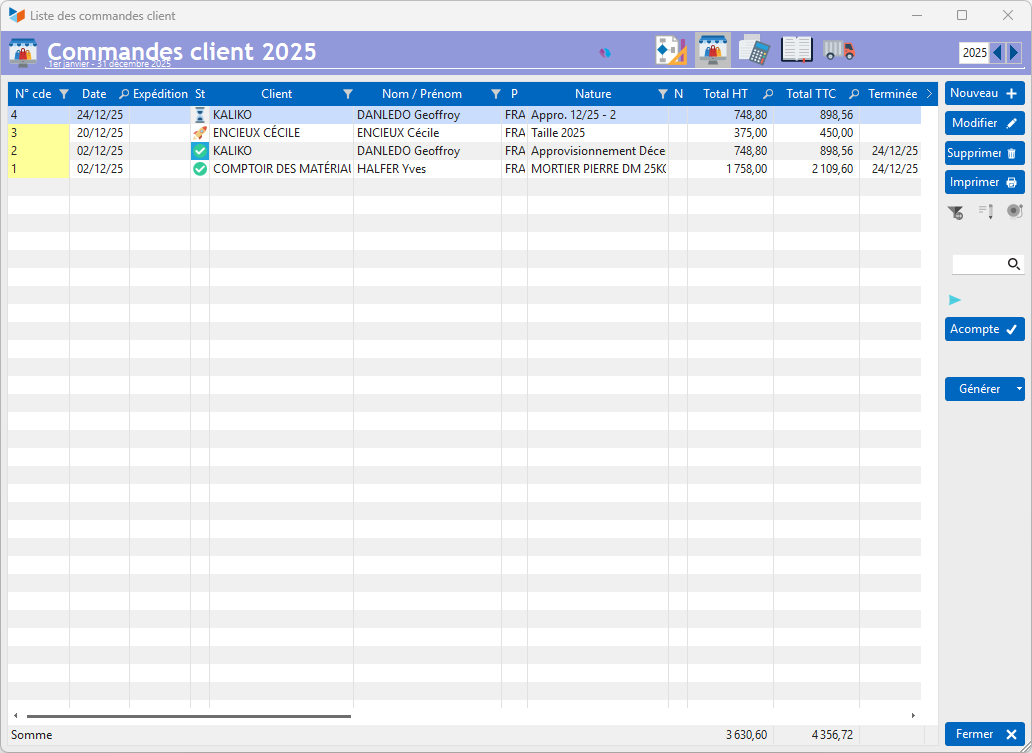
It is possible to edit an order as long as it has not been sent to the customer or confirmed. Otherwise, only users with administrator privileges can make it editable again by clearing the confirmation date and unticking the ‘Completed on’ box.
Any user can delete an order. The deletion is logged in the application log.
The Deposit button allows you to record a deposit against the order, provided the order has not yet reached ‘Confirmed’ status. If this order is used as the basis for generating an invoice, the deposit amount will be included on the generated invoice.
The Generate allows you to create (depending on settings), from one or more orders:
- sales documents: customer invoice, delivery note, and even a quotation
- purchase documents: request for quotation or supplier order
- service calls
In the Statut, the row background is blue if the order has not resulted in an invoice.
The Order record
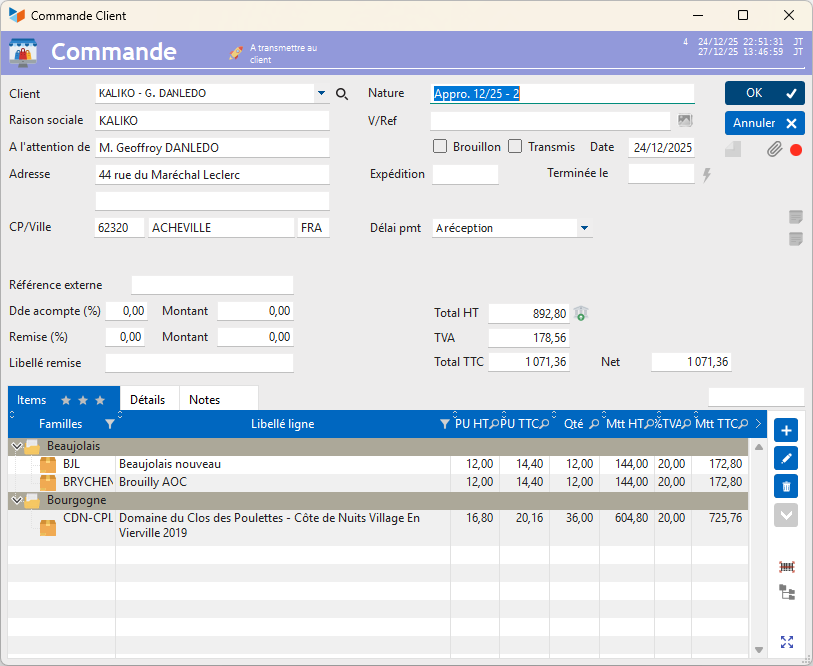
In most cases, a customer order is issued for the main customer’s delivery address. However, your customer may wish to have it delivered to another contact. To do this, you can use the ‘select a contact for delivery’ option by right-clicking on the drop-down menu Customerdrop-down menu, to select a different contact.
Dispatch is the desired dispatch date.
You can determine, according to your internal procedures, what the date entered in the Completed on field: either it refers to the customer’s approval, whether or not this is evidenced by the return of a signed purchase order, or it refers to internal approval by the relevant department, following the customer’s approval.
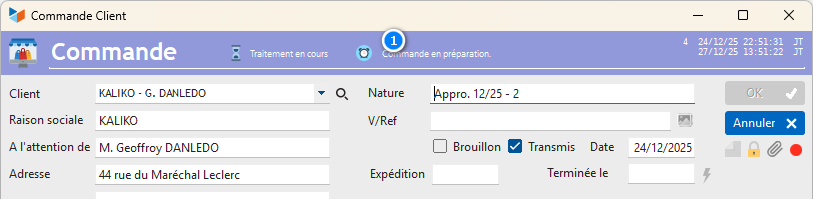
When the detailed order tracking option is enabled, a tracking icon appears on the master record screen 1, which allows you to specify more precisely the current status of the order, at each stage between customer approval and production, and final delivery to the customer.
Simple tracking v/s detailed tracking
Gestan allows you to track order processing in either simple or detailed mode.
In simple mode, the process is as follows:
- you create an order: its status is “in progress”
- you have finished creating it: its status changes to “to be sent” (to the customer)
- once sent to the customer, its status changes to “to be confirmed by the customer”
- if the scheduled dispatch date has passed, its status may change to “Dispatch overdue”
- The customer is expected to return the approved order to you. All you need to do then is record the order’s dispatch date.
Once the dispatch date has been entered, the order’s status changes to “Dispatched OK” Gestan ’s settings allow for detailed tracking (recording the history of the order processing stages); see Detailed order tracking.
 Other articles on “Customer Invoicing”
Invoicing: common elements
Cas concret : Intermédiation
Entêtes des pièces
Facturation : éléments communs
Factures : options spécifiques
Frais de port
Généalogie des pièces
Importer des lignes de pièce (tableur)
Liaisons des pièces
Ligne pourcentage
Livraison partielle
Numérotation des factures
Optimiser les achats
Retenues de garantie *
Surtaxes nationales
Tri des lignes de pièce
Invoicing: Customer invoicing
Bons de livraison (BL)
Certification numérique des factures
Commandes client
Devis
Echéancier de facturation
Factur-X, PEPPOL
Facturation client : éléments communs
Facturation horaire
Factures client
Factures d'acompte (France)
Factures d'avancement
Feuille de marge
QR-Facture
Relance des factures
Suivi détaillé des commandes client *