====== ======Invoice Payment Schedule
For quotations, orders and customer invoices, it is possible to set up an invoice payment schedule, i.e. to split the total amount of the document into instalments, to be paid on scheduled dates.
A dedicated screen allows you to track payments for invoices with a payment schedule.
Let’s take an example: you issue an invoice for 100 (including VAT), with payment to be made in four instalments. When you link the payment schedule, will calculate four instalments of 25 (unless a deposit has already been paid, in which case this will be taken into account), based on the frequency you have chosen.
In practice, you will have just one invoice, on which you will record payments as they are made. You can print or send the original invoice, indicating the current instalment.
The dedicated screen allows you to track your invoices by instalment and to identify which instalment invoices need to be issued or followed up on.
Activation
- Tick the box Gestan=== ===Manage payment schedules in the general settings.
- Create a payment term of the “Instalments” type.
- Tick the Payment Schedule in the General Settings, if you wish to print the payment schedule at the bottom of the relevant invoices. The Payment Schedule drop-down menu also allows you to print the payment schedule details.
Saving a payment schedule
When you specify, for a quotation, order or invoice, a payment term of the “Instalments” type, Gestan prompts you to create a payment schedule immediately for the current sales document.
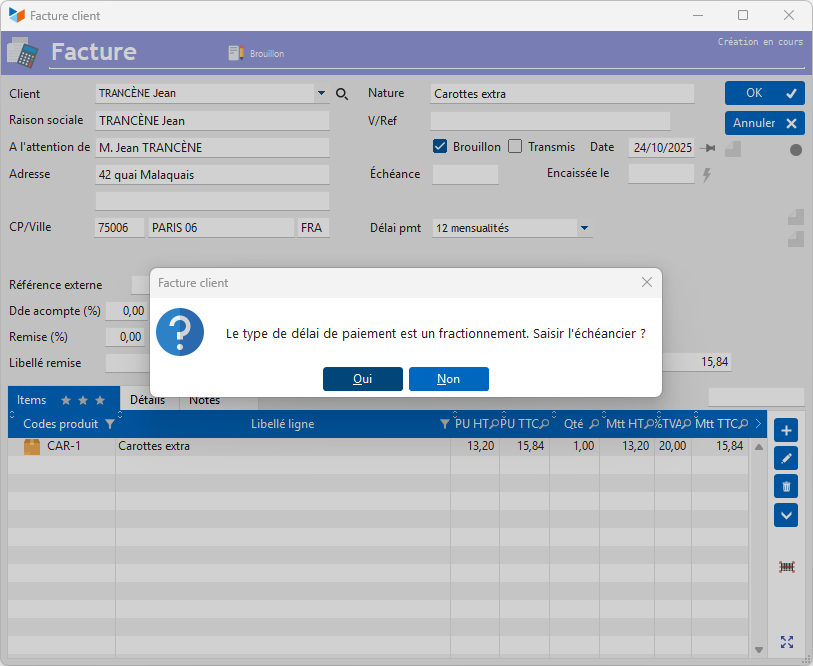
If you select ‘Yes’, the payment schedule generation screen is displayed.
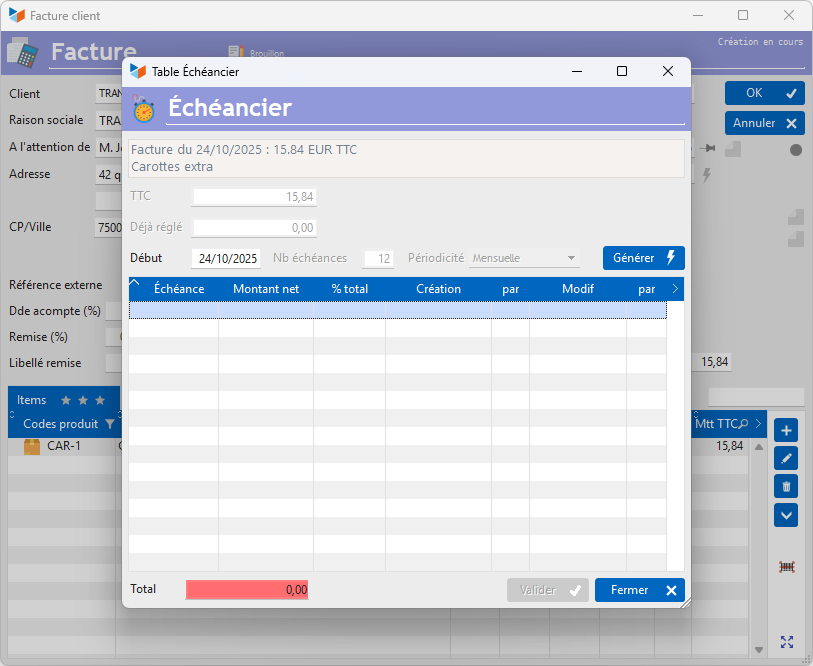
On this screen, the number of instalments and the frequency can be changed, unless you have already specified these parameters in the payment terms. The Start date is by default the same as the invoice date, but can always be changed.
The Generate button allows you to automatically generate instalments.
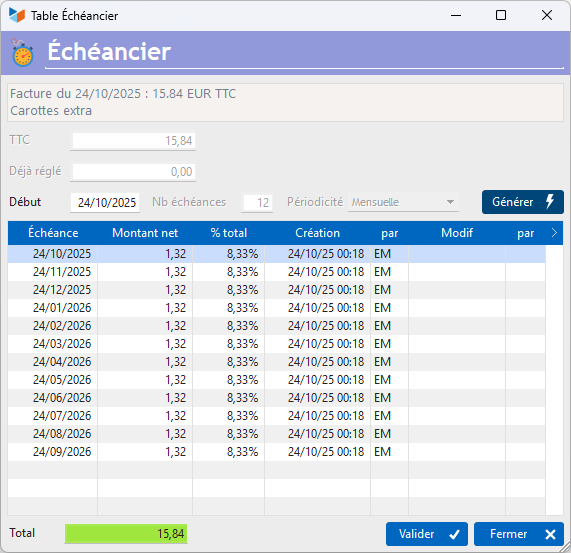
You can edit the dates and amounts as you wish, and add or remove instalments. The only requirement is that the total of the instalments must equal the invoice amount.
Accessing payment schedules
When the payment schedule management option is enabled, a special column allows you to view the relevant payment schedule from the list of quotations, orders and invoices.

It is also possible to view all sales documents linked to a payment schedule via the menu Commerce → Invoices → Invoices with payment schedules.
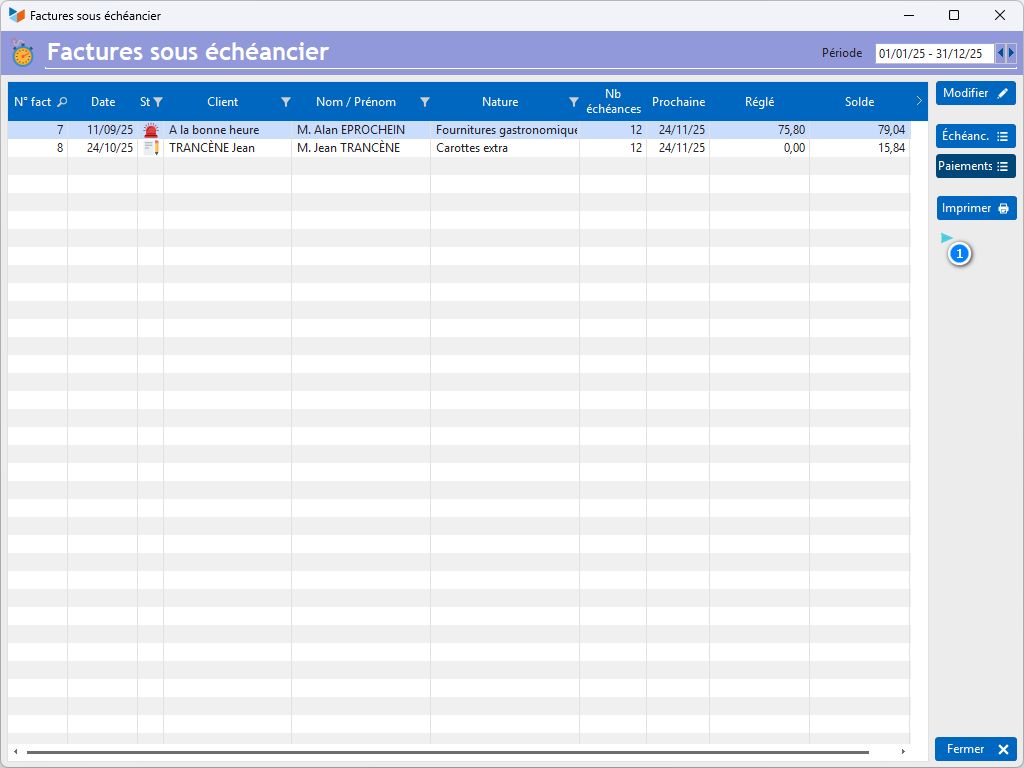
The screen displays a list of invoices linked to a payment schedule for the selected date range.
The Next column shows the date of the next instalment.
The Status column indicates whether the amount of the monthly instalments currently paid is in line with the scheduled repayment plan.
The Print allows you to print the invoice, specifying a due date if required, whilst the 1 allows you to send the invoice by email.
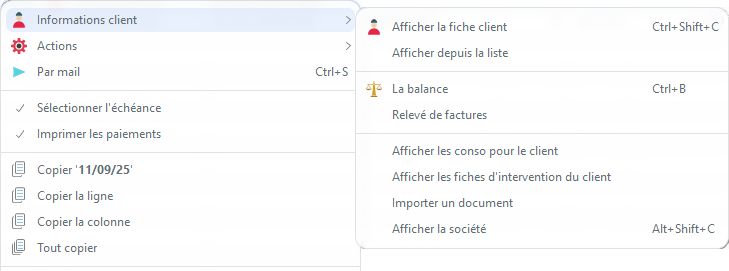
In the context menu options:
- Select payment instalment allows you, when requesting a printout, to select the due date for which you want the invoice
- Print payments allows you to override the payment printing option defined in the general settings.===== Collecting payment for an invoice with instalments =====
You can collect payment for an invoice with instalments via the invoice list and the “normal” button Collect.
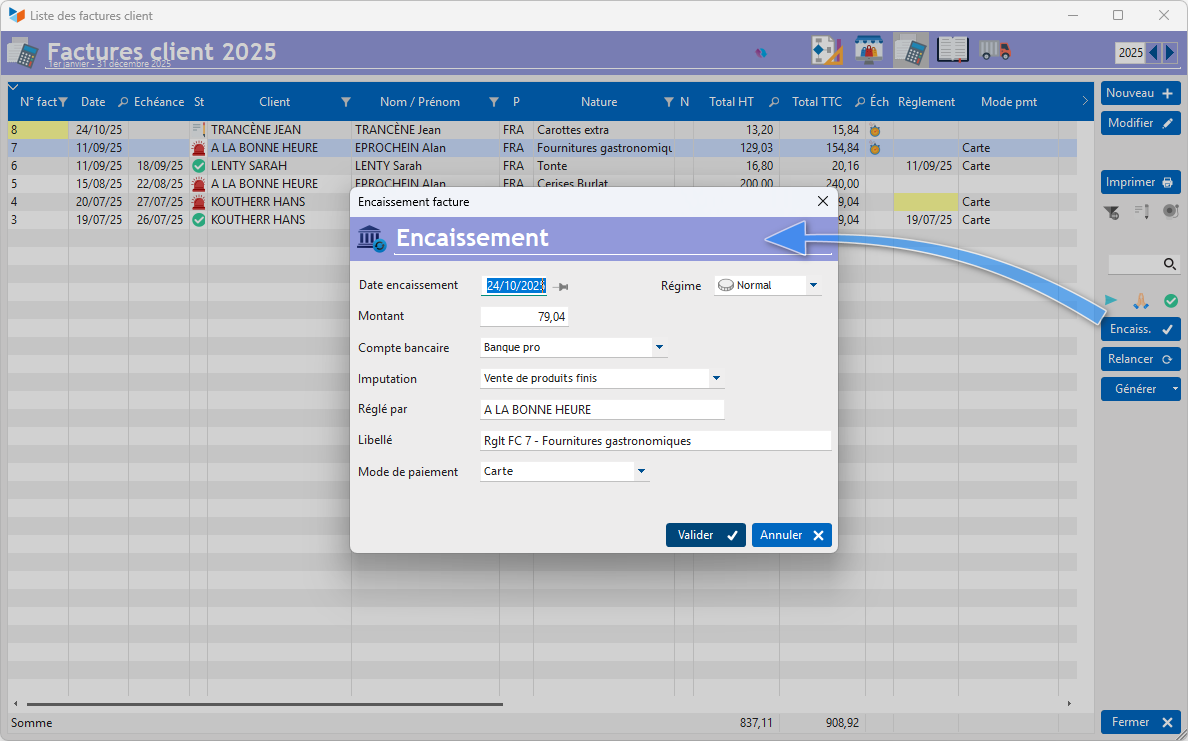
The payment screen will display the invoice balance; it is the responsibility of the person entering the payment to enter the correct amount.
Please note that if an amount greater than the agreed instalment is entered, Gestan will allocate it to the next instalment(s).
Printing payment schedules
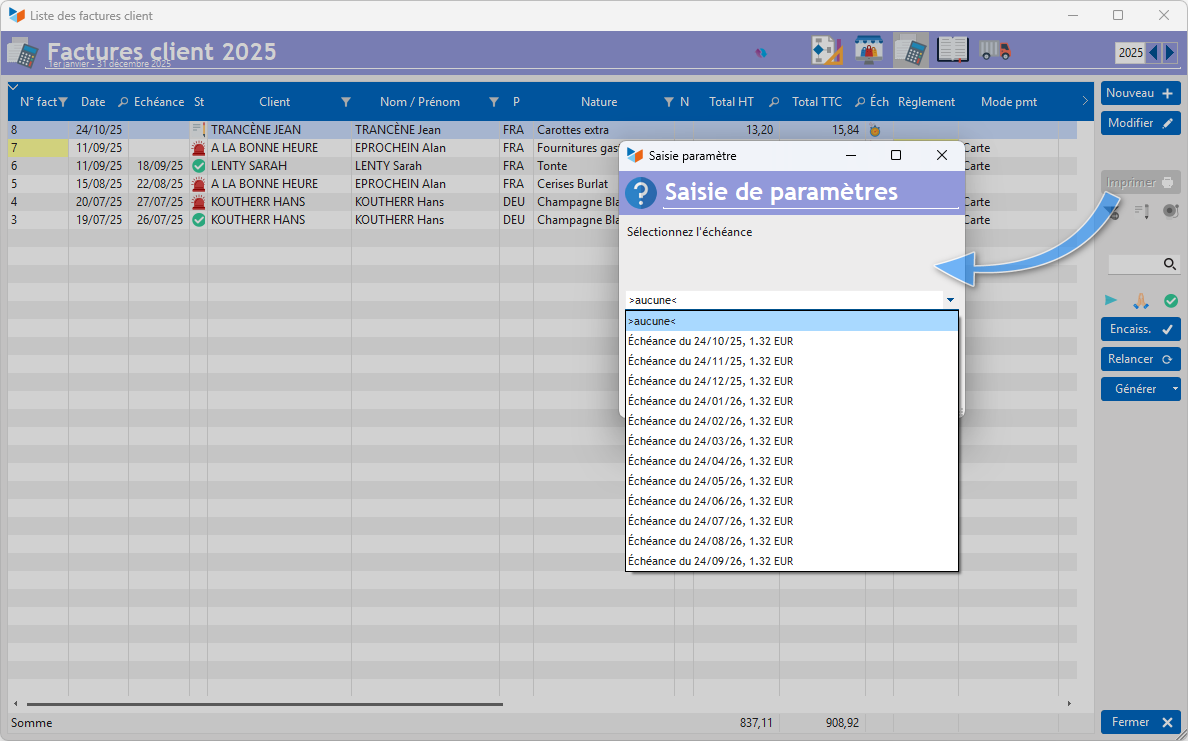
When printing (depending on the settings), an intermediate screen will prompt you to select the relevant instalment.
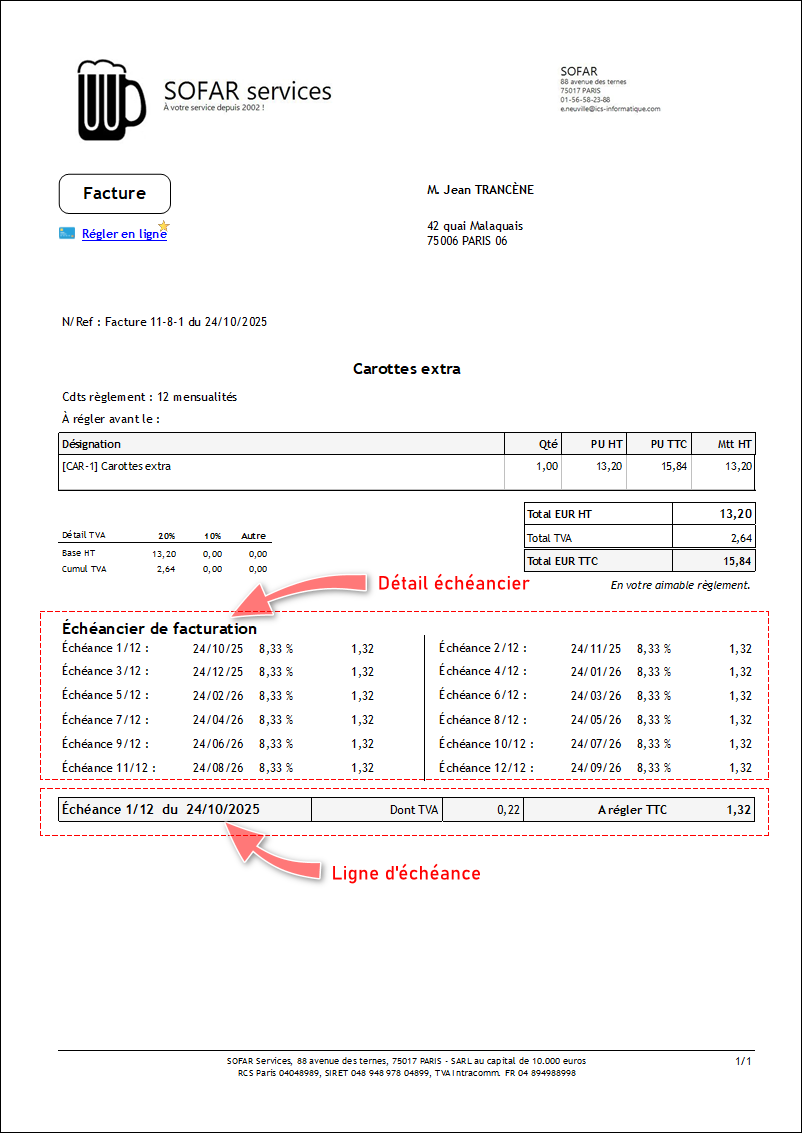
On invoices linked to payment schedules, this information can be printed in the footer, as shown below. Depending on the settings, it is possible to print either the instalment line or the details of the payment schedule.
ℹ️ Other articles on “Customer Invoicing”
Invoicing: common elements
Cas concret : Intermédiation
Entêtes des pièces
Facturation : éléments communs
Factures : options spécifiques
Frais de port
Généalogie des pièces
Importer des lignes de pièce (tableur)
Liaisons des pièces
Ligne pourcentage
Livraison partielle
Numérotation des factures
Optimiser les achats
Retenues de garantie *
Surtaxes nationales
Tri des lignes de pièce
Invoicing: Customer invoicing
Bons de livraison (BL)
Certification numérique des factures
Commandes client
Devis
Echéancier de facturation
Factur-X, PEPPOL
Facturation client : éléments communs
Facturation horaire
Factures client
Factures d'acompte (France)
Factures d'avancement
Feuille de marge
QR-Facture
Relance des factures
Suivi détaillé des commandes client *