Online payment
 A1 proofreading not yet effective for this page. In the meantime, you can ask any questions on the forum.
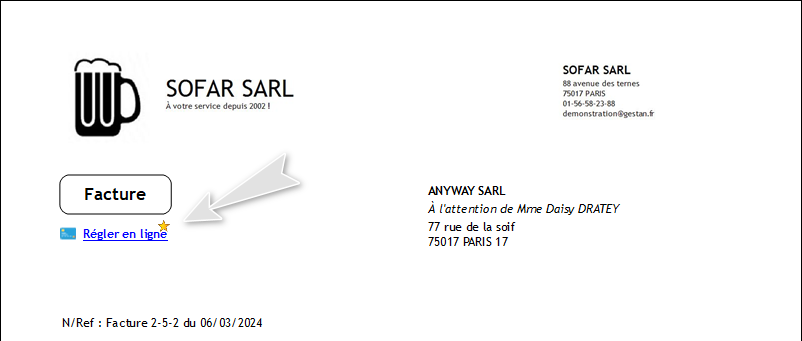
It is possible to integrate an online payment link into invoices produced by Gestan. The payment link will be integrated into the PDF of the invoice: your customer can click on the link and pay your invoice directly by credit card or Paypal.
There are two possibilities for this:
- use the Gestan form
- use your own form
Use the form offered by Gestan
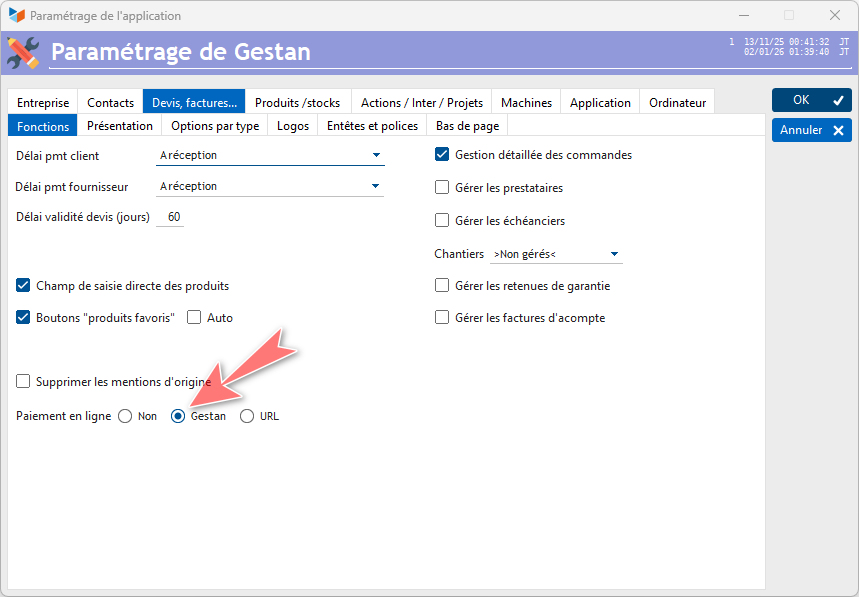
This solution can be set up in two clicks, as long as you have a Paypal account linked to the email address indicated in the general settings (Business Identity tab).
Simply choose the “via gestan.fr” option in the “payment link” option in the Parts → Other options tab.
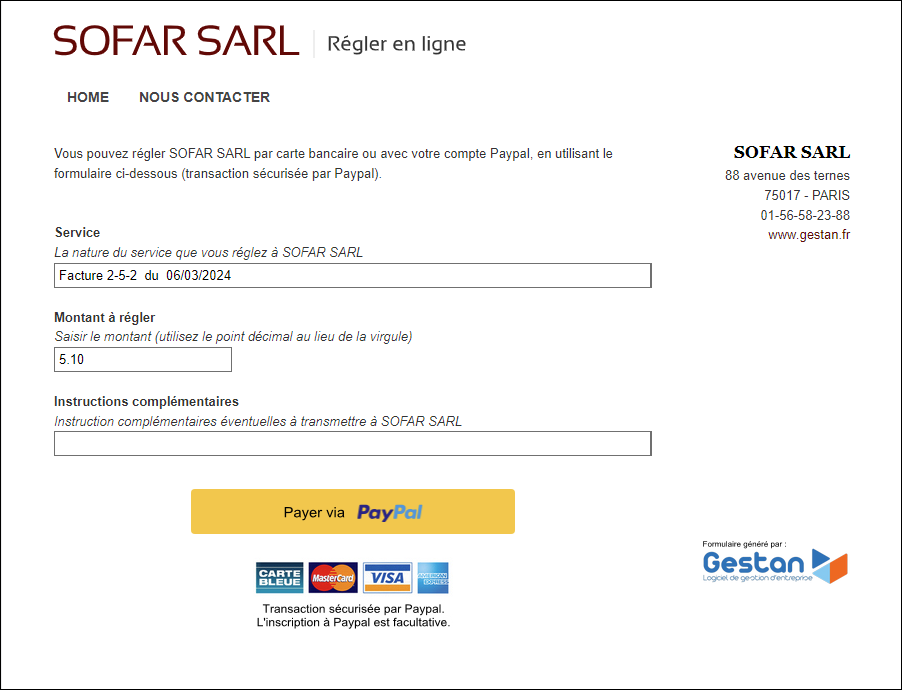
The payment link integrated into the PDF will open a payment form in your colors, hosted on gestan.fr. The payment button will then open the Paypal form.
Use your own form
For this option, you must specify your payment URL in the payment link option in the parts settings. Gestan will generate a link in your invoices, made up as follows: https://maboite.com/regler-en-ligne.php?svc=[nature_de_la_facture]&mtt=[montant_facturé] .
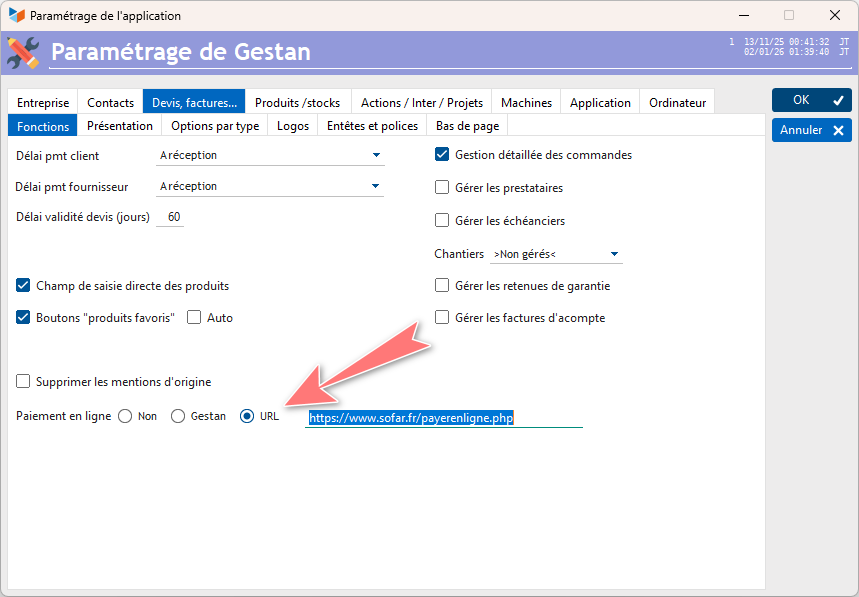
You will simply need to build your web page in such a way that it can retrieve these parameters and send them to your payment intermediary when you click on the payment button.
Example form
Here is an example of a form, integrated into a Wordpress site and directing to a Paypal account.
We will use the PhpCode For Posts plugin, so we can run PHP code in the pages. Here is the snippet code:
<?php
$svc = $_GET["svc"];
if (! isset ($_GET["svc"])) $svc="Specify here the nature of the service you want to regulate";
$mtt = $_GET["mtt"];
if (! isset ($_GET["mtt"])) $mtt="00.00";
?>

<form action="https://www.paypal.com/cgi-bin/webscr" method="post">
   <input type="hidden" name="cmd" value="_xclick" />
   <input type="hidden" name="business" value="yourpaypalaccount@maboite.com" />
   <input type="hidden" name="lc" value="FR" />
   <input type="hidden" name="item_number" value="SRV01" />
   <input type="hidden" name="currency_code" value="EUR" />
   <input type="hidden" name="button_subtype" value="services" />
   <input type="hidden" name="no_note" value="0" />
   <input type="hidden" name="cn" value="Add special instructions for seller" />
   <input type="hidden" name="no_shipping" value="2" />
   <input type="hidden" name="rm" value="1" />
   <input type="hidden" name="return" value="http://www.[yoursite]/reglement_ok.html" />
   <input type="hidden" name="cancel_return" value="http://[yoursite]/html/achat_ko.html" />
   <input type="hidden" name="bn" value="PP-BuyNowBF:btn_buynowCC_LG.gif:NonHosted" />
<h2 style="margin-top: 0; margin-bottom: 0; line-height: 100%;">Service</h2>
Specify here the nature of the service you are paying for
   <input type="text" maxlength="200" name="item_name" size="200" style="width:550px;" value="<?php echo ($svc); ?>" />
   <h2 style="margin-top: 0; margin-bottom: 0; line-height: 100%;">Amount to pay</h2>
   Enter the amount (be careful, use the decimal point instead of the comma)
   <input type="text" name="amount" value="<?php echo ($mtt); ?>" />
   <h2 style="margin-top: 0; margin-bottom: 0; line-height: 100%;">Additional instructions</h2>
   Any additional instructions to be transmitted

<input type="text" maxlength="200" name="os0" size="200" style="width:550px;" />
<div align="center">
     <input type="image" alt="PayPal - the simplest and most secure online payment solution!" name="submit" src="https://www.paypalobjects.com/fr_FR/FR/i/btn/btn_buynowCC_LG.gif" />
     <img alt="" src="https://www.paypalobjects.com/fr_FR/i/scr/pixel.gif" width="1" height="1" border="0" />
     </div>
</form>
Below is another example of form code that can be used on your site:
<?php
$svc = $_GET["svc"];
if (! isset ($_GET["svc"])) $svc="Specify here the nature of the service you want to regulate";
$mtt = $_GET["mtt"];
if (! isset ($_GET["mtt"])) $mtt="00.00";
?>

<!DOCTYPE HTML PUBLIC "-//W3C//DTD HTML 4.01 Transitional//EN">
<html>
   <head>
   <meta http-equiv="content-type" content="text/html; charset=windows-1250">
   <title>Pay online</title>
   </head>
   <body>

<p>You can pay online using the form below: </p>

<form action="https://www.paypal.com/cgi-bin/webscr" method="post">
<input type="hidden" name="cmd" value="_xclick">
<input type="hidden" name="business" value="[the email address of your Paypal account]">
<input type="hidden" name="lc" value="EN">
<input type="hidden" name="item_number" value="[product code]">
<input type="hidden" name="currency_code" value="EUR">
<input type="hidden" name="button_subtype" value="services">
<input type="hidden" name="no_note" value="0">
<input type="hidden" name="cn" value="Add special instructions for seller">
<input type="hidden" name="no_shipping" value="2">
<input type="hidden" name="rm" value="1">
<input type="hidden" name="return" value="[your URL when payment is OK]">
<input type="hidden" name="cancel_return" value="[Your URL when payment is KO]">
<input type="hidden" name="bn" value="PP-BuyNowBF:btn_buynowCC_LG.gif:NonHosted">

<table border=0 cellpadding=0 cellspacing=0>

<tr><td><b>Service</b><br><font size="1">Specify here the nature of the service you are paying for</font></td></tr>
<tr><td><input name="item_name" maxlength="200" size="80" value="<?php echo ($svc); ?>"><br></td></tr>

<tr><td><br><b>Amount to pay</b><br><font size="1">Enter the amount (be careful, use the decimal point instead of the comma)</font> </td></tr>
<tr><td><input name="amount" value="<?php echo ($mtt); ?>"></td></tr>

<tr><td><br><b>Additional instructions</b><br><font size="1">Possible additional instructions to be transmitted</font></td></tr>
<tr><td><input type="text" name="os0" size="80" maxlength="200"></td></tr>

</table>
<br><br>
<div align="center">
<input type="image" src="https://www.paypalobjects.com/fr_FR/FR/i/btn/btn_buynowCC_LG.gif" border="0" name="submit" alt="PayPal - the solution the simplest and most secure online payment!">
<img alt="" border="0" src="https://www.paypalobjects.com/fr_FR/i/scr/pixel.gif" width="1" height="1">
</div>
</form>


   </body>
</html>
 Other Technical articles
Configure Gestan
Configure the search
e-Mailing: good practices
Gestan CS - Client/Server mode
Gestan data backup
Gestan on a MAC
Google SMTP Server
libcef.dll file not found
Mail outsourcing
ODBC on HFSQL
Online payment
Reports and Queries
Rounded
Send emails with Gestan
Specific developments