User privileges
It is possible to define specific privileges for each user:
- basic permissions (login rights, administration rights, configuration rights)
- access rights to key files
- additional specific rights
List of privileges
Access: Tools → Administration → Users → Privileges

The table displays all users registered for the database.
The table’s context menu allows you to copy the selected user’s privileges to a pool, a service, or all users.

Double-clicking on the column:
- Adm grants or revokes the administration privilege for the database
- Param grants or revokes the privilege to configure for the database
- Cnx grants or revokes the connection privilege to the database
Administration privilege
The administration privilege allows you to:
- create new users for Gestan
- authorise or deny connections to other users of Gestan
- grant or revoke administration privileges
- to access the administration menu at Gestan
- to amend an invoice, quotation or credit note after it has been sent to the customer (all amendments are logged in a journal)
- to send an email from another user’s account at Gestan
Depending on the settings at Gestan, the following operations may be restricted to administrators:
- deleting a stock movement without creating a reversing entry
Upon first launch, Gestan creates an initial user with administrator privileges.
Configuration privileges
Gestan comprises independent modules (customer invoicing, supplier invoicing, accounts, statistics, etc.).
This privilege allows you to configure access to the modules for each user, and to prevent anyone without this privilege from modifying the settings.
Login Privilege
This allows the user to log in, or not, to Gestan.
 It is also possible to block logins from a specific MAC address.
Privileges page
‘Access’ tab

For the main files in Gestan, there are six possible access control options:
- No read access + No write access: the user has no access to the file in question
- Limited read access + No write access: the user can view records they have created, but cannot update them. This is a rare case.
- Limited read access + Limited update access: the user can view the records they have created and update them.
- Extended read-only access + no update rights: the user can view all records, but cannot make any updates. This is general read-only access.
- Extended view-only access + limited update rights: the user can view all records, but may only update those they have created.
- Extended view-only access + extended update rights: this is full access to the file.
If the Tracking is ticked, for the file in question, access control is no longer based on the user who created the record, but on the responsible user (for example, the sales representative in charge of the customer, or the back-office manager responsible for tracking the quotation).
‘Documents’ tab
This tab allows you to define permissions for documents.

Manage documents : grants the right to revert a “sent” document to “draft” status (excluding invoices and credit notes for non-administrators), so that it can be amended after transmission (if the user is an administrator, they automatically have this right), as well as the right to delete documents, except invoices if the user is not an administrator (any changes to a document are archived and logged).
Force invoice number : grants the right, after deleting a document, to regenerate a document with the same number (any changes made to a document are archived and logged)
‘Draft’ creation : restricts the right to create documents to ‘Draft’ status only. A user with this right cannot approve any document; it must be approved by a user with approval rights.
Maximum discount : allows the total discounts on a document to be limited to a maximum percentage
It is possible torestrict access to any type of document, on a per-type basis. For example, you can restrict access to invoices but allow access to quotations.
If you restrict a user’s access to all or some document categories, it is recommended that you also disable their access to statistics, through which they might be able to view information relating to the documents.
Restrict editing allows you, for the selected document types, to prevent the user from editing or deleting a document once it has been sent.
‘Activities’ tab
It is possible to define certain additional specific privileges.

Contacts
Show business contacts only restricts the display to business contacts only in the contact list (thus excluding personal contacts).
In the contact record, there is a tab for administrative details and a tab for business information. Access rights for these two tabs are configured independently, using the drop-down menus Administration and Sales.
Products
Hide purchase prices prevents the display of product purchase prices, as well as the use of the margin calculation screen.
If the ‘Prohibit price changes’, users will no longer be able to change product prices.
Projects
** Create projects/tasks ** : allows the creation of projects or tasks.
Assign tasks : allows you to assign and remove tasks from users.
Manage time entries : allows you to add or update other users’ working hours.
Interventions
Manage work orders gives the right to remove a signature from a signed service call, in order to amend it after signing (it will therefore need to be re-signed). If the user is an admin, they automatically have this right.
‘Other’ tab
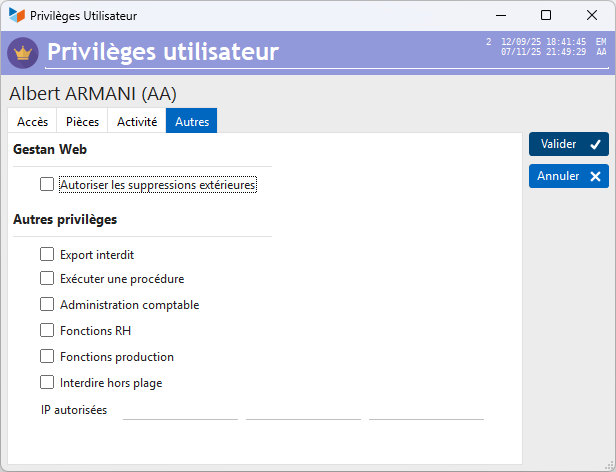
Gestan Web
Allow external deletions allows you to grant permission to delete records from external applications (Gestan Web and mobile apps for Gestan)
Other privileges
Export prohibited : prevents data from being exported (to a spreadsheet or word processor) via the tables’ context menu.
Run a procedure : allows you to run a compilable procedure.
**Accounting administration ** : grants a non-administrator user access rights to the accounting settings.
**HR functions ** : grants a non-administrator user access to human resources management functions.
Production function : not currently in use.
Restrict outside working hours : prohibits the use of Gestan outside the normal working hours defined for the user.
Authorised IPs : IP addresses of the machines from which the user is authorised to connect (up to 3 machines).
 Other “Users” articles