====== ======Contacts
The concept of a contact is central to : most of the other elements managed by – such as invoices, actions, service calls, projects, etc. – are linked to contacts.
They may or may not be linked to the companies to which they belong.
Contacts are categorised into four groups:
- customers: contacts you invoice
- prospects: those who are potentially interested in your products or services
- partners, services, service providers (SPs): all contacts with whom you have a professional relationship, regardless of whether they are invoiced
- personal contacts: with no professional relationship.
Many other segmentation criteria are available: Gestan Gestan contact of contacts (20 possible categories), types of contacts, contact of contact, etc.
📍 additional fields are available for contacts.
The contact list
Access: Contacts → All contacts
The tabs displayed at the bottom of the list are determined by the user options settings.

You can select a search type using the drop-down menu 1, and specify criteria in the 2. The last two options in the drop-down menu allow you to perform multi-criteria searches.
If contact categories have been defined, you can filter contacts by category using the drop-down menu 3. The drop-down menu 4 allows you to view contacts that you have created, or that have been assigned to you.
The address displayed in the list (columns Address, Postcode, Town) is the business address if the contact is a business customer, or the home address if the customer is a private individual. You can change this display mode via the options in the table’s context menu (see below).
The Print provides access to a range of ‘Contact’ reports, including an address book, photo directory, envelopes, etc. It also provides access, via the ‘Export contacts’ option, to a programme for generating export files that is more comprehensive than the one available via the table’s Excel export function.
The Call allows you to make a call via softphone, WhatsApp or a PABX.
The Send email triggers the generation of an automatic email, which will be displayed in the Documenttab.
 You can select several contacts at once and carry out an action for them, such as writing a letter. Simply click on the first contact you wish to select, then use the Ctrl+click combination for the other contacts.
Phonetic search
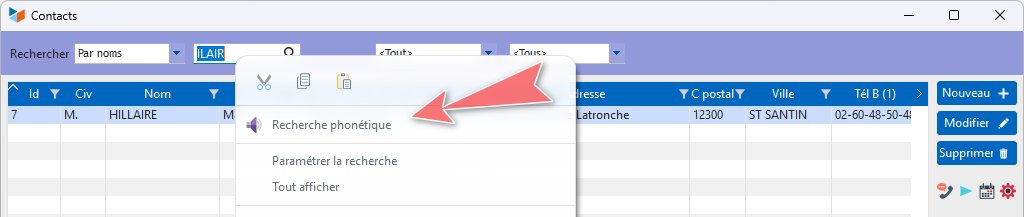
Via the context menu of the search field, you can initiate a phonetic search : here, entering ‘ILAIR’ in the search field found ‘HILLAIRE’.
Optimisation for large datasets
Configuring the search opens a search configuration screen, which includes options to speed up searches, particularly in the event of a slow network or large data volumes.
Bulk editing of contacts
- You can reassign contacts from one user to another via the contact reassignment tool.
- You can assign contacts based on a geographical area using thegeographical assignment programme.
Context menu for the contact list
The header displays icons for managing history, duplication and handling anomalies.
The automatic history covers:
- changes to the sales manager

Send an email : allows you to send an email to the selected contact.
Send a letter : allows you to send a letter via Gestan ’s internal generator.
Send an SMS : requires you to have first set up an account with a messaging platform, such as lesms.com, clickatel or reach-interactive.
** Email campaigns, direct mail ** allows you to trigger an email campaign or a direct mail campaign for the selected contacts.
Copy to clipboard : this option copies the contact’s details to the clipboard. All you need to do is press Ctrl+V in another application to retrieve their full contact details. Very useful when you’re asked by email for a contact’s details.
Geolocate selection : allows you to locate the selection on a map.
Show map allows you to display the contact on a map ( Now requires a Google Maps API key)
You can create an action or create a scheduled action for the selected contact, or create a Rental for the contact, if rental management is enabled.
The Practical information enable you to view certain details about the contact, their geolocation, search the directories, etc.
The business information includes, in particular, the customer balance, changes in turnover and invoice statements. In this menu, the Reorder opens a screen allowing you to print the replenishment sheet for the customer – that is, the list of products which, based on previous orders, should be included in the customer’s forthcoming orders.
Display allows you to apply a filter to display results by main contact type: customers, prospects, partners and private individuals.
Show Address allows you to select the address you wish to display in the Address, Postcode, Towncolumns. You can display the business address, home address, delivery address, billing address or another type of address. If you select ‘contextual’, the home address will be displayed if your contact is a private individual, or the business address if your contact is a business.
The options on the screen allow you to
- select the address to be displayed in the table
- choose whether or not to display archived contacts.
The contact record
The tabs on the contact record are all customisable: you may wish to manage personal data or professional data, or both; you may choose to manage sales data or not, etc.
Professional data
This tab is displayed if the option to manage professional data has been enabled in the general settings.

Clicking on the icon located at 1 allows you to manage the privacy settings for the record: open access, read-only, or restricted access. If the record is set to read-only, only the person who created it will be able to edit it. If it is set to restricted access, only the person who created it will be able to access it.
Right-clicking on the contact’s date of birth 2 allows you to create a birthday reminder for that contact.
You can simply enter a company name, or select the Sociétés et fournisseurs company to which the contact is linked, using the magnifying glass 3. Choose this second option if you intend to save a large number of contacts belonging to the same company; this will automatically populate the address details.
The toggles 4 allow you to specify whether the contact is an individual or a business, and whether they are a PSP (partners, services, service providers), a prospect or a customer.
Clicking on the icon 5 displays a map showing the address (a Google service, requiring an API key).
The APE code is used to classify business activities. Clicking on the magnifying glass displays the wizard.
The company number is, in France, the SIRET number, or any other identification number in other countries. The company number will be printed on issued invoices (mandatory in France).
Personal data
This tab is displayed if the personal data management option has been enabled in the general settings.

If the “Family Management” option has been ticked in the general settings, this tab allows you to record the list of children and their dates of birth. You can manage further details (2 text fields, a numeric field, a Boolean field, a date field and a drop-down list) via the additional child fields.
Right-clicking on the contact’s date of birth allows you to create a birthday reminder for that contact.
==== ==== Addresses
This tab is displayed if the “Manage billing and delivery addresses” option is ticked in the general settings.

You can save additional addresses, including billing and delivery addresses, as well as any other type of address: site address, block of flats address, temporary address, holiday address, etc. You can have multiple addresses per type, and mark an address as a favourite for that type via the context menu in the list.
Order instructions, Invoicing instructions, and Delivery Instructions allow you to enter specific instructions relating to the customer. For example, if your customer’s goods receiving bay is only open on Tuesdays, you can enter this in the delivery instructions the note “Delivery on Tuesdays 9am–12pm”; this note will be printed on all delivery notes you issue for that customer.
==== ==== Administration
This tab is displayed if the user’s permissions allow it. The data managed here may or may not be editable, depending on those same permissions.
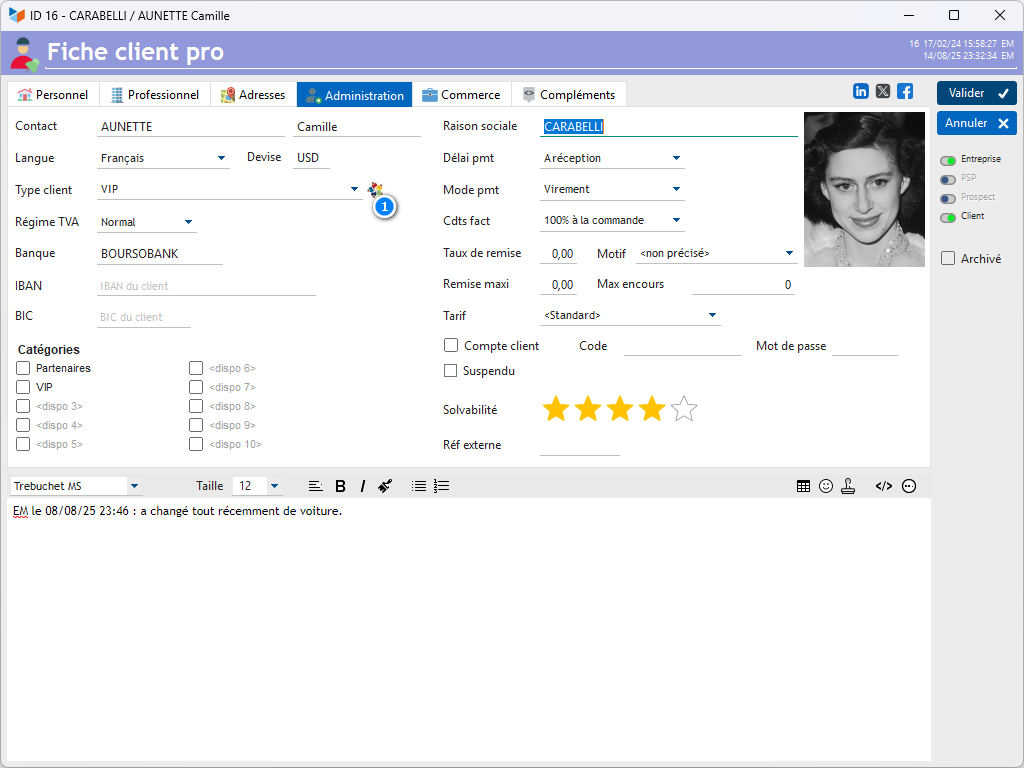
The language will determine the language in which purchase and sales documents are generated, as well as the currency.
The customer may be linked to a Type, which can be freely defined. This segmentation by type is also useful for accounting purposes: it allows allocations to be managed across different third-party accounts, depending on the type of customer, when exporting double-entry journal entries (XIMPORT export). For example, when you issue an invoice for a ‘standard’ customer, a journal entry is posted to debit the customer account, usually an account 41 (in France). Using this criterion, you can configure the system so that invoices issued to ‘co-operative’ clients are posted not to account 41, but to another client account, 41xxx.
The 1 allows you to select one or more routing groups.
The VAT regime will be applied when creating any purchase or sales document.
- Standard: this is the VAT regime of the country in which the company is established
- Exempt: both purchase and sales invoices will be issued with a zero VAT rate.
- Other rate: both purchase and sales invoices will be issued with a customisable VAT rate specific to the customer.
- Import/Export: for countries outside the country where the company is established (non-EU countries if the company is based in the EU). Useful for VAT statistics.
- Suspension: for customers under a VAT suspension scheme.
- EU: countries within the European zone. Useful for VAT statistics.
- Other cases: undefined cases.
- Exo supp: allows you to manage cases where customers are subject to VAT but not to additional taxes such as BIC (African taxation), FODEC (Tunisia) or CPS (French Polynesia).
Any bank details provided will be used for SEPA direct debits (Bank name, IBAN, BIC).
There are 10 categories available specifically for administrative use.
The payment term is that usually granted to the customer (for example: 30 days from the end of the month).
The payment method (payment method) is the customer’s usual payment method. If this is “Direct Debit”, you will need to enter a direct debit authorisation date and a RUM number.
Invoice terms are the invoicing terms (for example: 30% deposit, balance on delivery).
If a discount rate is entered, it will be applied as the overall discount rate when any document is created. A reason.
The customer may specify a maximum discount rate that must not be exceeded in sales documents. It is also possible to specify a maximum outstanding balance—the maximum outstanding balance permitted for that customer.
To manage rates specifically applicable to a particular customer, the procedure is to define special rates, then assign the rate to the relevant contacts via the Ratedrop-down menu.
It is possible to specify a creditworthiness rating; the label ‘creditworthiness’ can be replaced by any other label via the general settings. In this way, you can track any other criteria in a flexible yet effective manner.
It is possible to specify that the contact has a customer account (which may be suspended), and to specify the username and password for the account. This data is used by the Gestan extensions.
You can manage the creditworthiness using the star rating indicator. This label is customisable: you can use this indicator to track any other criteria relevant to your analysis.
You can specify an external reference for the contact (External ref): this is the contact’s ID in any other system (previous ERP, another computerised system processing contact data), thereby establishing a link with that external system.
==== ==== Sales
This tab is only displayed if the user’s permissions allow it. The data managed here may or may not be editable, depending on these same permissions.
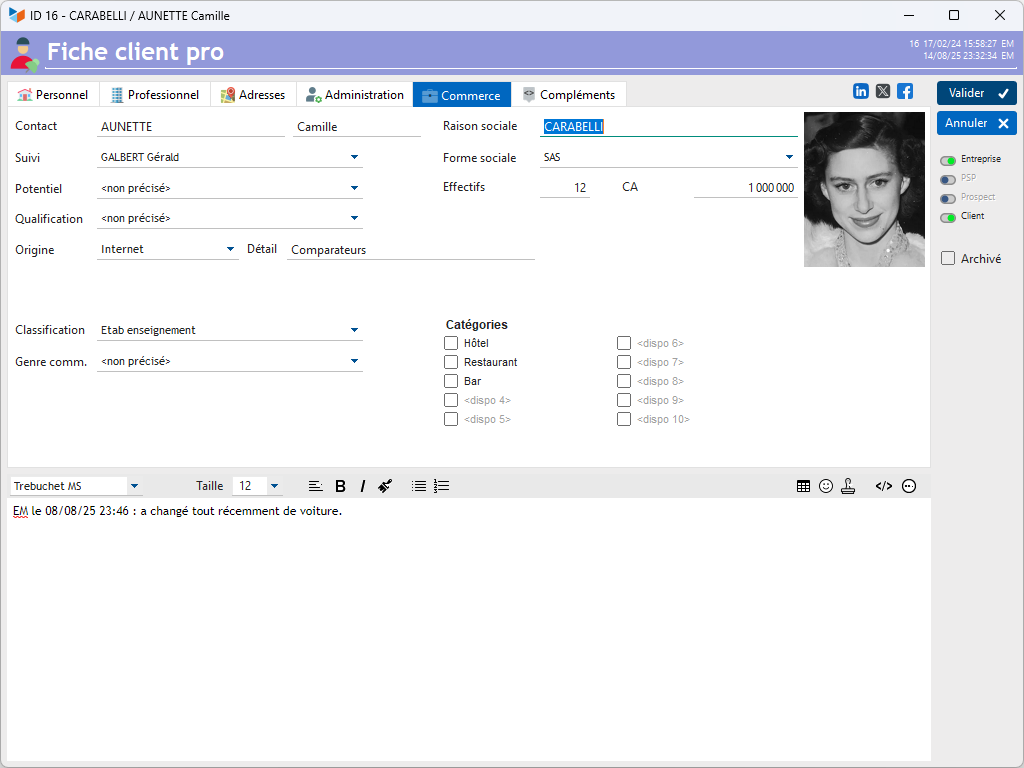
The contact’s sales manager is selected from the drop-down menu Follow-updrop-down menu.
Potential allows you to record, for example, potential turnover with this customer, or their interest in a particular range of your products.
Qualification is a useful sales classification.
Source allows you to record the channel through which the customer or prospect found you.
Classification and Sales type are criteria for segmenting customers by business type.
You can use 10 categories to segment your contacts commercially.
Additional fields
This tab is displayed if additional ‘ ’ contact fields have been defined in the general settings.

In addition to the data natively managed by Gestan, you can choose to manage additional information defined by you.
===== Context menu for the =====list
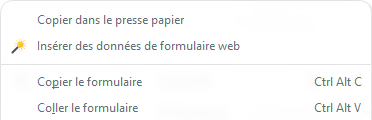
When creating a new contact, you can use the context menu Insert web form data to paste content from the clipboard, formatted with lines such as SURNAME:DUPONT. This corresponds to the following use case: you have a web form that sends you order or registration emails, formatted as follows:
Inscription reçue de:
PRENOM: Marianne
NOMFAMILLE: Couestou
SOCIETE: Naturopharm
EMAIL: naturopharm@gmail.com
ADRESSE: 42 route du Val de Riou
VILLE: Pont de l'étoile
CODEPOSTAL: 13360
TELEPHONE: 0631529675
NOMBRE_COMMANDE:12
Copy the email you’ve received, use the ‘magic wand’, and the extractable fields from the clipboard (in this case, all except the first and last) will be pasted into the corresponding fields on the contact form. Ask your webmaster to optimise their forms accordingly!
Contact categories
You can describe your contacts according to the categories they belong to.
Defining categories
Access: Tools → Administration → Repository → Contact Categories
You can assign one or more categories to a contact, either in the administrative or sales domain.

Here, the Sales Department has two categories, VIP and Partner, whilst the commercial department has categorised its clients’ activities as hotels, cafés or restaurants, or any combination of these criteria.
Contacts by category
Access: Contacts → Contact list → Contacts by category

The screen displays the contacts and their membership of existing categories.
You can click directly in the table to update the category membership.
Tips and tricks
Gestan is supplied with a list of postcodes for French local authorities. For other countries around the world, where such lists exist, it is possible to upload a suitable postcode file. To do this, right-click on the list of postcodes.
Gestan comes with an international list of country codes; the country record includes a telephone format template, which allows you to format the telephone numbers of contacts and companies according to the country of the address. For example, for French telephone numbers, define a format as 99-99-99-99-99 in the France country profile (you could also define (33)999 999999 as the format)
Attach documents to a contact using drag-and-drop from File Explorer. The ‘Documents’ tab in the contact list displays the list of documents linked to the contact. The ‘+’ button allows you to attach a new document to the contact. However, you can also use drag-and-drop from File Explorer to attach a whole set of documents to the contact in one go. In this case, the documents are copied to the contact’s folder and are not deleted.
You can attach a shortcut to a folder as a document. This is a useful tip if you want to manage a folder of documents on a specific topic for a particular contact.
To export contacts, you can right-click on the contact list and select the “Export to Excel” menu option. However, for a more detailed data export, you can use the Print button in the contact list, then select “Export contact” from the Print drop-down menu on the contact reports print screen.
 Other ‘Contacts’ articles