Optimize supplier orders
 A1 proofreading not yet effective for this page. In the meantime, you can ask any questions on the forum.
When you have several suppliers for the same product, Gestan can help you select the best offer based on your criteria.
For example: You are a building contractor, and can obtain supplies from three different suppliers for sand, and two for cement. You have issued a quote involving 10 bags of cement and a ton of sand. The quote is established taking into account the usual supplier of these two products, however, you have decided to obtain your sand from a different supplier.
When launching your supplier orders (or your price requests), three options are available in Gestan:
- order the products (concrete and sand) from your usual suppliers
- order the products from the suppliers that you have explicitly specified in the quote
- select the best supplier for each product according to your price criteria, delivery times, etc.
How to do it?
First, select the customer documents for which you want to generate supplier documents.
In this example, we will select sales orders to generate purchase orders.
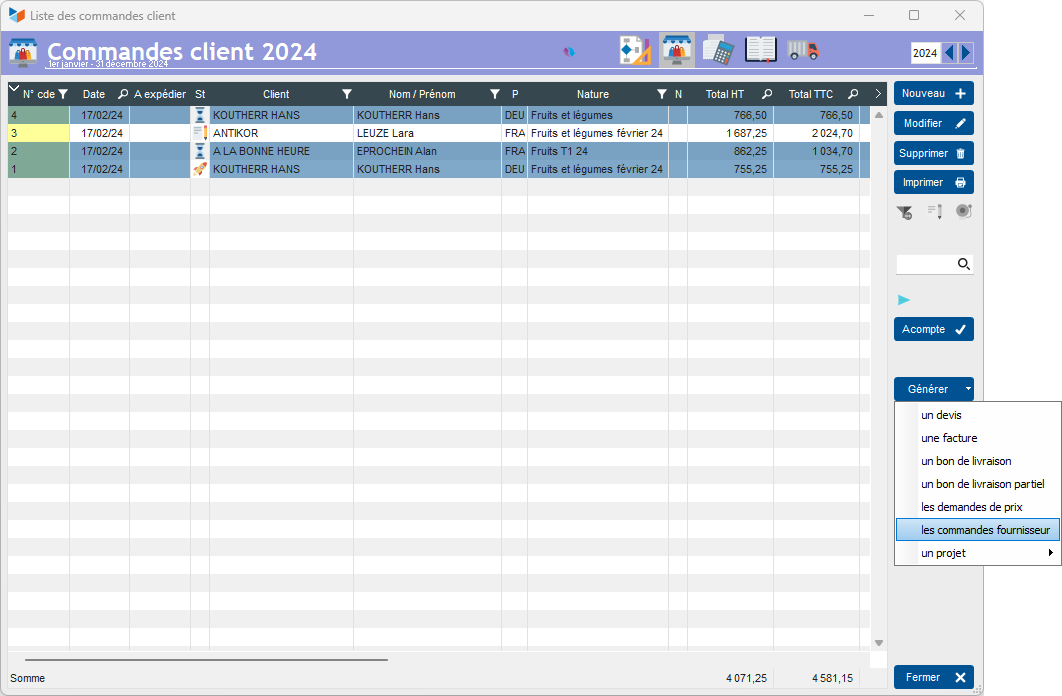
Then use the Generate → Supplier orders button.
Gestan will then ask you to choose a generation option, via the screen below.
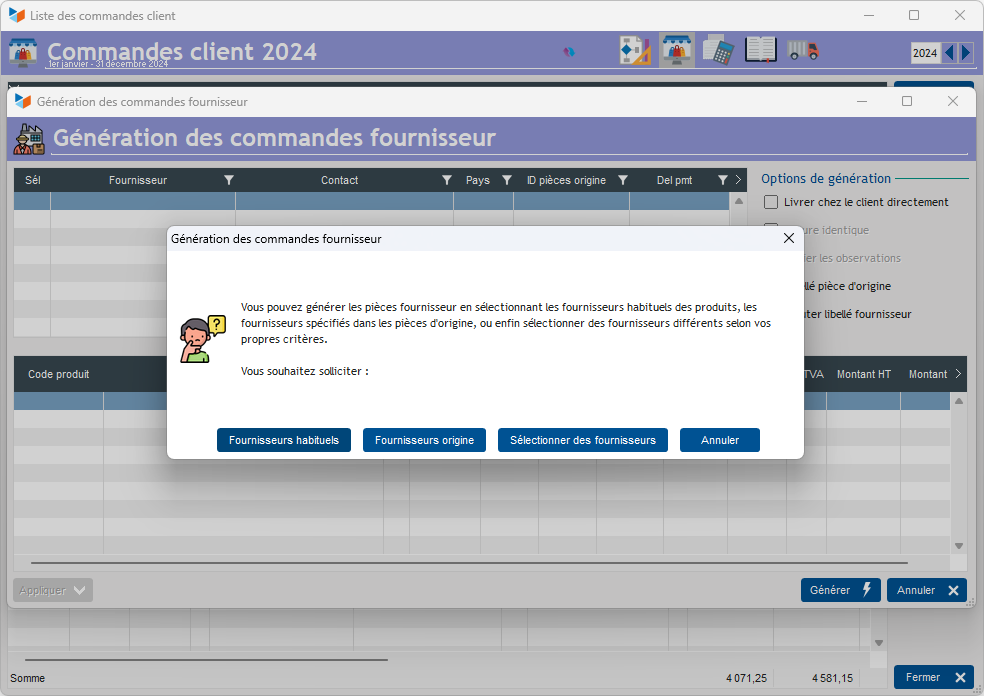
If you choose :
The usual suppliers: Gestan will search for the default suppliers of the products appearing in the sales order selection.
Origin suppliers: Gestan will use the suppliers specified in the selected sales orders.
Select suppliers: Gestan will offer you, for each product, to choose the supplier from whom you wish to purchase, via the supplier selection screen below.
At the end, there will be as many supplier orders generated as different suppliers involved, depending on the option chosen.
The supplier selection screen
This screen is only displayed if there is more than one price for the product considered.
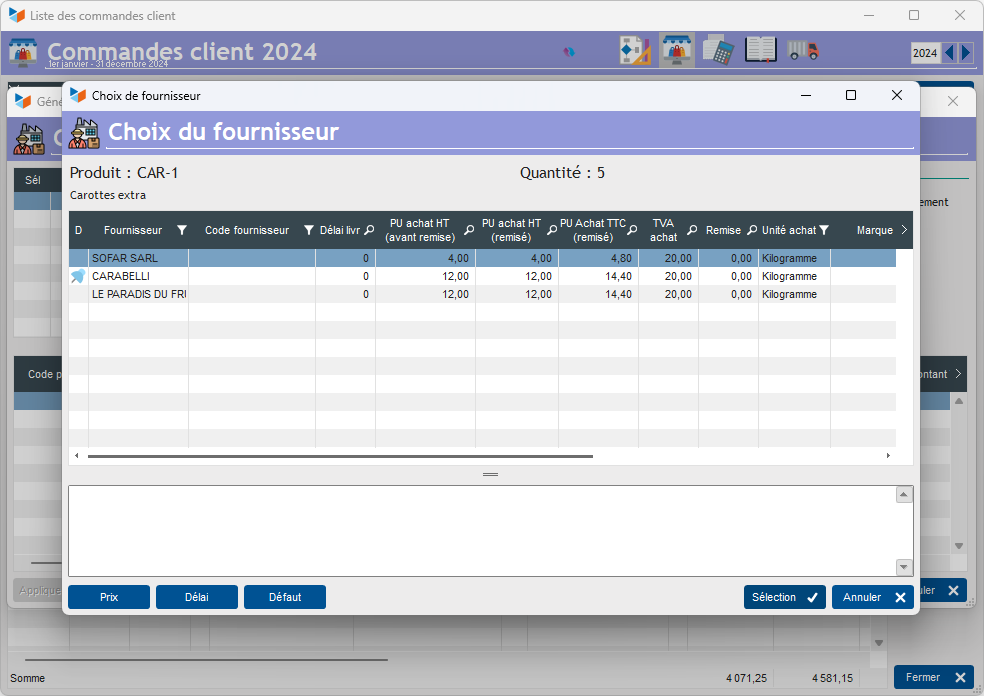
The Price button will select the product at the best price.
The Deadline button will select the product with the shortest delivery time
The Default button will select the default product.
Finally, the Selection button will select the selected product.
The generation screen
This screen is used to generate supplier orders or price requests.
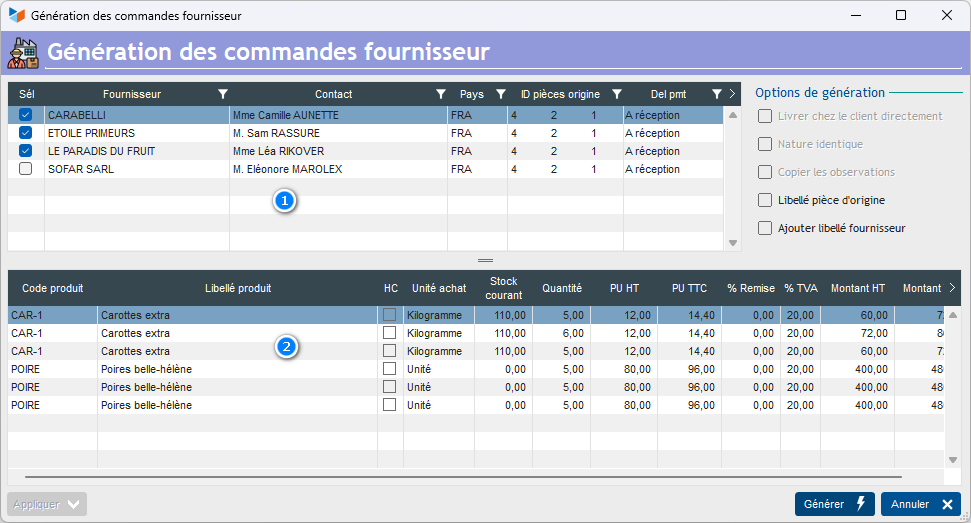
The top table 1 allows you to select (Sel column) the parts you want to generate.
In the lower table 2, you can modify the labels of the document lines, the quantities, the prices, these modifications will be included in the generated document.
The Deliver to customer directly box is displayed in case there is only one customer in the selected sales orders. If it is checked, a title block mentioning the customer's address (where the supplier will need to deliver) will be integrated into the supplier order, as below.

In the “Nature” area of the generated supplier orders there will be a label such as “CC supplies order [3, 6]”, for example, if the original customer orders are orders 3 and 6. If the box Nature identical is checked, the nature will be that of the first customer order.
The Copy observations area is only displayed if only one original sales order was selected. It allows you to copy the observations from the customer order to those of the generated supplier orders.
If the Original part label box is selected, you will be able to modify the product labels in the bottom table. These will be included in the generated parts. Otherwise, the labels will be those of the original part, here the customer order.
The Add supplier label box allows you to add the supplier label to the product label, if it exists in the product sheet.
 Other Billing articles
Billing: common elements
Customer Billing