Import a chart of accounts
 A1 proofreading not yet effective for this page. In the meantime, you can ask any questions on the forum.
During installation, Gestan loads by default a French accounting chart intermediate between the standard and the developed (see below).
But in order to use the appropriate accounting coding in force in your country, it is possible:
- download classic accounting plans
- to import any accounting plan into Gestan via a text file.
This program is reserved for users with administrative privileges. As with all programs performing mass updates, it is recommended to make a backup of the database before use, or to carry out the operation on a test database before launching the operation on a production database.
Downloading charts of accounts
Access: Tools → Accounting settings → Chart of accounts, then context menu of the list of accounts → Download a chart of accounts
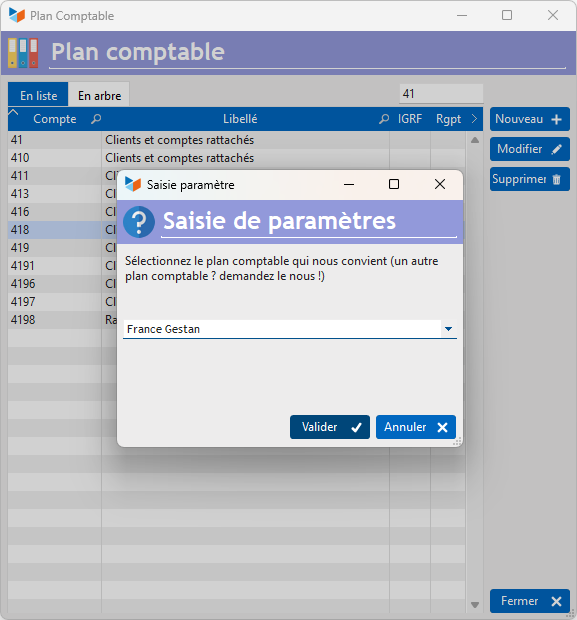
With this option, you can directly download, in the correct format, the following accounting plans:
- Belgium
- France abbreviated
- France developed
- France Gestan
- France standard
- Luxembourg
- Morocco
- OHADA
- Swiss independent
 If your country is not in this list, you can ask your country's tax authorities and send it to us so that we can include it in the files available for download.
Loading a text file
Access: Tools → Accounting settings → Chart of accounts,
then context menu of the list of accounts → Load a chart of accounts
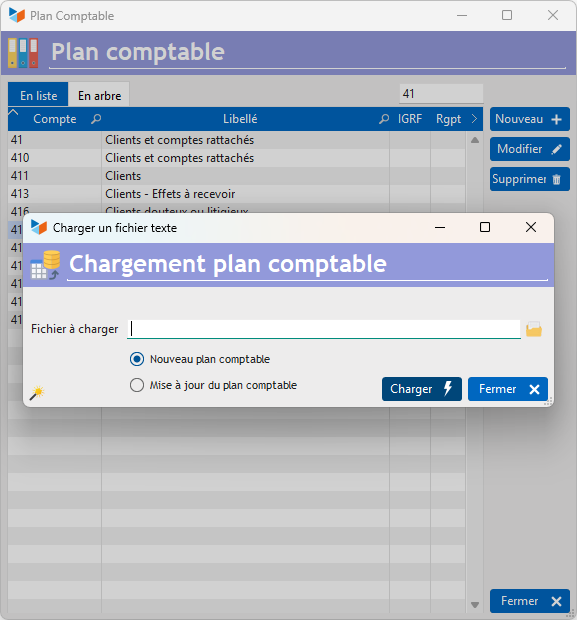
The input file must be a delimited text file (TAB, comma, semicolon, or any other character). To do this, you can use a spreadsheet like LibreOffice Calc or Microsoft Excel (remember to save the file in text format with separator), or even a simple word processor like Notepad, PSPad, NotePad++, etc. It must include, per line:
- the chart of accounts code (15 car maximum),
- the plan wording (100 car maximum).
Any line starting with the character “#” will be considered a comment.
The magic wand allows you to generate a file ready to be loaded.
Select the import file, then the update option:
- Initial loading will cause a deletion of the current chart of accounts, and its replacement with the loaded chart of accounts.
- Updating accounts will cause an update of the accounts: if the account did not exist, it will be created, and if it already existed, its name will be updated.
After any chart of accounts loading
The modification of the chart of accounts is likely to modify the imputations, and the accounting links, if certain accounting codes used by one or the other are deleted by loading the new chart of accounts.
Particularly, if in the account assignments or connections, an account present in the initial chart of accounts was no longer present in the new chart of accounts, it will be updated with the root of the account (for example, if you had an account 401123 in the old plan but not in the new one, it will be replaced by code 4).
After loading a new chart of accounts, you must therefore check the general accounting configuration, the imputations, and the accounting liaisons.
France Gestan accounting plan
The “France Gestan” chart of accounts loaded by default when installing the program is the standard French chart of accounts, in which the following accounts have been added (plan_comptable_france_gestan.txt):
- 44566 deductible VAT on purchases of goods and services
- 44562 Deductible VAT on fixed asset purchases
- 6061 Non-storable supplies (water, energy)
- 6064 Administrative supplies
- 6132 Real estate rentals
- 6135 Movable rentals
- 6226 Fees
- 6251 Travel and travel
- 6257 Receptions
- 6285 Miscellaneous
 Other “Tools” articles
Connection to Gestan
Database minimization
Export Gestan database
Gestan base import
Gestan directory structure
Gestan on a USB stick
Gestan Versions
Import a chart of accounts
Import account assignments
Import contracts into Gestan
Import Google/Outlook/Notes contacts
Import parts into Gestan
Import product translations
Importing data into Gestan
Maintenance of HFSQL files
Mass Parts Removal
Quick start
Reallocation of contacts by region
Reassignment of users
Rebooking entries
Reset additional fields
Reset categories
Resetting files
Tips and tricks
Transfer your data to technical support
Zip the base