Table des matières
SEPA Export
Gestan allows you to generate the XML files to be sent to your bank, so that you can carry out:
- direct debits for amounts owed to you by your customers,
- automatic payments of amounts you owe to your suppliers.
Setting up direct debits from your customers
To collect payments from your customers via SEPA direct debits, you must first obtain an ICS (SEPA Creditor Identifier), which you can request from your reference bank (in France, this is the Banque de France). Enter this ICS in the general settings on Gestan.
Then have each of your customers sign a SEPA mandate: SEPA Mandate Example 1 - SEPA mandate example 2. You can have this mandate signed by post or electronically.
Once the mandate has been signed, open the customer’s record.
First, enter their BIC and IBAN in their record, then select “Direct Debit” as the payment method, and enter:
- the date the mandate was signed.
- the unique mandate reference number (RUM). This is a 35-character identifier.
The ICS/RUM combination must be unique for each contact. You can use a single RUM for all transactions for the customer, regardless of their nature. It is therefore possible, for example, to use as the RUM a description corresponding to the service you provide to the customer, or your company name, together with the date and time of signing, for instance (for your customer, this will be more useful than an obscure code they might find on their bank statement).
📍In theory, a direct debit mandate automatically lapses after 36 months of inactivity.
Generate a direct debit file
Access: Accounting → Export → SEPA Export
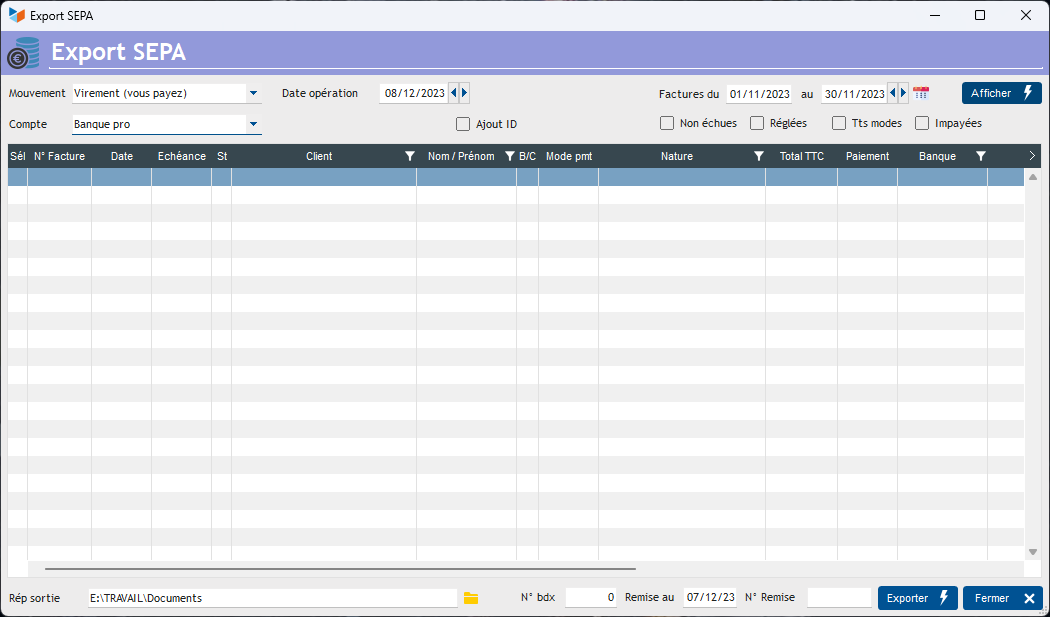
On the screen, select the bank for which you wish to carry out the transaction.
The transaction date (the date on which the direct debit is requested) is automatically set to the day after today’s date. This is because some banks do not accept direct debits on the same day. You can change this if your bank allows it.
Select ‘Direct debit’ as the type of transaction if you wish to generate a direct debit file for your customers, and the Transaction type (Core, B2B, or automatic).
The Add ID allows you to include the document number in the ‘Description’ field. Consequently, the ‘Description’ fields for documents are prefixed with Cxxxx, where xxxx= s the invoice number.
The Not due allows you to choose whether or not to include documents that are past due as at the specified transaction date .
Select a date range.
The Paid, All modes, and Unpaid should always be unchecked, as the first option allows you to view settled invoices as well, the second allows you to view invoices regardless of the payment method (not just for SEPA direct debits), and the third allows you to view invoices marked as unpaid.
When you click on the Displaybutton, the screen is populated with the relevant documents. For example, if you select the “Direct Debit” type, all direct debit invoices within the selected date range are displayed, along with the corresponding SEPA information.
The screen pre-selects the documents that should be included in the remittance. Those that have already been paid, or for which bank or SEPA details are missing, are excluded from the pre-selection.
 Any invoices with errors are displayed in red.
Generating the XML file
The Export button generates a SEPA_xxxxxx_[date]_[time].txt file, which is saved in the output directory. You will need to send this file to your bank, usually via the bank’s backend system.
It is strongly recommended that you print the corresponding FAC5 report to keep a record of the transfer requests issued. This is because, until you have marked an invoice as paid, you can submit a transfer request (you might submit this request twice).
At the end of processing, the programme will ask you if you wish to confirm the submission: this involves saving the SEPA remittance slip number, which will be incremented by 1 for the next submission.
Case of partial payment
Let’s consider the following scenario: your customer asks to pay your €1,000 invoice in instalments.
If you have agreed to this, and, for example, agreed on two payments of 500 euros, simply amend the total amount (including VAT) in the table. This will ensure the export file contains the correct amount to be debited.
However, you will need to remember (you can do this by noting an anomaly on the invoice) that when you receive your bank statement – which usually contains a single line for the entire direct debit file – your customer has paid you 500 euros, not 1,000. When you create a new SEPA file, the partially paid invoice will appear in the list for the remaining amount, in this case 500 euros.
Checking recurrence
The SEPA standard includes the concept of recurrence: when this standard was first implemented, it was necessary to process separately customers being debited for the first time, those being debited for the last time, as well as those debited on a recurring basis and those on a one-off basis.
Customers being debited for the first time, but who are to be debited on a recurring basis thereafter, had to be processed using the ‘FIRST’ method. The process then had to switch to ‘RECUR’, followed by ‘FNAL’ for the final debit. For a one-off debit, the method is ‘OOFF’.
Normally, the sequence of FIRST followed by RECUR is no longer mandatory: you can submit your requests directly as RECUR. However, some banks may still adhere to this standard.
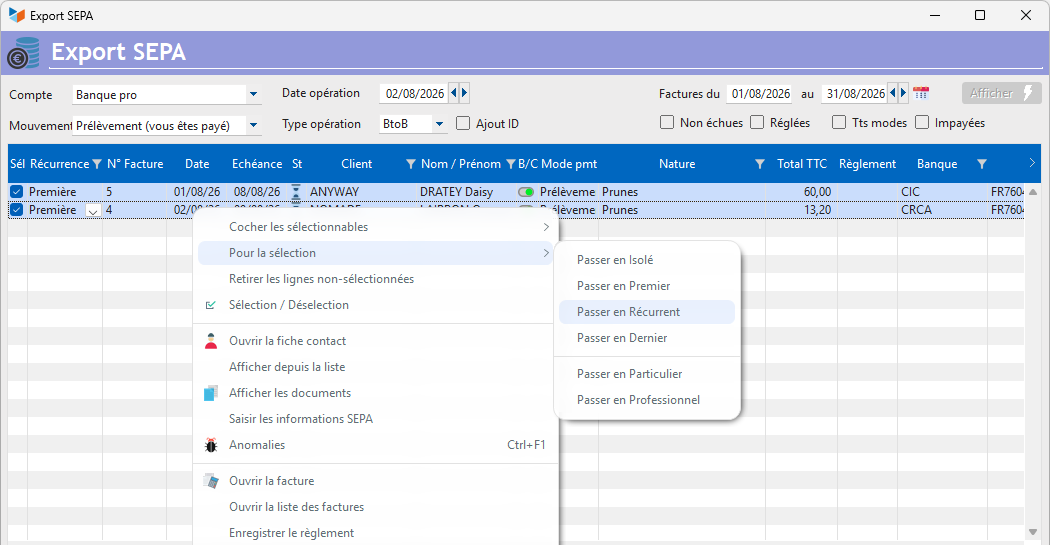
Gestan Calculates the likely recurrence: if an invoice preceding the invoice in question is found with direct debit as the payment method, the recurrence is set to RECUR; otherwise, it is set to FIRST. However, the operator must check the recurrence status and flag any FNAL or 00FF direct debits.
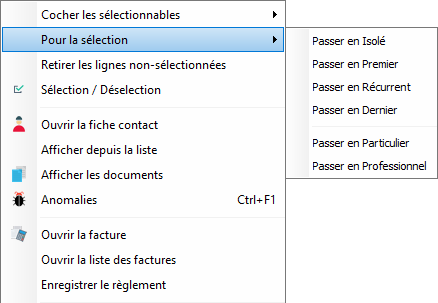
The table’s context menu allows you to set a selection of direct debits to the chosen recurrence type.
The SEPA standard
The SEPA (Single Euro Payments Area) standard is a European standard that harmonises credit transfers and direct debits in euros. It enables financial transactions to be carried out throughout Europe: the 27 Member States of the European Union, the member countries of the European Economic Area (Iceland, Liechtenstein, Norway), and certain third countries (the United Kingdom, Switzerland, Monaco, San Marino, Andorra and the Vatican).
It is based on XML files compliant with the ISO 20022 standard, which enable the following:
- SEPA credit transfers (SCT – SEPA Credit Transfer): transfers from one account to another within one working day.
- SEPA instant credit transfers (Inst-SCT): transfer of funds in under 10 seconds (now the mandatory standard for both sending and receiving payments for all European banks).
- SEPA direct debits (SDD – SEPA Direct Debit), in the Core version (for private individuals) and the B2B version (for businesses): used to settle recurring invoices.
Since 2026, the migration to ISO 20022 has required a strict structure for postal addresses in financial transactions to enhance compliance.
The history of this standard is remarkably chaotic: until 2014, banks used the CFONB format (still used for certain transactions). It was a flat, simple and readable file. However, the European authorities – in this case the EPC (European Payments Council) – decreed that a more complicated system was needed, and created the SEPA format, based on XML, which was very much in vogue at the time.
Very poorly designed from the outset, the SEPA standard was amended as things progressed, with the major absurdities being removed in response to protests, but its adoption, originally scheduled for 1 February 2014, had to be postponed by six months. Our developers still remember the hair they lost back then!
The result is that anyone with your account number can include it in a direct debit file and thus debit your account, as banks do not carry out SEPA mandate checks. You will only be aware of the transfer once it has been carried out. In the event of a state going bankrupt, this is what would allow it to directly debit your bank accounts without your consent. Don’t laugh – this is exactly what happened in Chypre in 2013.
Reference: Comité French Organisation for Banking Standardisation – CFONB
Automatic processing of payments
Access: Accounting → Export → Direct Debit Import
Once you have sent your direct debit file to your bank, the bank carries out the agreed direct debits and notifies you of any rejections, particularly those due to insufficient funds.
Gestan This feature allows you to automatically process the XML direct debit file you sent to the bank by automatically recording the payment of the corresponding invoices for those direct debits that were not rejected. This saves valuable time when processing large numbers of invoices!
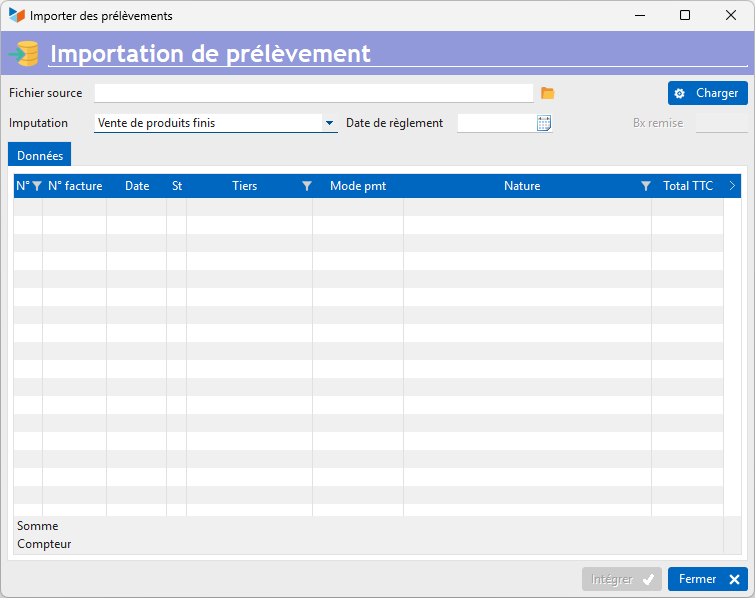
Select the Source file, the XML file you sent to your bank for payment processing.
From the drop-down menu, select theaccount to which the direct debit file corresponds.
The settlement date is the date on which the payment was credited to the account.
The Load triggers the upload of the file’s contents.
In the table, the invoices set up for direct debit and included in the file appear as they do on the statement generated from Gestan
Remove from the table all payments rejected by the bank, using the Delete a row option in the context menu.
The Integrate button will initiate the process:
- the status of the corresponding invoice will be set to “Paid”;
- a payment entry will be automatically generated, settling the invoice.
(Thank you, Marie-Astrid, for this idea  )
ℹ️ Other “Accounting” articles
Arrêtés de TVA
Balance
Balance tiers
Calcul de la TVA
Certification des logiciels de caisse
Clôture comptable / Exercices comptables
Comptabilisation des DEEE
Comptabilisation des écritures
Comptabilité avec Gestan : principes de base
Comptabilité en partie double
Compte bancaire et de caisse
Compte de résultat
Créances irrécouvrables
Encaissements/Décaissements
Export CFONB
Export SEPA
Export XIMPORT des données comptables
Facturation par taux de taxe
Grand Livre
Immobilisations
Imputations comptables
Journal
Journaux comptables (codes)
Lettrage
Liaisons comptables
Liaisons en masse : écritures
Micro-Entreprise / Auto-Entreprise
OD (opérations diverses)
Options des documents comptables
Paramétrage comptabilité
Pièces sans imputation
Plan comptable
Pointage TVA
Produits et Charges
Rapprochement bancaire
Relevés de compte bancaire
Remise de chèques
Revue des écritures
Soldes de gestion
Taux de TVA
Ticket Z
Trésorerie prévisionnelle *
Trésorerie simplifiée
Ventilation des factures par échéances
Ventilation des écritures
Ventilation détaillée par taux de taxe