Intermediation (practical case)
 A1 proofreading not yet effective for this page. In the meantime, you can ask any questions on the forum.
The process
 Let's study the practical case of intermediation.
For example, you are the company MaSociété, and you carry out intermediation work with your client MonClient, and the suppliers you work with.
The process takes place as follows:
- MyClient expresses a request to you, your work begins by searching for suppliers able to satisfy it.
- You find Supplier1 and Supplier2, who each offer a part of the expected service, and you place an order with them on behalf of MyClient.
- You receive orders from both suppliers, who both send you their invoice.
- At the end of the month, you make a note that you send to MyClient, which summarizes the amount of the invoices from the two suppliers, plus your intermediary work
- MyClient pays you this bill
- You in turn pay the two suppliers and the deal is closed.
How to do it with Gestan
Supplier parts management
Via the supplier parts management module 1), you can start by sending a few price requests to your listed suppliers.
Then, you select the most interesting offers from the responses and you generate the corresponding supplier orders, from the price requests if you had made them, or directly in the opposite case.
Right-clicking on the supplier order address allows you to select a delivery contact, which will be MyClient.
When you receive the content of your two orders (or they are completed if they are services), you can possibly issue a receipt, depending on your company's practices.
Then, you receive the invoices from your two suppliers: via the list of orders, you check that they are compliant, and if this is the case, you save it with a single click, either from the order or from from the receipt if you have made one.
Customer parts management
At the end of the month, at the end of your mission, or at any other time according to the terms of the contract which binds you to MonClient, you will invoice MonClient for the amount of the orders that you have placed on its behalf, and invoice the amount of your service.
To do this, you go to the list of supplier invoices, select the invoices which correspond to the services of Supplier1 and Supplier2 for MyClient, and click on the Generate → a customer invoice button. This will generate a single customer invoice from your two supplier invoices. An intermediate screen allows you to select the end customer for this new invoice.
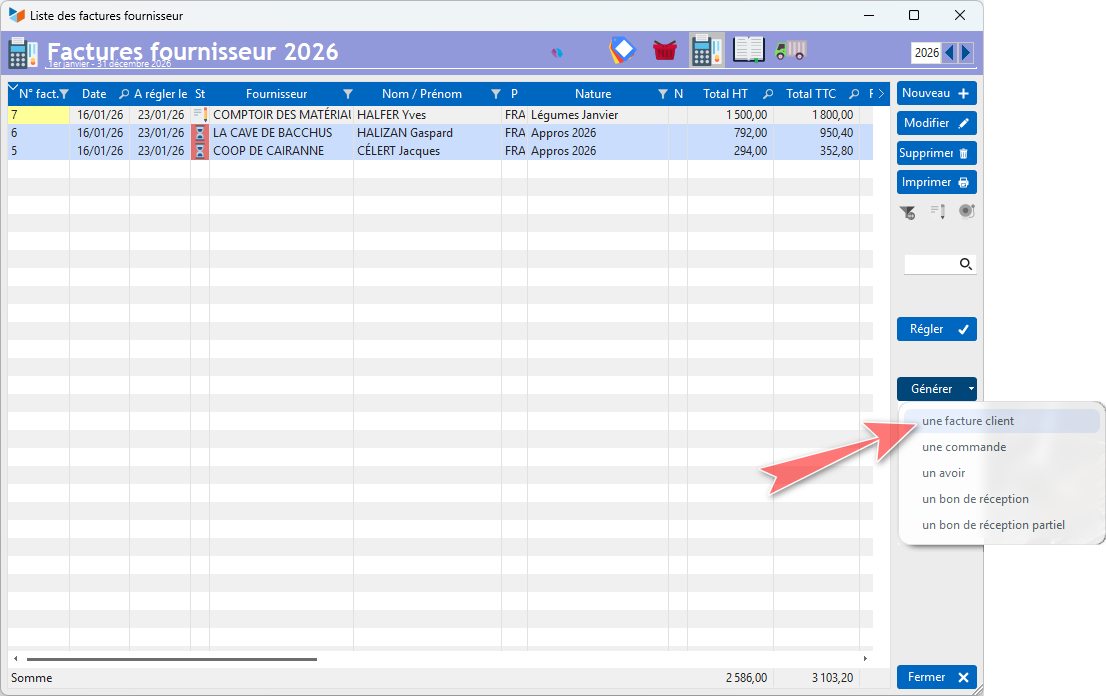
You will then be able to:
- add an additional line, which will be the line corresponding to the valuation of your intermediation work, and transmit it as an invoice;
- send it as is to your client (with a right click, you can change the title from “Invoice” to “Disbursement note”, for example), and generate a separate invoice for the valuation of your work intermediation;
- manage this in two different times, which is possible by diverting the use of quotes or customer orders.
In terms of VAT, depending on your agreements, you can set the VAT on supplier service lines to zero in the customer invoice. In fact, you have or will pay the suppliers incl. VAT, MonClient making you a simple reimbursement of the advance that you have granted for it. MonClient will pay you net disbursements, and your service including VAT, if you are subject to it.
Traditionally via the list of customer invoices, you can record any corresponding stock movements, and note the payment via the collection button.
- choose the type of part you want to use, either quote or customer order
- via the translation of the labels, translate “Quotation” (or order) into “Disbursement note” (or the term that applies and suits you)
- from the supplier invoices concerned, generate a customer invoice (and leave it in draft status).
- from the customer invoice, generate a “Quotation” (or order) → you can send it directly to the customer as a “Disbursement note”
- return to the customer invoice, replace all the original lines with a single line corresponding to the amount of your service → you can now send it as an invoice to your customer
- when your customer pays your invoice, you can cash the invoice via the “Cash” button, then via the genealogy find the two “quotes” (or order) linked to the invoice, and declare them as “accepted” if they are quotes, “validated” if they are orders, which makes it possible to visually demonstrate that the costs have been reimbursed.
 Other Billing articles
Billing: common elements
Customer Billing
Supplier Billing