Tips and tricks
 A1 proofreading not yet effective for this page. In the meantime, you can ask any questions on the forum.
Here are some tips and tricks valid for most Gestan screens.
Show/hide table columns
Clicking on the pictogram located at the top left of the tables allows you to select the columns that you wish to display, or not.
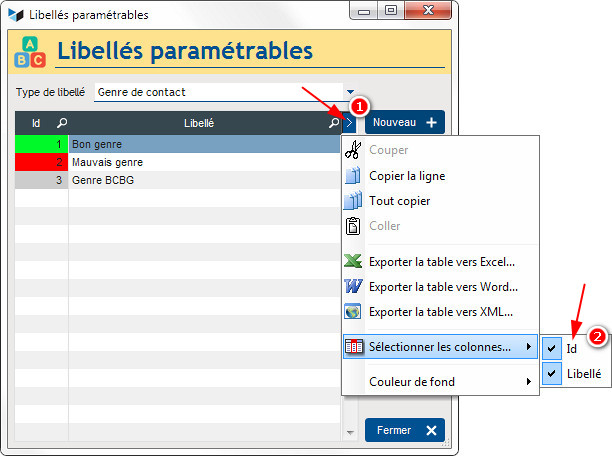
For example, here click 1 to bring up the table context menu, then click 2 to not display the ID column.
Hover help
Most of GESTAN's buttons have explicit wording that makes them easy to understand. For some others, less obvious, just hover the mouse over it, displaying the corresponding help bubble.
?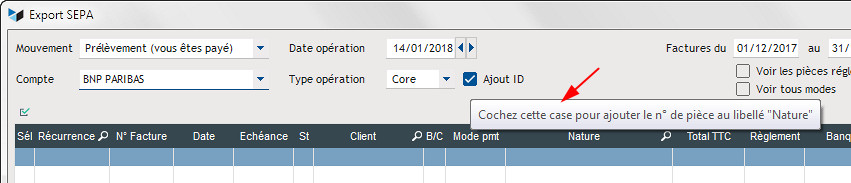
Above is the tooltip for the Add ID checkbox. Its still clearer!
Right click
At Gestan, we love right-clicking, it avoids putting buttons everywhere.
Practically on all tables, but also on many fields (in particular, the configurable combos all include, unless forgotten on our part or normal restriction, the menu add an item), the right click displays a menu with very wide possibilities, remember to check it out!
Comments without formatting
Many Gestan screens have free comment areas.
You can simply copy and paste from any document (Open Office, Office, website, etc.).
If you copy and paste using Ctrl-C, the formatting will also be copied. In case you don't want this, use the small “Paste” button on the comment box toolbar, or use the shortcut Ctrl+Shift+V
Phone number format
Gestan comes with the list of most countries in the world.
The country file includes a telephone mask, which allows you to format the telephone numbers of contacts and companies according to the country of the address. For example, for French telephone numbers, declare a mask 99-99-99-99-99 in the France country file.
The country sheet also includes the country's international telephone code, such as 33 for France. If you are not in that country, the area code will be displayed in front of the telephone areas, so it is never necessary to enter the international dialing code into telephones.
Search and sort in table columns
 ?
?
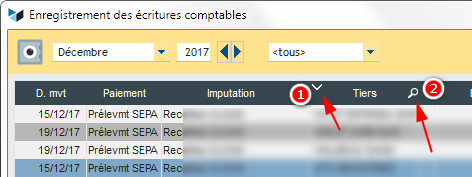
Clicking on header 1 of a table column sorts the table according to the column. The presence of a small magnifying glass 2 allows you to search the table.
Note that this does not work on all tables, because some tables are directly connected to the files. This only works on tables powered by programming.
But it is possible to go even further.
 ?
?
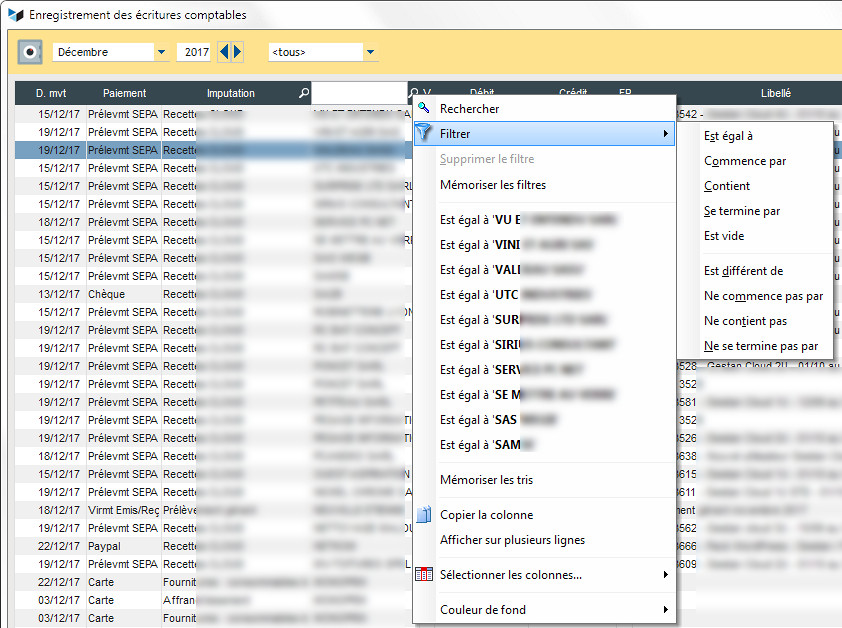
In this example, the column header has opened and allows a direct search by typing the requested value. And the context menu of the small magnifying glass allows you either to specify a direct filter, or to specify an elaborate filter, such as “Contains the channel”.
 Other Tools articles
Connection to Gestan
Database minimization
Export Gestan database
Gestan base import
Gestan directory structure
Gestan on a USB stick
Gestan Versions
Import a chart of accounts
Import account assignments
Import contracts into Gestan
Import Google/Outlook/Notes contacts
Import parts into Gestan
Import product translations
Importing data into Gestan
Maintenance of HFSQL files
Mass Parts Removal
Quick start
Reallocation of contacts by region
Reassignment of users
Rebooking entries
Reset additional fields
Reset categories
Resetting files
Tips and tricks
Transfer your data to technical support
Zip the base