VAT Calculation
This screen uses accounting data to calculate VAT, starting from the date of your choice.
Using the screen
Access: Accounting → Accounting Documents → VAT

The Generate button triggers the VAT calculation for the specified date range.
Once the calculation is complete, if no transactions were found to be incorrect, the VAT statement is saved: this is the amount of VAT due or to be deducted, taking into account the VAT balance from the previous month.
VAT Details tab
The VAT breakdown is shown in the left-hand table, whilst the totals to be used for the return are shown in the right-hand table.
The table of irregular transactions displays any entries that are unaccounted for or unjustified.
Turnover Details tab
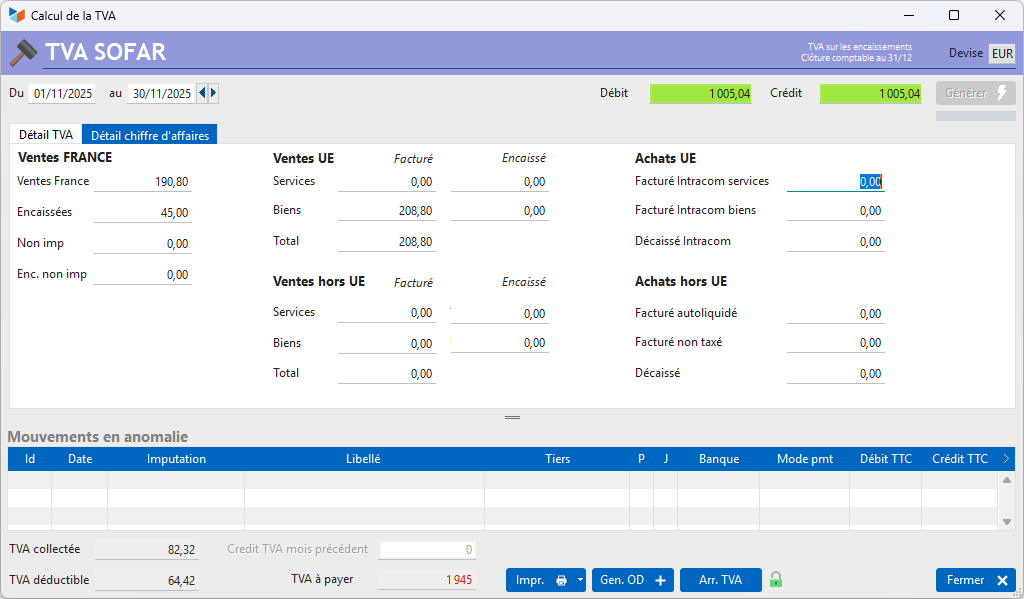
This pane shows the breakdown of VAT into different categories: domestic sales, EU sales and non-EU sales.
Bottom of screen

The field 1 shows the VAT balance for the previous month, whether a credit or a debit.
The Print button allows you to generate a detailed report of the entries taken into account for the VAT calculation (ECR7) as well as the CA3 form (France).
The Generate VAT Return button generates the VAT adjustment note for the selected period. Any difference between the rounded VAT amount declared on the CA3 form is carried forward to the ‘Other current operating losses or gains’ account.
VAT Rounding* opens the list of VAT statements.
First VAT statement
If you have never recorded a VAT statement, the screen will prompt you to create your first VAT statement, on the most appropriate date, calculated based on your first payment out/payment in, or the date of your first invoice.

Printing the detailed ECR7 list
In the ECR7 report, the account statement varies depending on the VAT options:
- Under the ‘VAT on receipt’ method, on the sales side, all business seats credited to the accounts are recorded, and on the purchases side, all business seats debited from the accounts are recorded
- for VAT on debits, the sales side shows a list of the amounts for all outstanding customer invoices for the date range, plus a list of business entries credited to accounts not linked to invoices, and the purchases side shows all business entries debited to the accounts
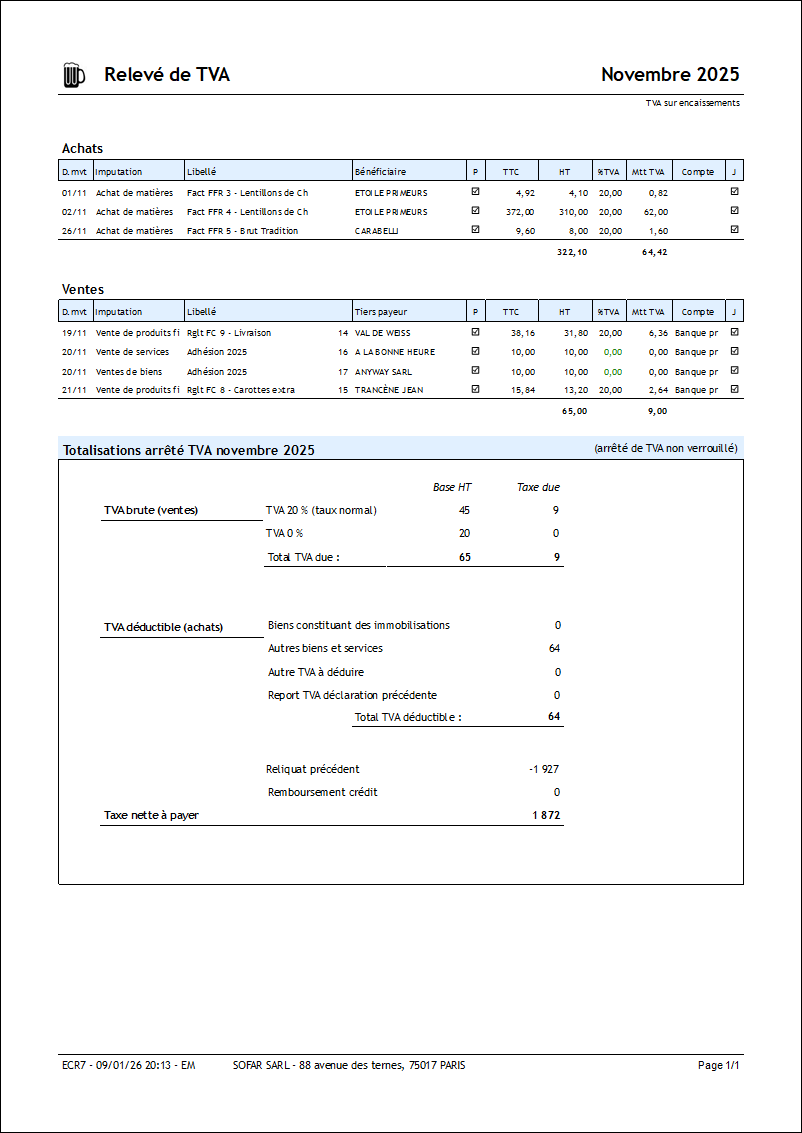
Printing the CA3 return
You can generate the VAT form No. 3310-CA3-SD valid for France (CERFA No. 10963*25).
Prerequisites : Create an account for input VAT and output VAT for each type of VAT you use (for both purchases and sales), via the VAT rates screen (example below).

Example of CA3 – 2022 version
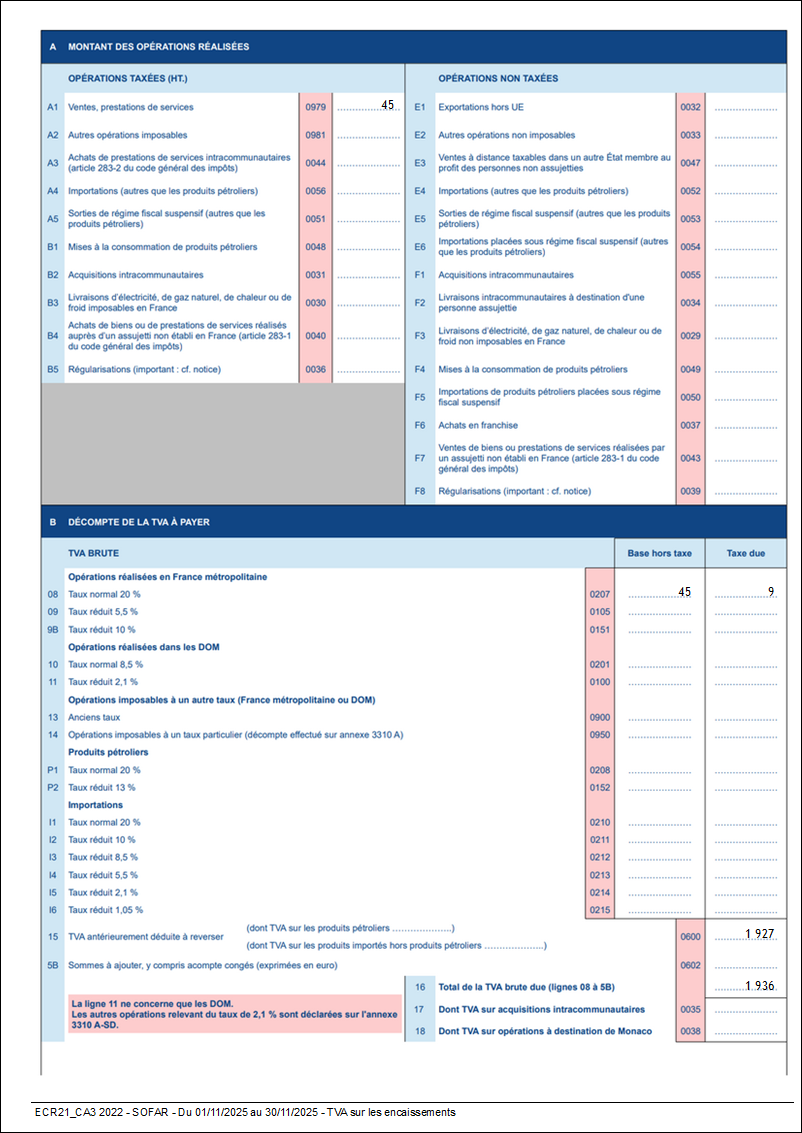
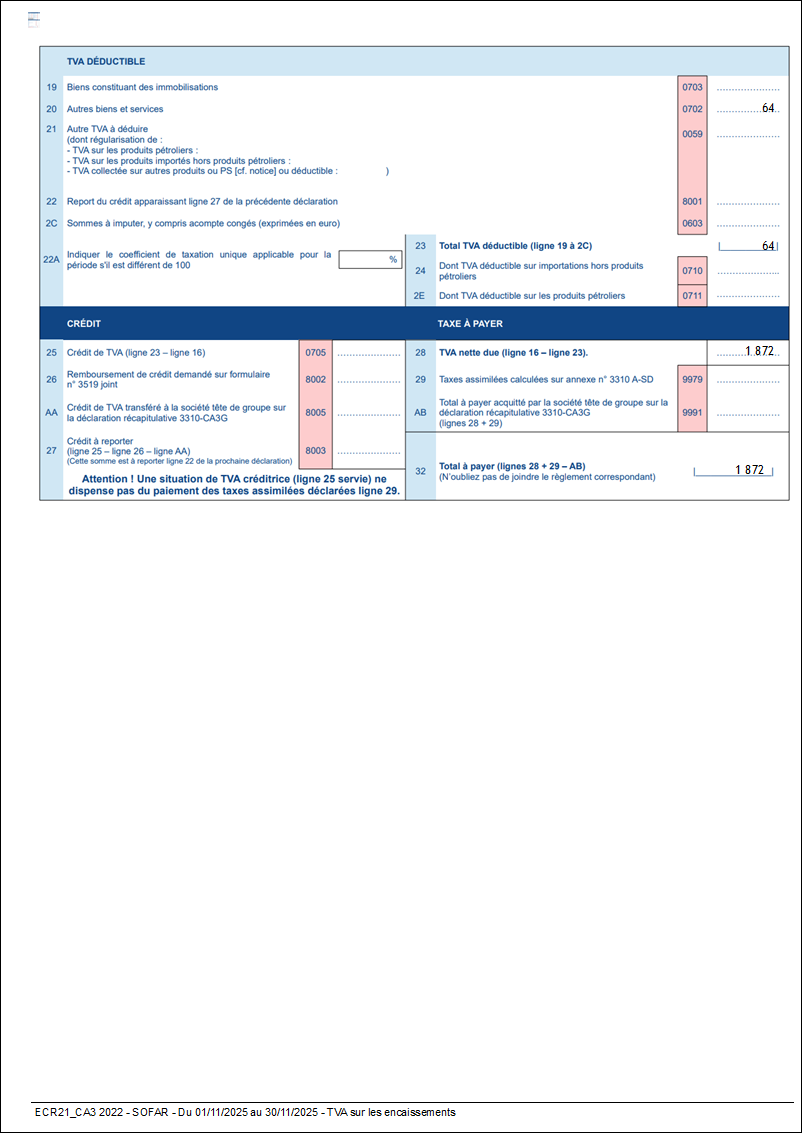
 In this CA3 report:
- all sales in France and the French Overseas Departments (GLP, MTQ, PYF, REU, MCO) subject to VAT are grouped in box A1,
- box A3 shows services within the EU
- box A4 shows taxed imports
- Box B2 shows purchases of goods from the EU
- Box E1 shows exports outside the EU and to the French Overseas Departments (DOM) at 0 per cent
- Box E2 shows non-taxable sales in France plus sales of services to the EU, French Guiana and Saint Martin
- Box E4: untaxed imports
- Box F2: sales of goods within the EU, French Guiana and Saint Martin
- The other boxes in Section A are not filled in automatically.
The accounting method (cash basis or accrual basis) is applied to all sales.
 Other ‘Accounting’ articles
Arrêtés de TVA
Balance
Balance tiers
Calcul de la TVA
Certification des logiciels de caisse
Clôture comptable / Exercices comptables
Comptabilisation des DEEE
Comptabilisation des écritures
Comptabilité avec Gestan : principes de base
Comptabilité en partie double
Compte bancaire et de caisse
Compte de résultat
Créances irrécouvrables
Encaissements/Décaissements
Export CFONB
Export SEPA
Export XIMPORT des données comptables
Facturation par taux de taxe
Grand Livre
Immobilisations
Imputations comptables
Journal
Journaux comptables (codes)
Lettrage
Liaisons comptables
Liaisons en masse : écritures
Micro-Entreprise / Auto-Entreprise
OD (opérations diverses)
Options des documents comptables
Paramétrage comptabilité
Pièces sans imputation
Plan comptable
Pointage TVA
Produits et Charges
Rapprochement bancaire
Relevés de compte bancaire
Remise de chèques
Revue des écritures
Soldes de gestion
Taux de TVA
Ticket Z
Trésorerie prévisionnelle *
Trésorerie simplifiée
Ventilation des factures par échéances
Ventilation des écritures
Ventilation détaillée par taux de taxe