Accounting with Gestan: basic principles
 Whilst the accounts of a small business can be managed using a simple spreadsheet, once the business reaches a certain scale, or the business owner is responsible for employees, it is essential to engage a professional accountant, whether in-house or external: they ensure that accounts comply with accounting and tax standards, and provide valuable support for the company’s strategic decisions.
From generating ‘basic’ accounting results to producing detailed financial statements, Gestan can support you in all scenarios. Gestan ’s accounting tools make data entry accessible to all administrative staff, without the need for accounting training. The bank reconciliation tool and the journal entry verification tool ensure that the ledger is always accurate, providing real-time accounting data.
The accounting data entered can be exported from Gestan in the native format of the accountant’s software, meaning they will no longer need to re-enter any data. They can then focus on their added value: verifying the compliance of the accounts, producing tax documents, analysing the balance sheet and providing management advice.
With Gestan, you’ll come to love bookkeeping!
 To find out more: General overview of the accounting functions in Gestan .
The “Accounting” settings
Gestan are initialised with a default chart of accounts. Via the chart of accounts, you can modify all accounts or load a different chart of accounts, depending on your country. The OHADA chart of accounts is available.
The accounting configuration is based on a few simple screens:
- the configuration of classes and accounts, which allows you to define accounting classes (if different from the default ones), journals and specific accounts to be used;
- the configuration of accounting journals, which is very straightforward;
- setting up VAT rates, and any accounting codes linked to them;
- the accounting allocations, which allow you to link a transaction type (for example, ‘Office rent’ or ‘Market sales’) to the accounting codes selected for the transaction;
- Configuring, where applicable, accounting links, to allow for a more detailed breakdown of the classification.
 We recommend that you carry out this configuration – particularly the cost allocations and any accounting links – in consultation with your accountant. If necessary, the Gestan teams are on hand to assist you with this configuration (see assistance accountant).
The “Accounting” workflow
Gestan allows you to enter any sales document (invoices, customer credit notes) or purchase document (invoices, supplier credit notes), as well as any cash receipts or payments, whether or not they are linked to these documents.
Entry of journal entries is carried out in three simple steps:
1 – Entering cash receipts/payments
The first step involves entering cash receipts and payments; for example, ‘I have paid 1,000 euros in monthly office rent’, or ‘a particular customer has paid me for a specific invoice’.
This is normally done as and when transactions occur (which gives you a real-time view of your cash flow), via the ‘List of Entries’ screen in “normal mode”.
Account codes (i.e. a clear description indicating the nature of the expense or income, for example “EDF”, “Car park” or “Business income”) allow these to be automatically linked to the appropriate accounting codes.
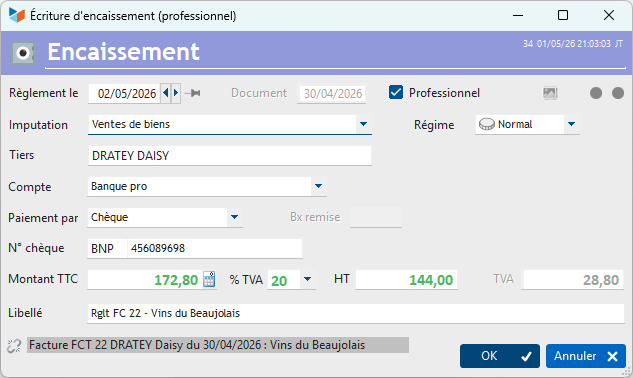
Entries can be broken down, i.e. to take account of their composite nature in terms of accounting and VAT.
 Find out more about entering journal entries
Find out more about the ventilation des écritures
Find out more about the posting of journal entries
2 – Reconciliation (bank reconciliation)
The reconciliation of journal entries, or bank reconciliation, is carried out upon receipt of your bank statement.
This involves, using “reconciliation mode” on the transaction list screen, to check that the transactions you have entered are fully consistent with those recorded by your bank and shown on the bank statement.
Find out more about using “reconciliation mode” on the transaction list screen
Find out more about managing bank statements
3 – Checking supporting documents (VAT reconciliation)
This step involves checking that, for every receipt or payment affecting VAT – whether it be an expense for a restaurant, transport, equipment, etc. – the company is in possession of the corresponding supporting document: restaurant bill, motorway toll receipt, supplier’s invoice.
Sales transactions are automatically considered to be supported by documentation: as soon as you have received a payment including VAT following an invoice recorded in Gestan, the transaction is deemed to be supported, since by definition you are in possession of the invoice.
Find out more about justification of entries (VAT reconciliation)
VAT return
All entries, duly reconciled and justified, form the basis that will enable you to submit your VAT return with absolute accuracy, thanks to the quality of the data entered at an early stage.
The VAT return programme generates:
- a report detailing the entries taken into account for the calculation
- the pre-filled CA3 return (CERFA France).
No more tedious calculations on the evening of the 18th of the month!
Find out more about the VAT calculation programme
Find out more about the VAT returns
Data generated by Gestan
This data entry and verification process provides you with reliable accounting data in real time:
- the journal entries
- the General Ledger
- the balance sheet
- the third-party balance sheet (customer balance sheet)
When generating the balance sheet, this data can be sent to the accounts department in several ways:
- by exporting invoices and journal entries with a simple right-click on the relevant screens;
- 😍 via the XIMPORT export, which generates files that can be directly imported into the software used by your accounts department, thereby eliminating the need for re-entry. This is the recommended method.
Find out more about automatic allocation of accounting codes
Year-end closing
At the end of the financial year, you can then generate a closing balance sheet using Gestan.
Furthermore, it is possible to enter management balances to take into account, for example, balances calculated for the previous financial year by another accounting software programme.
Find out more about the closing balance sheet
Multi-currency management
Gestan allows you to work with multiple currencies: for example, a company may have customers who pay in euros and others in dollars, whilst it pays some suppliers in euros and others in dollars.
The principle is that all data will be recorded in the reference currency, which you have selected in the general settings as the most common sales currency. Where necessary, the display currency and the exchange rate will be stored in the same record.
Customer Invoicing
When you enter your products into your catalogue, you enter them in the reference currency (the one specified in the general settings). You will therefore generate customer invoices in the reference currency.
If your customer’s currency is not your reference currency, you must issue your customer invoice in the customer’s currency. To do this, the context menu for the list of invoices contains the option Specific Options, which opens the screen shown below.
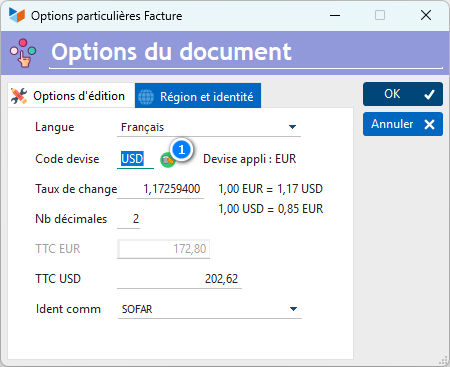
You can enter the ISO code for any currency in the Currency code field and use the 1 button to retrieve the current exchange rate (from the ECB website). You can also enter the exchange rate manually. When printed, the invoice will be printed in the reference currency.
Upon payment, you will receive a payment in the customer’s currency, which will be indicated on the payment confirmation pop-up.
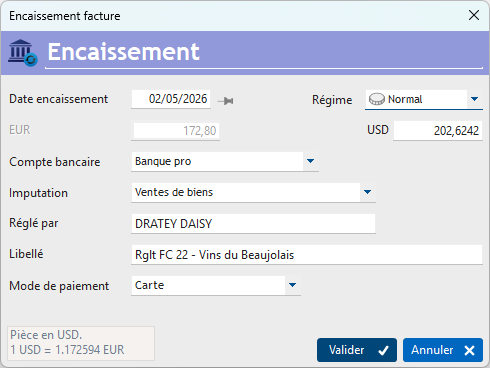
In the event of a significant change in the exchange rate between the invoice being issued and payment being received, it may be necessary to make an entry for exchange rate fluctuations.
Supplier invoicing
For suppliers, the same principle applies, but in reverse.
Supplier rates will be managed not in the suppliers’ currency of choice, but in your reference currency.
When you post the supplier’s invoice, you post it in your reference currency and convert it using the exchange rate specified by the supplier, or the exchange rate at the time of payment, depending on the purchase agreement.
Accounting documents
All accounting documents can be expressed in the currency of your choice.
To do this, simply select the currency via the context menu of the field Currencyfield. Below, for example, is the screen for generating accounting journals.

Operating modes with an external accountant
There are three standard operating modes, ranging from manual to automatic:
1-Transmission of invoices only
You only record customer invoices and their payments. You simply submit the list of invoices and their status (paid or unpaid) by right-clicking on the list (you can also use the TRANSCOMPTA extension).
You will also need to send your supporting documents (supplier invoices, expense claims, etc.) in paper or scanned form for verification.
2-Submission of invoices and journal entries
You record your customer and supplier payments in Gestan, and you reconcile and verify the supporting documents. You send your accountant the list of customer invoices with a simple right-click, and the list of journal entries using the same right-click (you can also use the TRANSCOMPTA).
You send them the supporting documents in paper form or as scans at a later date, possibly on the financial year-end date
3-Automatic transmission, in your accountant’s software format
As in the previous case, you record your customer and supplier payments at Gestan, reconcile and verify the documents, and automatically export all your accounting data in the format compatible with your accountant’s software. This means your accountant no longer needs to enter any data manually.
We recommend this method, after having, in consultation with your accountant, configured the accounting allocations in Gestan according to the desired ‘level of detail’.

ℹ️ Other “Accounting” articles
Arrêtés de TVA
Balance
Balance tiers
Calcul de la TVA
Certification des logiciels de caisse
Clôture comptable / Exercices comptables
Comptabilisation des DEEE
Comptabilisation des écritures
Comptabilité avec Gestan : principes de base
Comptabilité en partie double
Compte bancaire et de caisse
Compte de résultat
Créances irrécouvrables
Encaissements/Décaissements
Export CFONB
Export SEPA
Export XIMPORT des données comptables
Facturation par taux de taxe
Grand Livre
Immobilisations
Imputations comptables
Journal
Journaux comptables (codes)
Lettrage
Liaisons comptables
Liaisons en masse : écritures
Micro-Entreprise / Auto-Entreprise
OD (opérations diverses)
Options des documents comptables
Paramétrage comptabilité
Pièces sans imputation
Plan comptable
Pointage TVA
Produits et Charges
Rapprochement bancaire
Relevés de compte bancaire
Remise de chèques
Revue des écritures
Soldes de gestion
Taux de TVA
Ticket Z
Trésorerie prévisionnelle *
Trésorerie simplifiée
Ventilation des factures par échéances
Ventilation des écritures
Ventilation détaillée par taux de taxe